Resources are assigned to Tasks from the Gantt.
Triple click on the Assigned Resources cell and select a team member to assign.
Click OK and remember to Save any changes.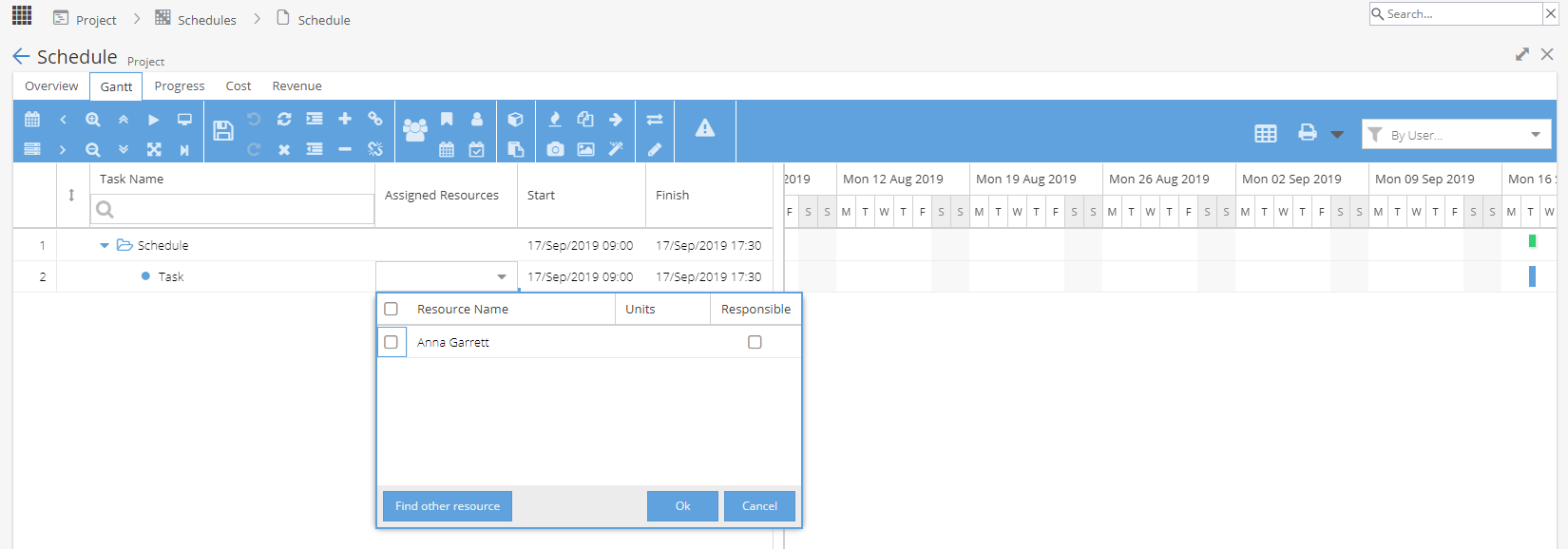
Resources need to be a part of the Project Team to work on Tasks, so if someone is not appearing follow the steps below to check they are on the Project:
Check Project > Project Home > Team tab.
-
This screen will be the default view for the Team tab.

If the user is showing as part of your team you will be able to assign them to a Task from the Gantt.
Note: Check the End Date shows as expected - If this needs to be extended see notes below.If the user does not show on this tab, look at Expired Assignments.
-
Change the drop down on the top right to show team members with expired assignments.

To make the resource assignment active again the end date needs to be extended, see notes below.
When you now go to the Team tab, click Refresh and the user should show under Current Assignments.
Now the user is showing as part of your team you will be able to assign them to a Task from the Gantt.
If the user does not show on this tab check Project > Admin > Project Users tab. -
Go to the Project > Admin > Project Users tab.
Change the drop down on the top right to show All (or Invalid) and look to see if your Resource shows as Inactive:
Double check the Team Members column on the far right shows the green tick.
If a user shows in this list without a tick, they have been granted access to the Project and need to be allocated to the Project before they can work on tasks.
A user will often show as Inactive if a Project was closed.
When closing a Project users are usually released from their Project Assignment unless this option is unticked: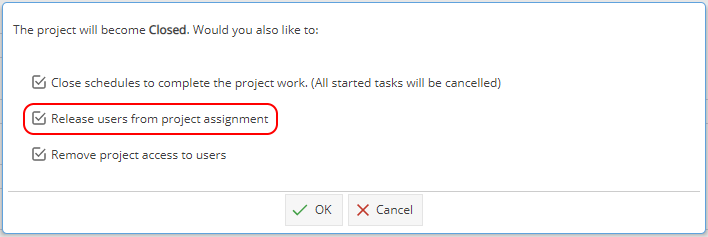
If a Project is re-opened for further work, you need to update the users.
Select a user from the Project Users tab (the row will highlight yellow) and then click Activate
A pop up box will appear asking you to confirm: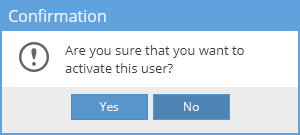
Now when you go back to your Team tab and click Refresh the user should appear.
Once the user is showing as part of your team you will be able to assign them to a Task from the Gantt. -
The Resource will need to be added to the Project before you can assign them to Tasks.
-
If the end date on the team tab needs to be extended go to Resources > Planning > Scheduling.
Locate the user and find the Project, double click on the Project Name
Update the End Date and Click OK.
Click Save.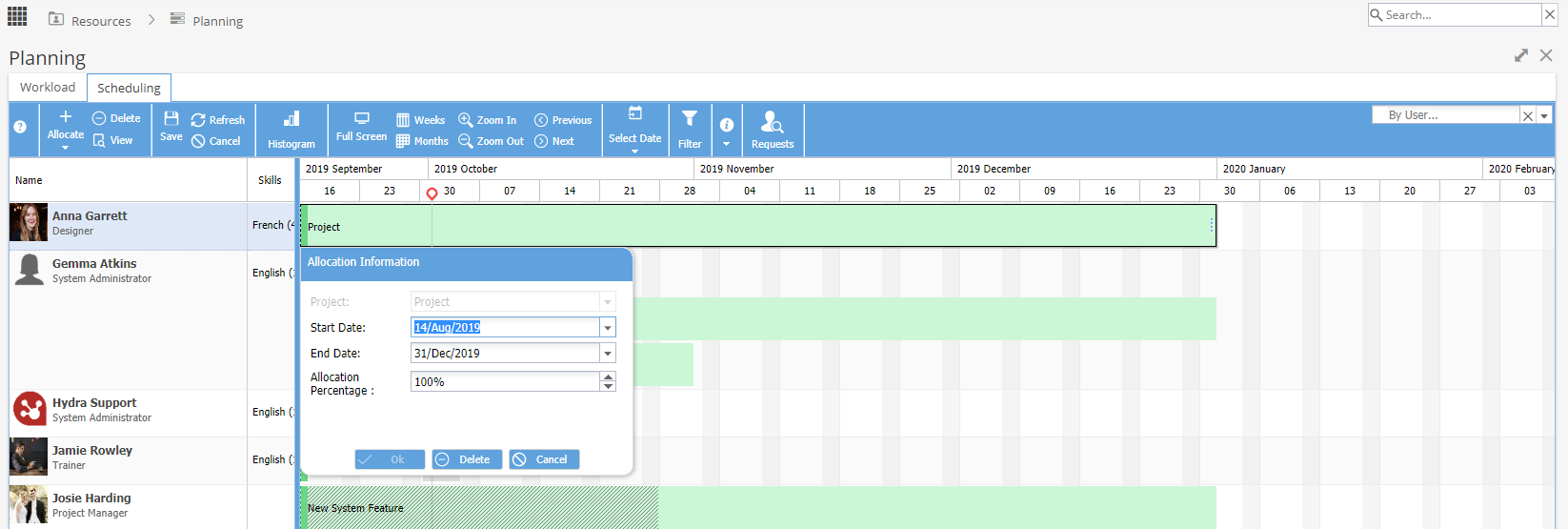
If you go back to the team tab / Gantt etc, remember you may need to hit Refresh for the updated information to show. -
External Users (e.g. Customers) can be extended via Project > Admin > Project Users.
Double click on the User's Name to view the General Information tab.
Double click on the End Date field in the Project Info section.
Use the calendar picker to select a new date and click Save.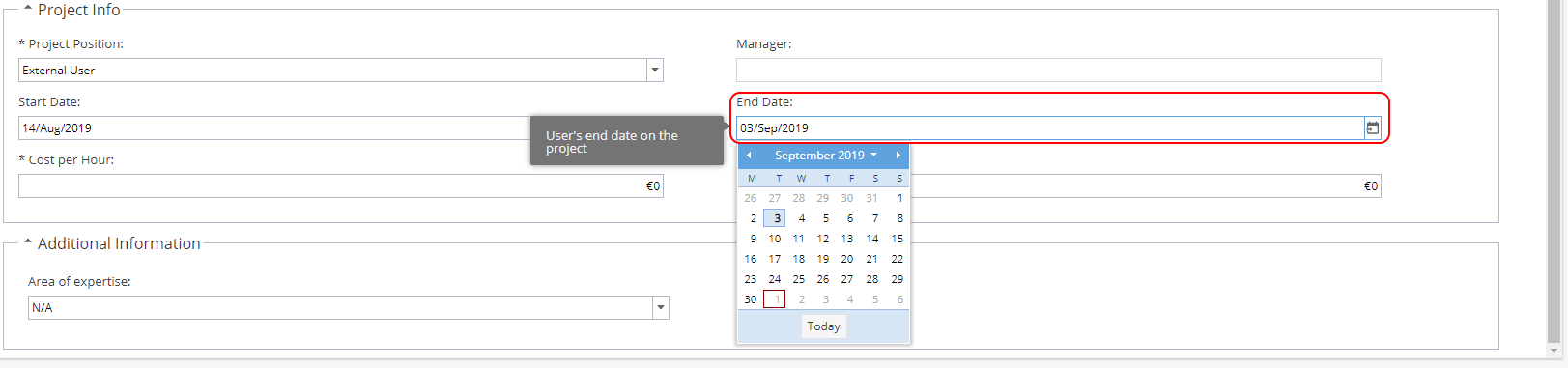
When you refresh the Team tab / Gantt etc the updated End Date should now show.
Note: This article is about adding Real Resources to tasks - read more about generic users.