-
Check under Resources > Profiles to make sure you have a Profile named to match what you need.
From Knowledge > Blueprints > Assets > Tasks
Select the Task from the middle panel and click on the Configure tab.
Click on the Green + icon on the right hand side of the Performed By row:
Select a single Profile from the drop down list:
Leave the Rule checkbox ticked if you want the Generic User to be allocated to this task whenever a Project is created using this Blueprint.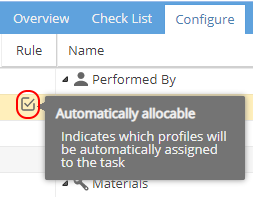
Remember the Gantt has the option to "Replace Resources", so if you have multiple tasks to be done by the same role e.g Project Manager they can easily be swapped for the real PM after the Project is created.
Save the changes and mark the Task as Complete.
Check to make sure the Task / Activity / Deliverables are not showing as incomplete.
Incomplete tasks are shown with Bold and Italic text.
If the Task belongs to a Deliverable etc which will be a standard part of the Project, it can be planned out in the Template Project to be included in the schedule automatically for all future Projects using this Blueprint.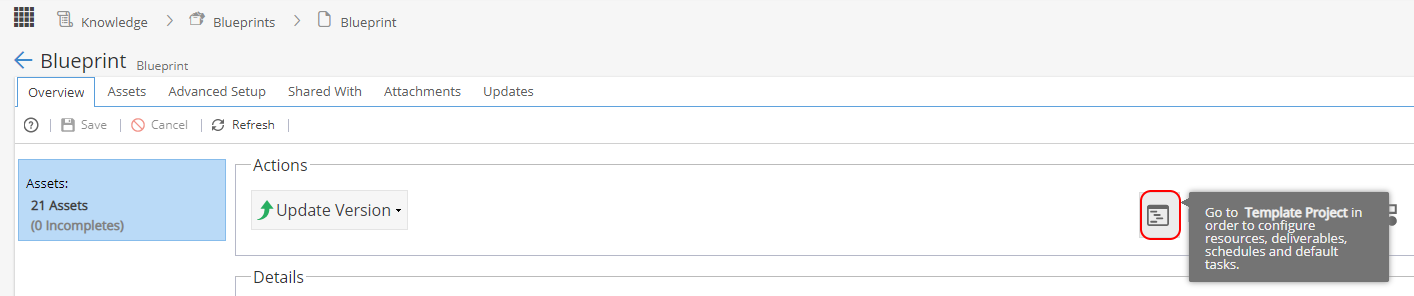
Alternatively the Task can be added to a Project using the Deliverable Manager or Asset Manager from the Gantt.
Once the Task is planned in a Project the generic user will already show based on the "Performed By" option set above: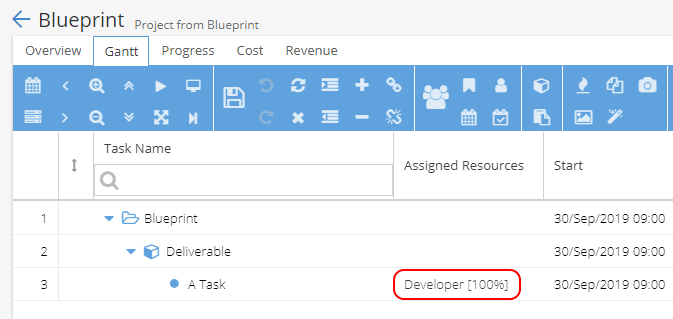
-
From the Project > Schedules > Schedules - Gantt
Click on the button to "Show Resources List"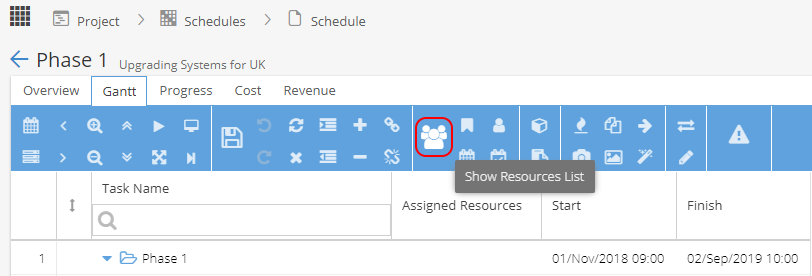
This will bring up the Resource Manager window.
Click on the + Add Generic Resource button.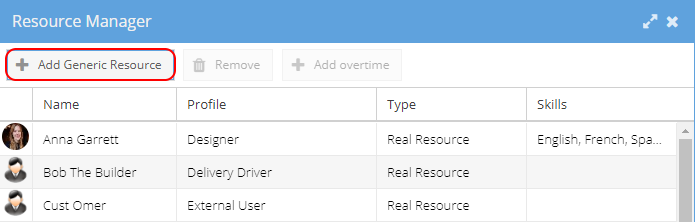
This will create a new row with a generic user.
Update the Name and choose a Profile from the drop down list: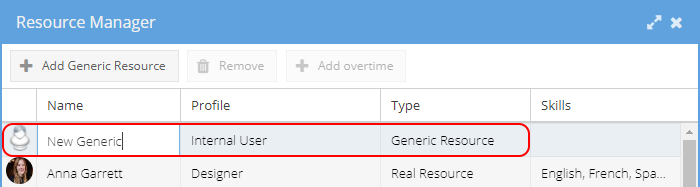
Click the OK button on the bottom right to save the changes.
The generic user will now be available to add to Tasks.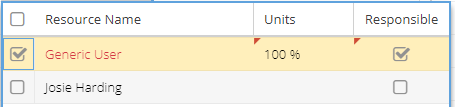
Real Resource names will show in black and Generic Resource names show in red.