Why do we have External Users in Hydra?
Sometimes it is useful for users who do not belong to your organisation, such as customers, to have visibility of the project.
As they are external, it may not be appropriate for them to see all of the project information such as financials or risks.
Which menus does an external user have access to?
Whenever a user is created, they will need a Profile.
The profiles can be reviewed or created via Resources > Profiles > Profiles List
External Users will only be able to have the access from profiles based on:
External User (Standard Access - External) - this type of user can be assigned to work on Tasks
or Stakeholder (Restricted Access) - this type of user has view only access.
How do I create an External User?
Go to Resources > Users > External Users tab
Click + New
How do I add an External User to my project?
If the user has a profile with Access Type "Standard Access - External"
Go to Project > Project Home > Team tab
Click + Add and Existing External User.
If the user has a profile with Access Type "Restricted Access"
Go to Project > Admin > Project Users tab.
Click + New and Existing External User.
Remember the main difference between the two is Standard Users - External can be assigned to tasks but Stakeholders with Restricted Access are view only.
This is why only one type appears on the Team tab.
Why can't external users be managed in Resources > Planning?
With External Users, such as Customers, you do not have control over their availability or allocation as you would for an Internal User.
There is no need to log time off or review their utilization.
Do I need to make any changes to the project?
If you have external users there are several checks you need to make:
Is your Schedule visible? Untick the box if you want a Schedule to be seen by external users.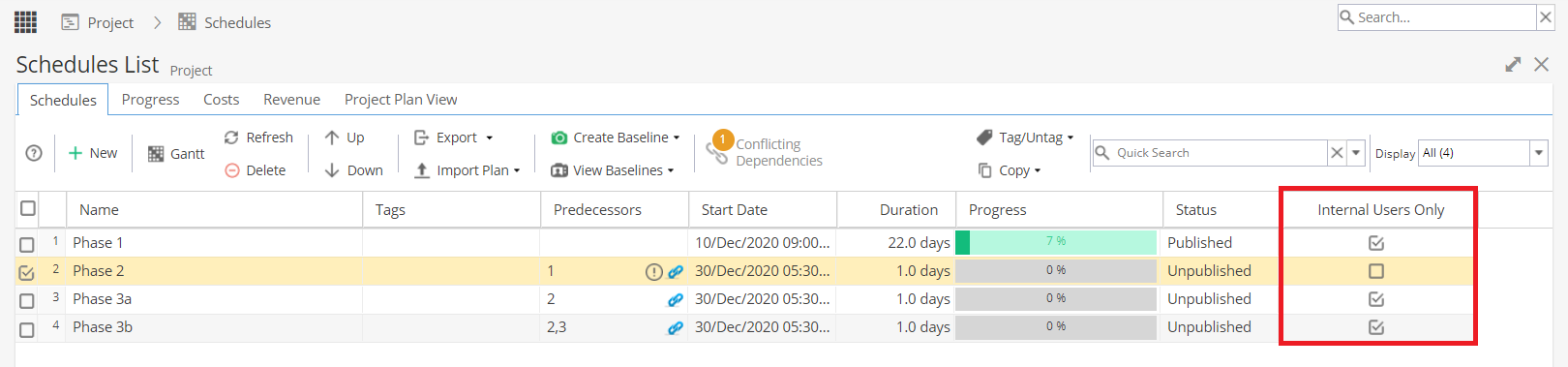
Are your Risks visible? Check the tick box if you want the Risks to be seen by Stakeholders.
Are your Deliverables visible? Check the tick box if you want the Risks to be seen by Stakeholders.
Are your Issues visible? Check the tick box if you want the Risks to be seen by Stakeholders.
If you have made adjustments to the visibility of Schedules, Risks, Deliverables and Issues, you will also need to check any Report Dashboards.
If you have any Dashboards shared with Stakeholders make sure this box is ticked: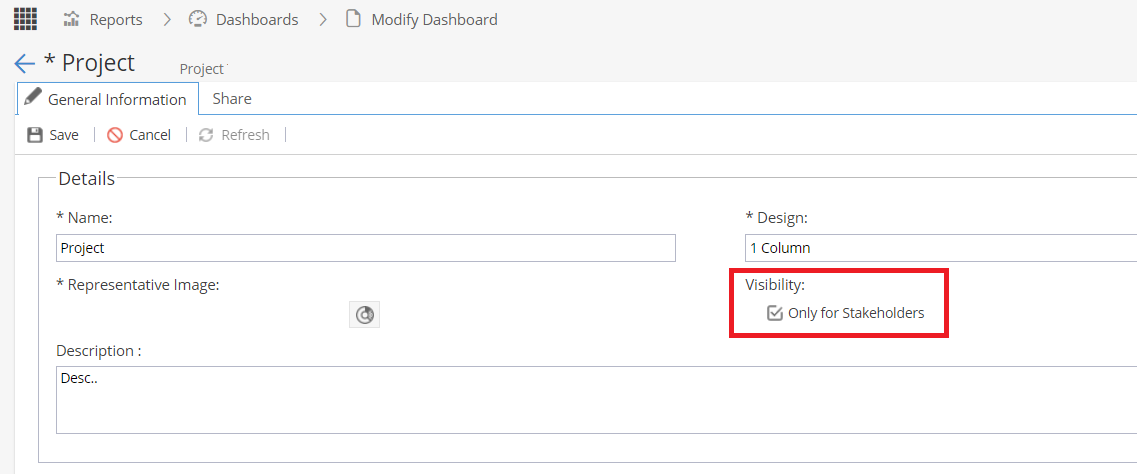
Note: This may mean that you need to create two versions of the report so Internal Users can see everything as normal and Stakeholders have the restricted view as expected.
Are you using a Blueprint to create Projects that frequently involve external users?
You may need to make the above changes to the Blueprint Template Project to avoid the PM's having to change the tick boxes each and every time they have a project to work on.
Should external users be able to see comments?
There is a company preference to control this: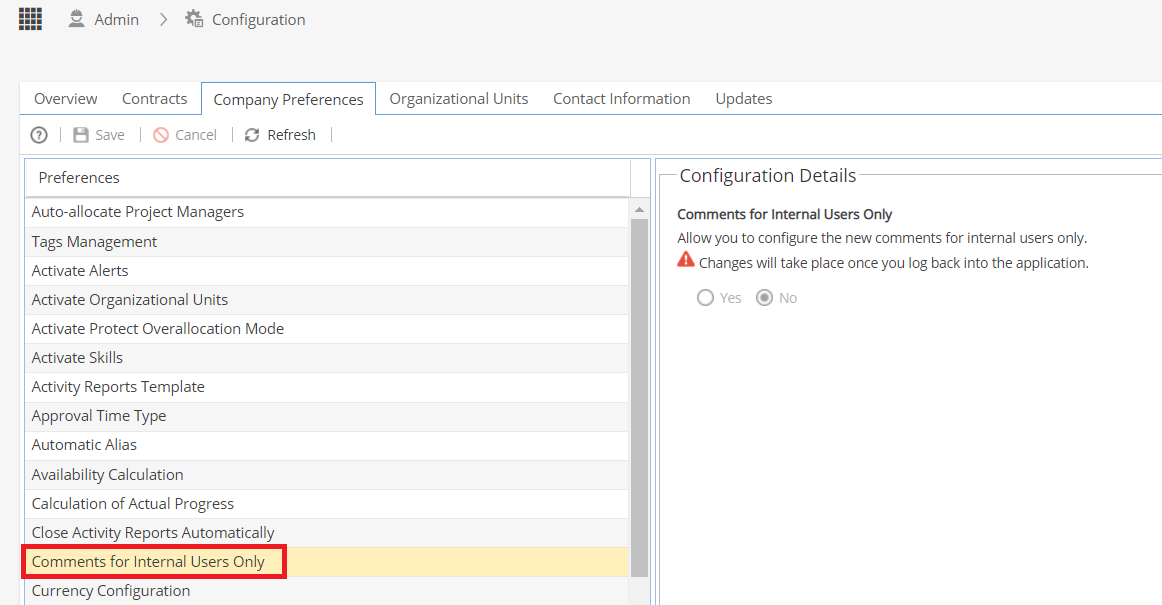
Notes / Reminders:
- Stakeholder / Restricted Access accounts do not take up a licence for Hydra.
- Stakeholder / Restricted Access is very limited - the user can not be assigned to Tasks.
- If you need an external user to be able to log time etc they will need to be on a profile based on Standard Access - External, not Restricted Access.
- If using Stakeholder / Restricted Access users make sure your PM's are familiar with the checkboxes for visibility of Schedules, Deliverables, Risks, Issues and Report Dashboards.
- Remember Stakeholders do not appear on the Project Team tab, they will only be visible from the Project > Admin > Project Users screen.