The Project Users tab will show any users (Resources) linked to the Project.
The + New option will only allow External Users to be added (unless the Admin > Configuration > Company Preferences > User Creation from the Project Team is allowed).
If a user is selected you can click View (or Double click) to see a User's General Information.
You can Refresh the view at any time
Selecting a User will allow you to make them Active or Inactive using the Activate / Deactivate buttons.
You can filter the list of Project Users by Name, Alias or Project Position:
From the top right of the screen you can export the list in your preferred format or use the drop down list next to Display to change the view between All, Inactive or Published (Active) users: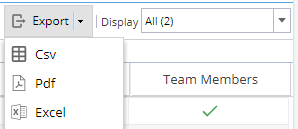
You will see:
Alias
Name
Project Position
Status
Team Members
If the Team Members section shows a green tick, it means the Resource was allocated to work on the Project (they will also appear on the Project > Project Home > Team tab) If no tick shows, it means the user was granted access to a Project instead. The tick can not be changed, it is shown for information.