How to Grant Access to Project
When is Grant Access needed?
How to tell when Grant Access has been used
Automatically granting access to Projects
How to remove access from a Project
Updating the Profile used for Grant Access
How to Grant Access to Project
From Resources > Users > Internal / External Users tab for the Users List
When a single user is selected you can use the More Options menu to Grant Access to Project
(This option will appear greyed out if multiple users are selected)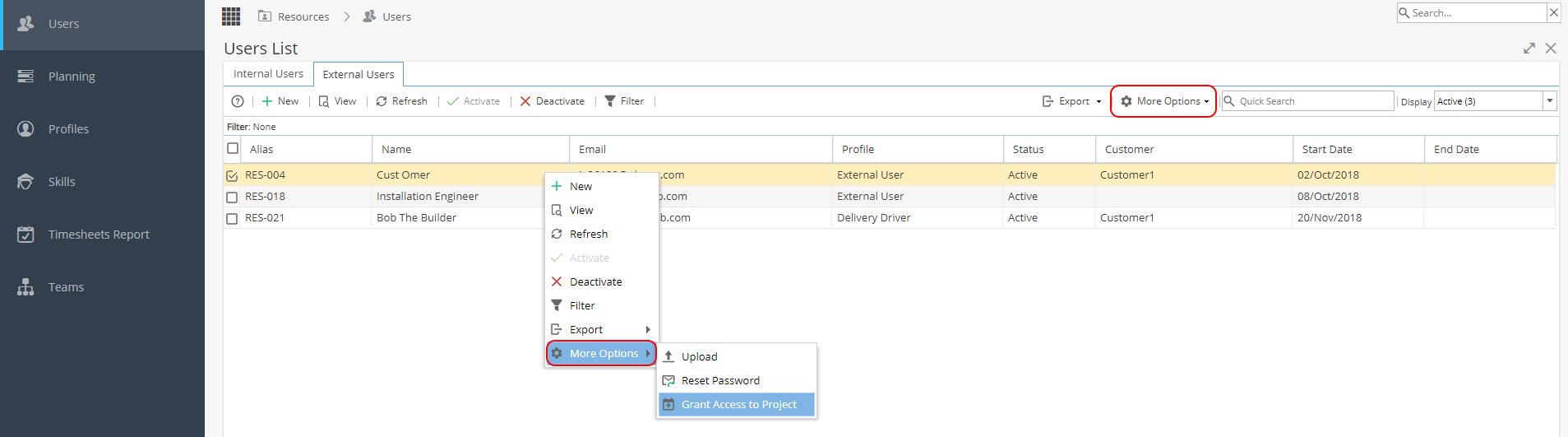
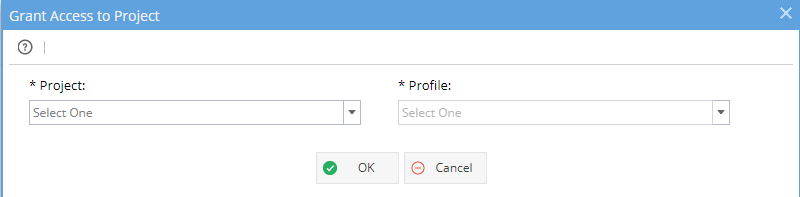
You will then be able to select a Project and a Profile to give the user for access:
When is Grant Access needed?
Sometimes you will try to access a Project but you will see an error
 If you have a Resource that needs to log time or work on Tasks you need to allocate them to the Project via Resources > Planning > Scheduling or make sure they are assigned to Tasks in the Schedule.
Granting Access will only allow for Tasks to be approved rather than worked on.
How to tell when Grant Access has been used
From Project > Project Home > Team tab the user will not be seen under Current or Expired Assignments:

When you go to Project > Admin > Project Users you can see the user but the Team Member column does not have a tick. This means Grant Access was used (or the User was delegated to a Task which no longer applies - Check Admin > Configuration > Company Preferences > Enable Task Delegation to see if your company is using Delegation).
Automatically granting access to Projects
It is possible to automatically grant access for Projects created from a Company Blueprint
From Knowledge > Blueprints > Company Blueprints tab > Overview for a selected Project
At the bottom of the page there is a section called "Grant Access to Projects Governed"
This means whenever a Project is created you will have access based on your current Profile (useful for users such as system administrators) and you will receive emails to let you know when new Projects are created.
How to remove access from a Project
If access is being granted via the Blueprint, remember to remove the user from the "Grant Access to Projects Governed" section on the Knowledge > Blueprint > Company Blueprints tab > Overview page.
If access was granted to a single Project in error, you can go to Project > Admin > Project Users, select the User and click Deactivate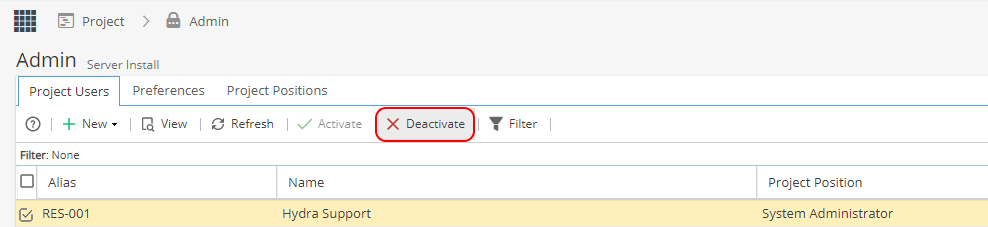
Updating the Profile used for Grant Access
If the wrong Profile was selected when a user was granted access this can be updated.
From Project > Admin > Project Users.
Double click on the user to go to the General Information screen.
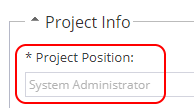
In the Project Info section you can update the Profile under Project Position.