From Resources > Users you will see the Users List for Internal Users as the main view.
Click on the External Users tab if you want to see users from outside of your organisation.
To create a new Internal User click on +New
To view details of an existing user double click on them (or click on the user and then click view).
If you select a User you can make them Active / Inactive.
(It is not possible to delete a user, you would simply select them and use the Deactivate button).
If you try to deactivate a user who has tasks assigned you will see a warning:
The filter option allows you to search by Name / Profile: To view users by a specific Project you may find it easier to look at Project > Project Home > Team, as this will show you both Internal and External users at a glance.
On the top right hand side you will see:
Export - Export a copy of the Users List in your preferred format
More Options - See below for details (Upload External File, Remind Invitation, Grant Access to Project)
Quick Search - Search by Name or click the down arrow to filter by Tags or Organizational Unit
Display - Filter by Status (Active / Inactive / All)
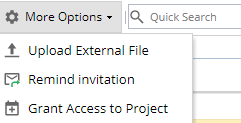
More Options - Upload External File
Allows multiple Users to be created by uploading a single CSV file.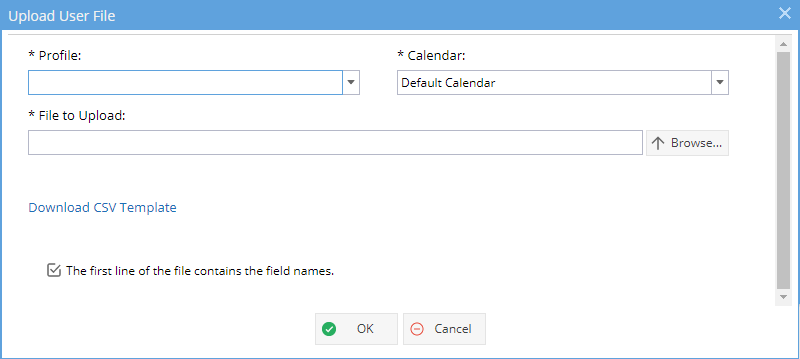
Start by downloading the CSV Template:
Note: Column D is optional and can be removed to avoid confusion - This controls the section seen on the User's General Information Tab, called "Mute outgoing emails from the Platform".
Once the file has been created and saved, you can browse to select this for the File to Upload.
If you have a mixture of Profile and Calendar settings you will need to upload the CSV file in batches.
More Options - Remind Invitation
When the user is first created they will receive an invitation from info@hydra.cloud which will look like this: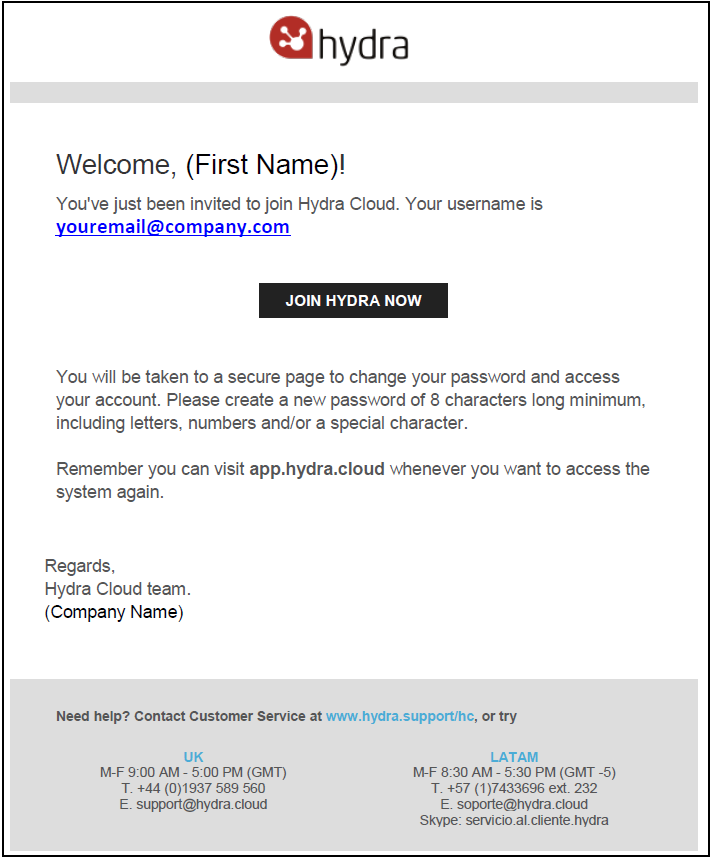
If the user doesn't action the email soon after receiving they may get a message to say "Authentication Error Access Expired". 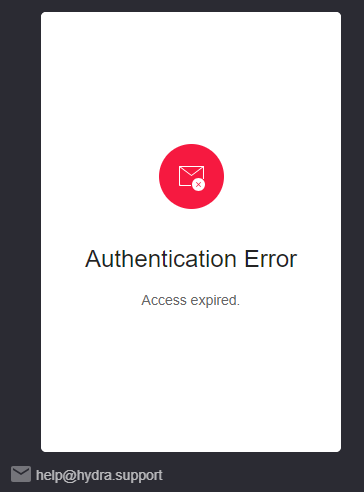
There are two ways to resolve this:
1) The user can click the "Don't remember your password?" option on the login page.
2) You can send a Remind Invitation (as shown above) to give the user a new email with a current link.
For some users you may see the Remind Invitation option showing as greyed out: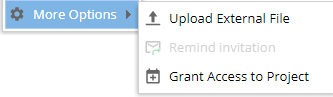
This option is no longer available because the user has previously logged in to the system (or previously attempted to reset their password), so the user must now use the forgot password option instead. (Note: The Password Reset email has exactly the same wording as the Invitation)
More Options - Grant Access to Project