From Resources > Users when a specific user is double clicked it will bring you to the General Information tab.
On the top right hand side you have the option to Upload Photograph which will change the User Picture displayed on the right hand panel (The Name field will automatically populate with the file name).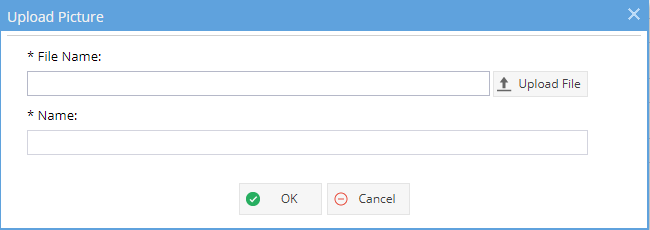
This picture will be visible to the user as their avatar on the top right hand of any screen when logged in to the system, any one looking at the resource general information screen and will also appear next to any updates created by the user.
This view will have several sections:
System Overview
ID, Alias (also known as Resource Code)
Email Address
First Name, Surname, Title
Language
Records per Page
Show Tooltips, Display Error Codes, Mute emails
Creation Date
Description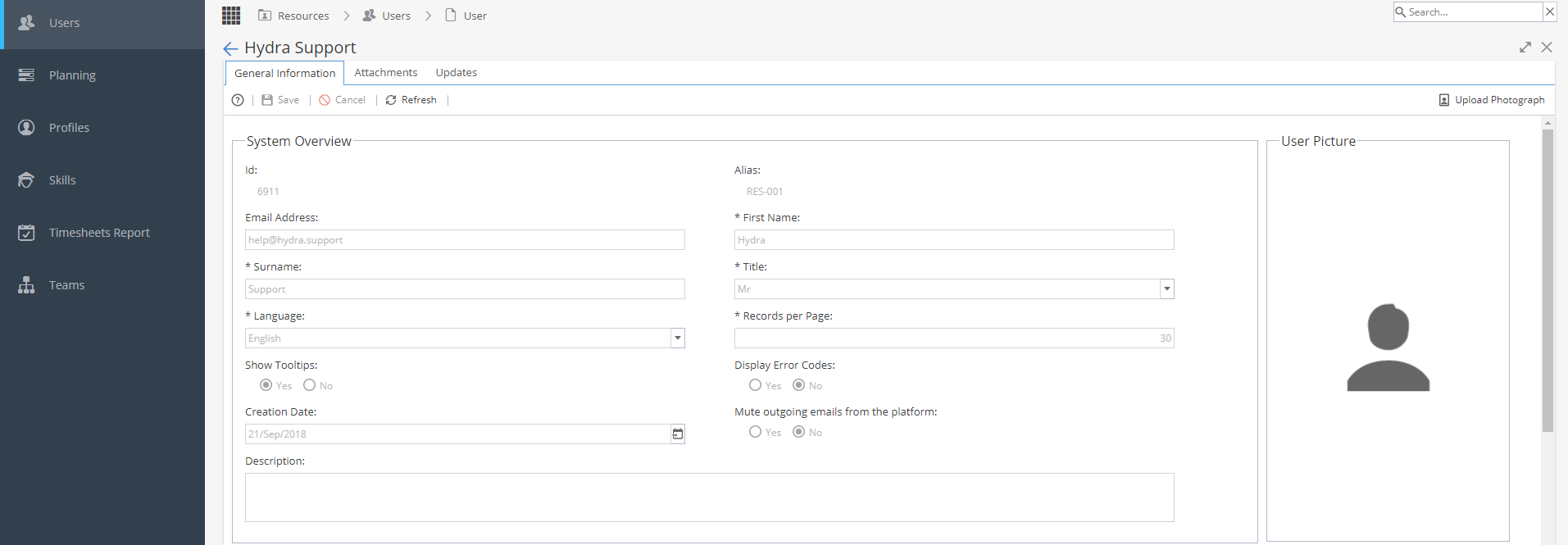
Company Information
Profile
Position
Manager *Internal User Only, used with Teams
Calendar *Internal User Only
Organizational Unit
Skills *Internal User Only
Start Date
End Date
Cost per Hour *Internal User Only
Rate per Hour *Internal User Only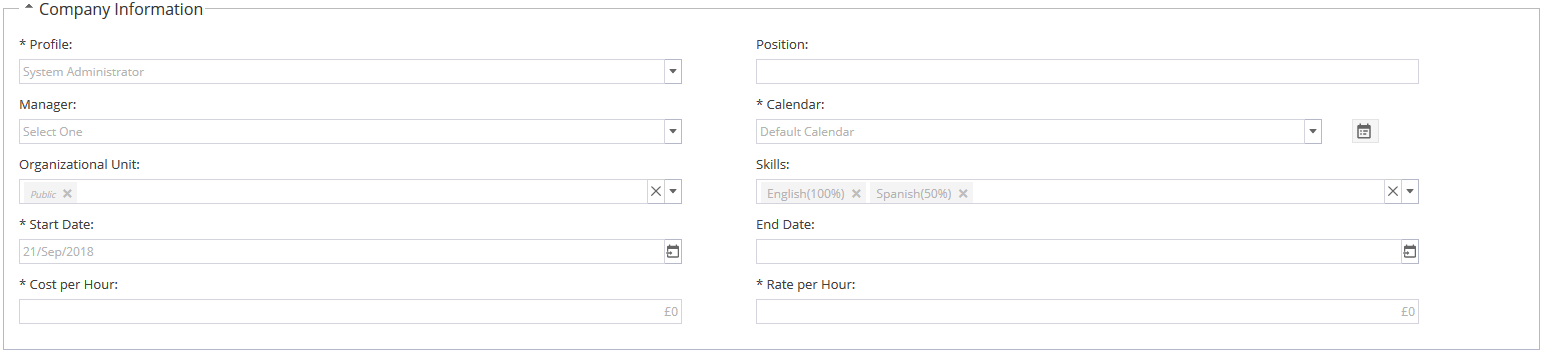
If you make a change to a Calendar you will get a pop up box when saving the changes: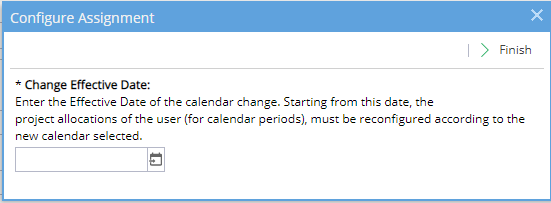
Be careful changing calendars for existing users as this will impact all projects and tasks they are allocated to.
Additional Information
Based on custom fields set under Admin > Configuration > Company Preferences > Resources Custom Fields - If not configured, this section will not be visible.
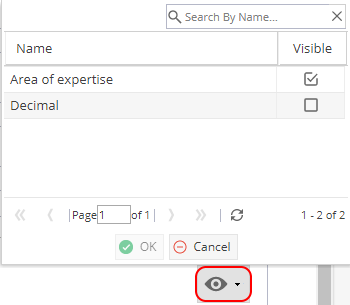
If you are viewing the custom fields from the Resources menu, you will see an eye icon on the right hand side, this gives you the option to hide fields for the selected user: