The Skills area allows you to View and Manage the skills of the Resources within your organisation. In this view you can create New Skills, or Groups of skills, as well as manage existing skills.

-
The menu will still be visible if Skills are not switched on.
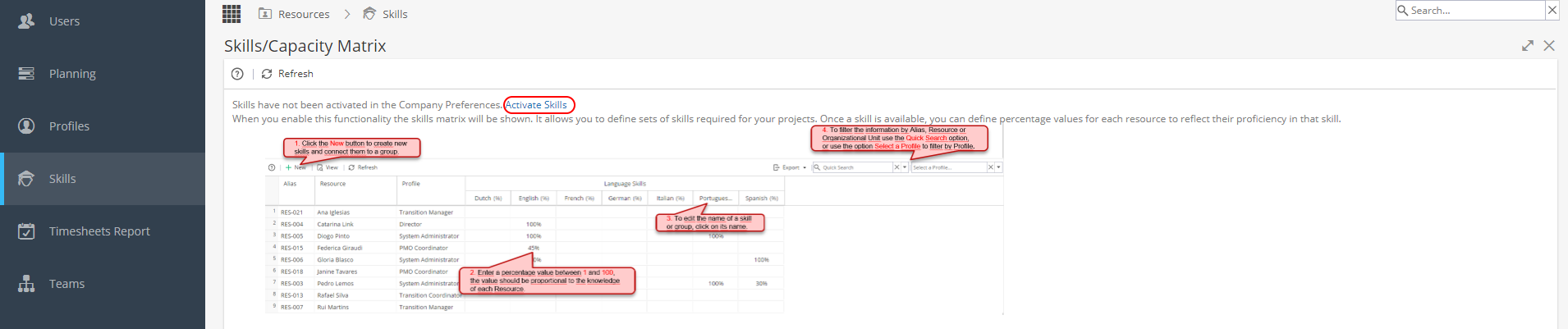
If Skills are not currently being used you will see this screen, with the option to Activate Skills.
Skills can also be enabled via Admin > Configuration > Company Preferences > Activate Skills
-
Click on + New on the top left and you will see a pop up window.
Enter the Name, and (optional) Description of the Skill.
It is possible to Group your Skills, e.g Languages.
Use the Drop down list to select an existing group or tick Create New Group
(If creating a new Group you will also have the "Show in Column" option)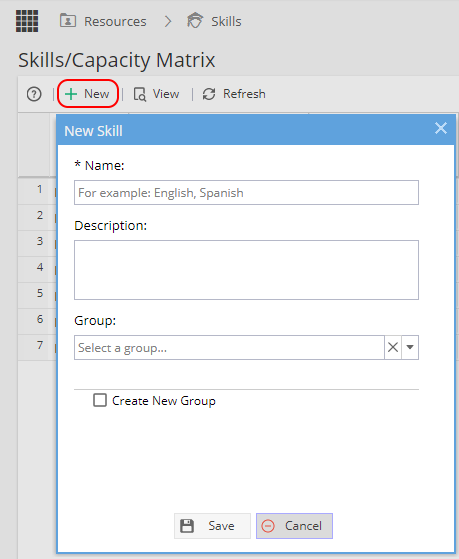
-
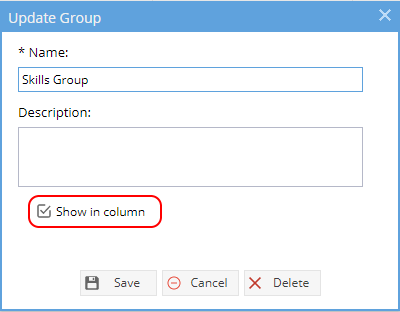
When you click on a Group Name you will see a tick box for"Show in Column" which controls how the Skills show in the table view.
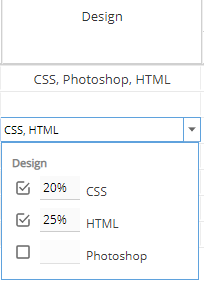
Show in Column ticked means the skills show as a list in a single column, use the drop down to tick a skill and then add the percentages:
Show in Column not ticked, Skills show in individual columns simply click into the cell to update the %, or leave as blank.
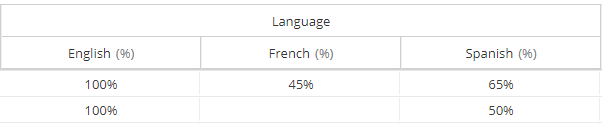
-
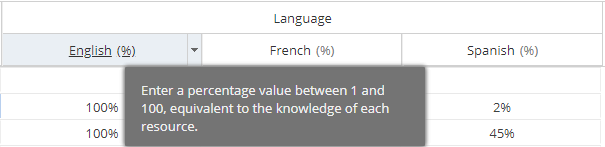
When you hover your mouse over a Skill a tooltip will show you the description for the Skill (if there is no description you will see text explaining what is expected):
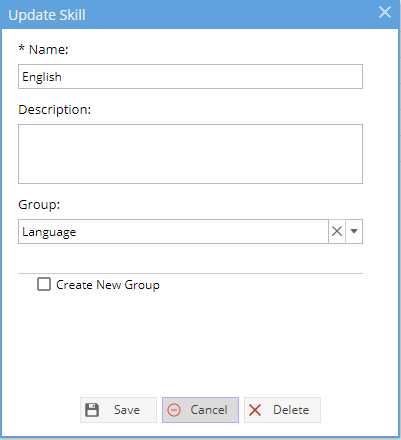
Click on the Skill Name to update the name, description or group or delete the skill entirely.
If you click on a Group Name you will have the option to update the Name, Description and "Show in Column" option, or to delete the Group entirely:
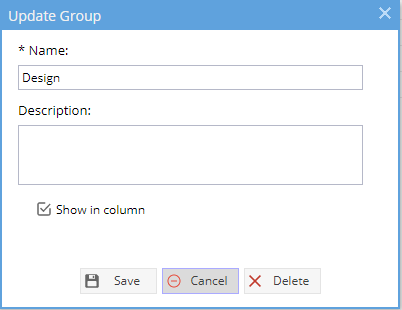
Note: If you delete a Group, any Skills under the Group will also be removed.
If your Skills are shown in a single column such as this: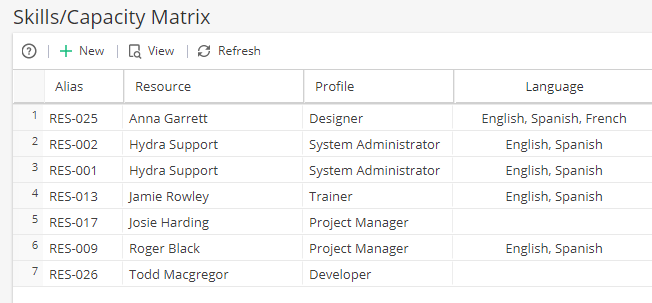
You will need to click on the Group Name, untick Show in Column and click Save: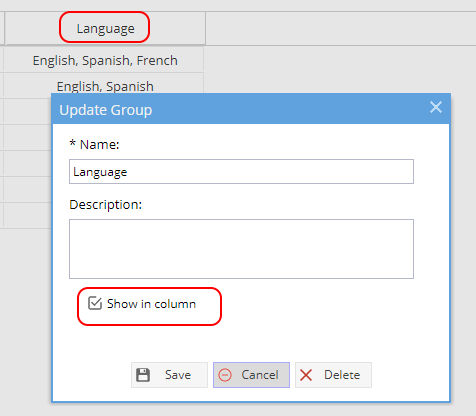
Each Skill will now display in an individual column, so you can now click on the Name to Edit / Delete.
Once completed, you can click on the Group and select Show in column again to set the view back to how it was before. -
On the top left:

View - When you have clicked into any cell on the table this will take you to the Resources > Users > General Information
Refresh - Update the data on the screen to check for any changes
On the top right:
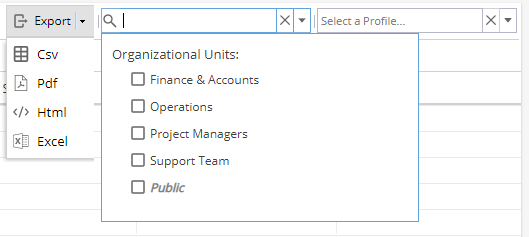
You can Export the Skills Matrix to your preferred format (CSV, PDF, HTML or Excel)
You can Search by the Name or Alias of the resource, and the drop down allows you to filter by a specific Organisational Unit.
You can also filter by Profile from the drop down list on the right. -
Within Blueprints > Assets > Tasks, when a Task is selected you can click on the Configure tab and specify aSkill needed for this Task.
When looking at theProject > Schedule > Gantt Chart > Resource Manager, you will also be able to seeSkills from this view.
Skills can also be added to a task viaProject > Tasks > Task Detail > Overview