Within Resources > Profiles > Profiles List you can see the different types of access available for Users.
These Profiles control which menus are visible and if some screens are restricted to view only.
To find out more about a Profile click on a row and look at the Permitted Access panel on the right hand side.
Expand the menus to check which options are ticked. 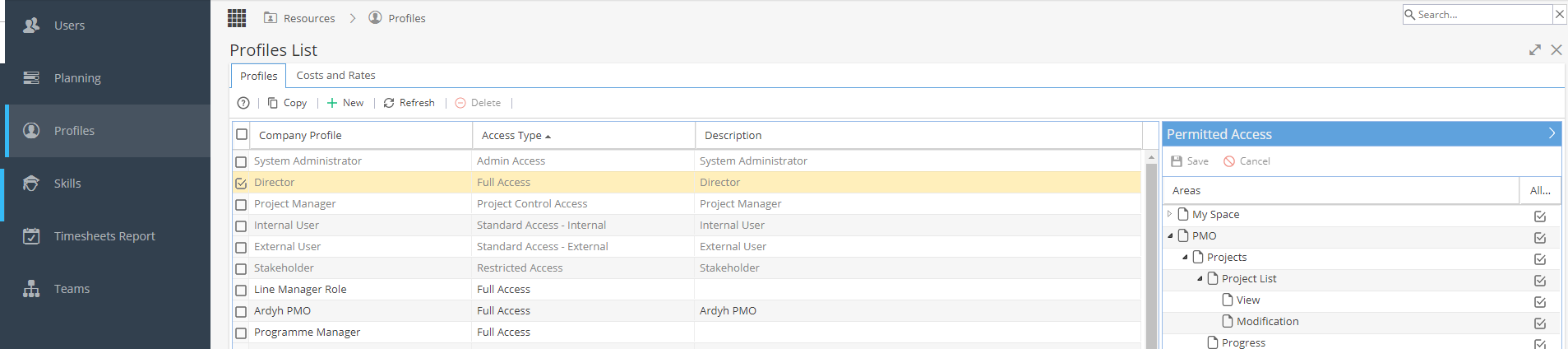
A grey box within a checkbox means that some of the sub-options are selected but not all, so be sure to expand the menus to see more details.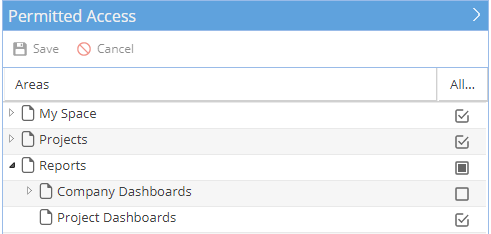
The Access Types are based on the below:
Access Types can be customised but only if they have the menu available to start with.
For example, if I create a new Profile based on "Project Control Access" I would never be able to add the Resources menu because it was not an option available for this access type.
If you already have a Profile which is close to what you need you can select the Profile and click Copy.
This will create a new line with the same name but "- Copy" at the end (the new row will be added to your Profiles List in alphabetical order of Company Profile Name).
You can then tweak the Name, Description and Permitted Access options so the new Profile has the right level of Access.
To Create a new Profile click the + New button
A new Profile row will automatically be created at the bottom of your list.
Enter basic details:
Company Profile Name
Access Type Based on one of the 6 system defaults (always shown at the top of the Profiles list, greyed out, if you click on them you will be able to see the Permissions available for reference)
Description *Optional
Click Save to Create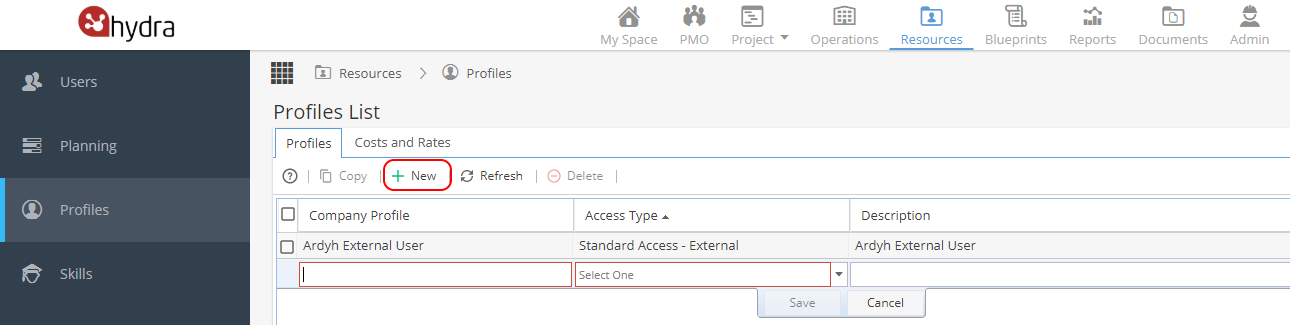
Once a Profile is created you can then adjust the Permitted Access options.
Tick / Untick options as required and once you have the correct access settings click Save.
This Profile will now be available to assign directly to Users or to set against a Task in a Blueprint
The Delete option will remain greyed out for any of the system default Company Profiles.
If the Profile can be deleted, a pop up will show asking you to confirm before going ahead.
If the Profile can not be deleted, a red error message will appear explaining this Profile is in use. 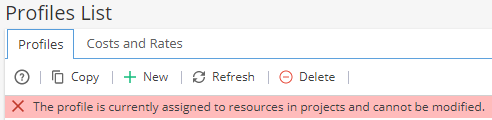
Note: Remember if there are no users with this Profile assigned there is likely a Blueprint Task which has this Profile set in the Knowledge > Blueprint > Assets > Tasks > Configure > Performed By option which is stopping the Profile being deleted.
Do not change the Access Type for an existing Profile which has Resources assigned.
This can cause data to become corrupt and stop users affected by the profile change to no longer be able to log in.