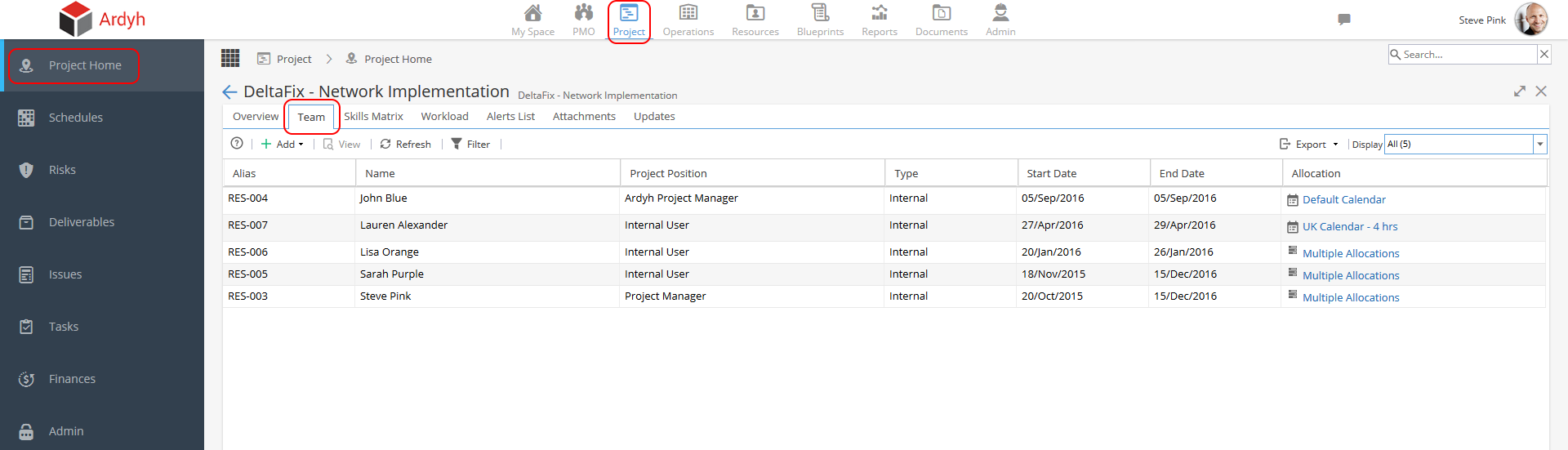
The Team section in Project Home allows a Project Manager to control who has access to the Project, when, and in what capacity.
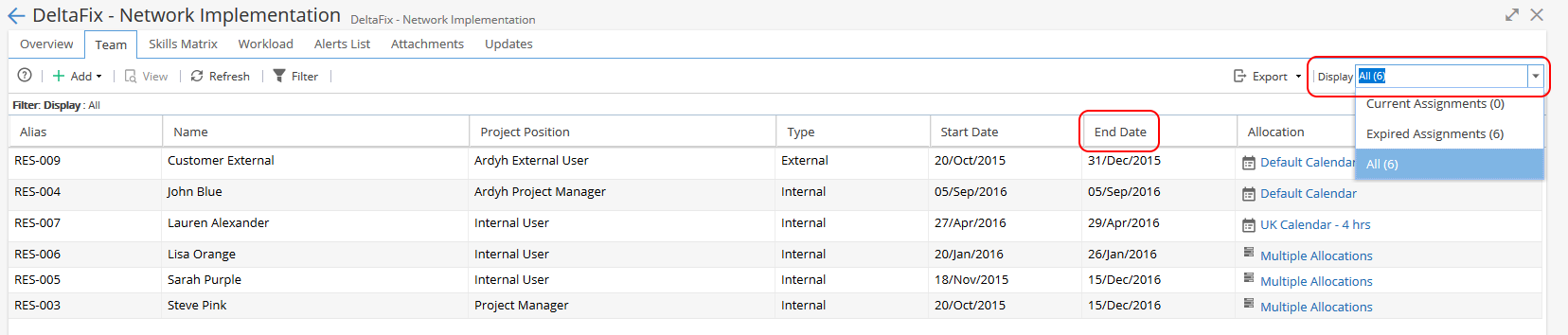
An example of the Team section is below:
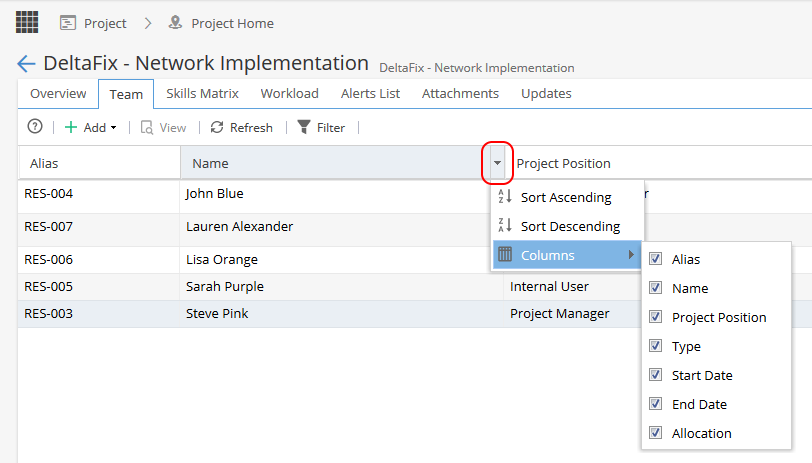
To Sort on a column, click the drop-down arrow on the right of a column heading and click 'Sort Ascending' or 'Sort Descending'.
To Hide/display a column, click the drop-down arrow on the right of a column heading, scroll to 'Columns' and tick/untick a column as desired.
Adding Users
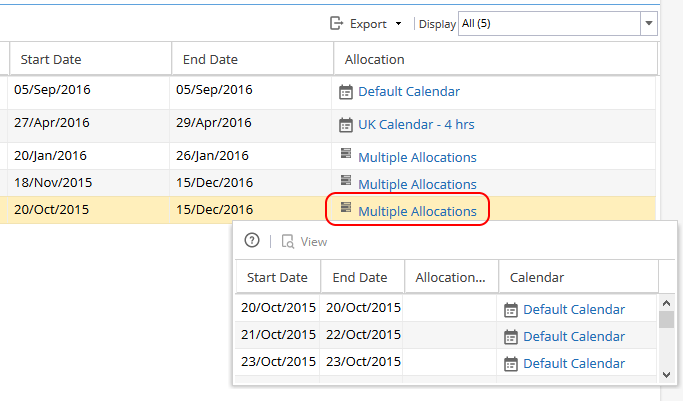
Any Internal Team members will appear on the list when they are allocated to Tasks. To view when these Resources are allocated, click on the 'Allocations' on the right side:
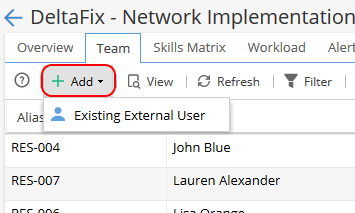
To add an (existing) External User to the Team, click the 'Add' button then 'Existing External User':
You will be presented with a drop-down selector and can choose which Existing User to add by clicking the down arrow, then clicking on the name and finally clicking 'OK':
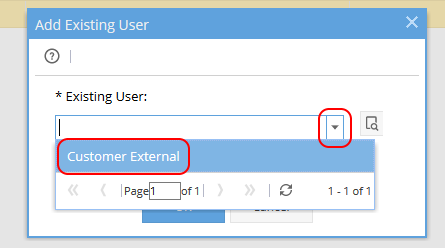
Existing Users will show in the list if they are based on Standard Access - External
If you have an external user as a Stakeholder (using Restricted Access) you can not add them via the team tab as Stakeholders can only view a Project, rather than work on Tasks.
Note: The external user will be added to the Project with the current Project end date.
If your Project end date changes, the users do not get automatically updated, so their assignments may expire.
If you need to extend the assignment for an external user, go to Project > Admin > Project Users.
Double click on the user, update the end date and click Save.
*Project Managers may also be able to add new users if the company allows them to do so, check the settings under Admin > Configuration > Company Preferences > User Creation from the Project Team
Alternatively, you can perform a User Search by clicking the Search icon to the right of the down arrow. This will present you with the option to search by User Name (including partial searches) or by Role. Select the User you want to add to the Team, then click OK:
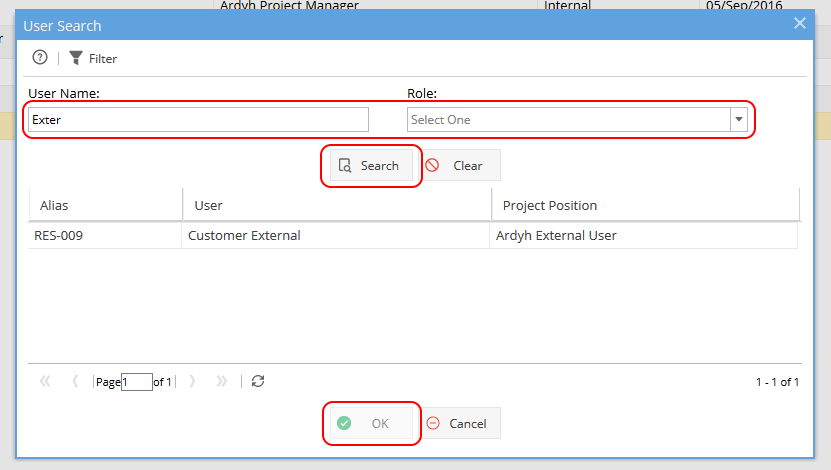
The External User will then be added to the Team.
Views and display
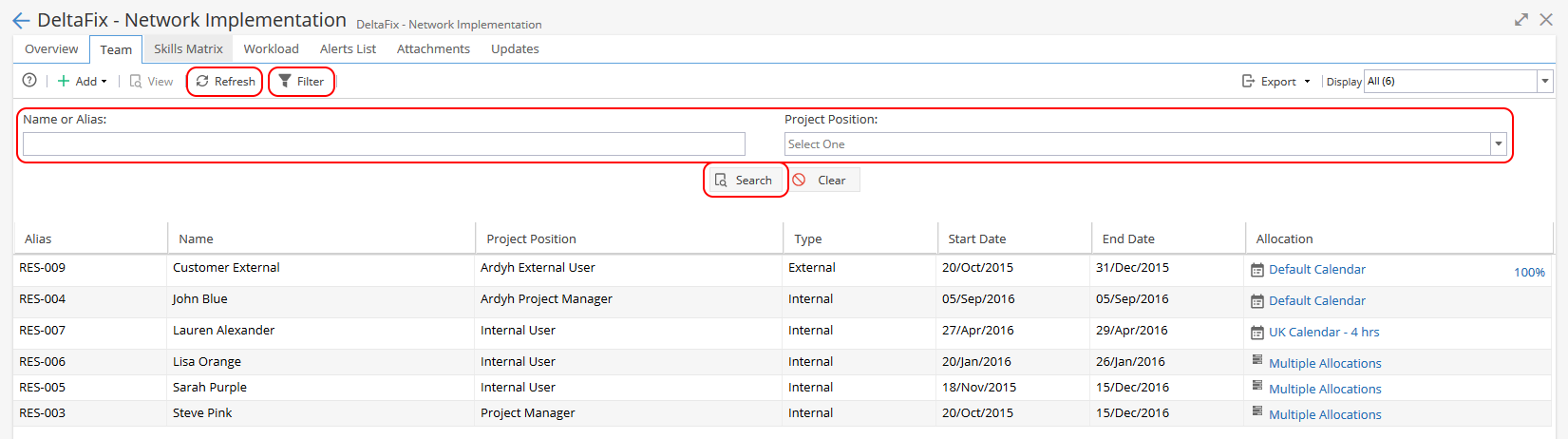
Click the Refresh button to refresh the contents of the page in real-time.
It is possible to filter the list of the Team by clicking the Filter button; you will be presented with the option to search by Name or Alias (including partial searches), or Project Position, then clicking 'Search':
It is also possible to change the Display to show Current Assignments only, Expired Assignments only, or both. To do this, click the drop-down arrow to the right of the Display box and select your desired display (note: 'Current Assignments' are assignments with an End Date of today or in the future; 'Expired' are assignments with an End Date in the past):
Exporting data
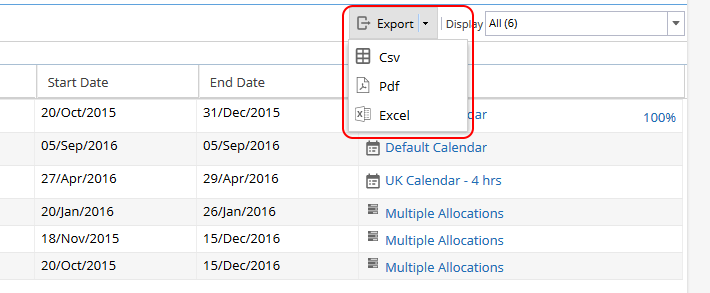
It is possible to export the displayed content by clicking the 'Export' button. A drop-down list will appear giving the choice of .csv, .pdf or Excel format:
Administering Project Team
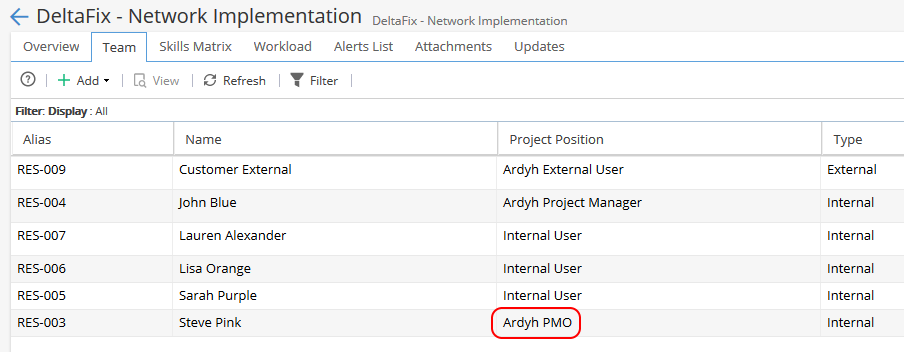
To change the Project Position, or any other details, of an existing team member for the specific Project, either double-click on the Name or click the name then click the 'View' button. The General Information window of the team member will appear. Double-click on a field to make changes. As an example, if we change this User's Project Position from 'Project Manager' to 'Ardyh PMO':
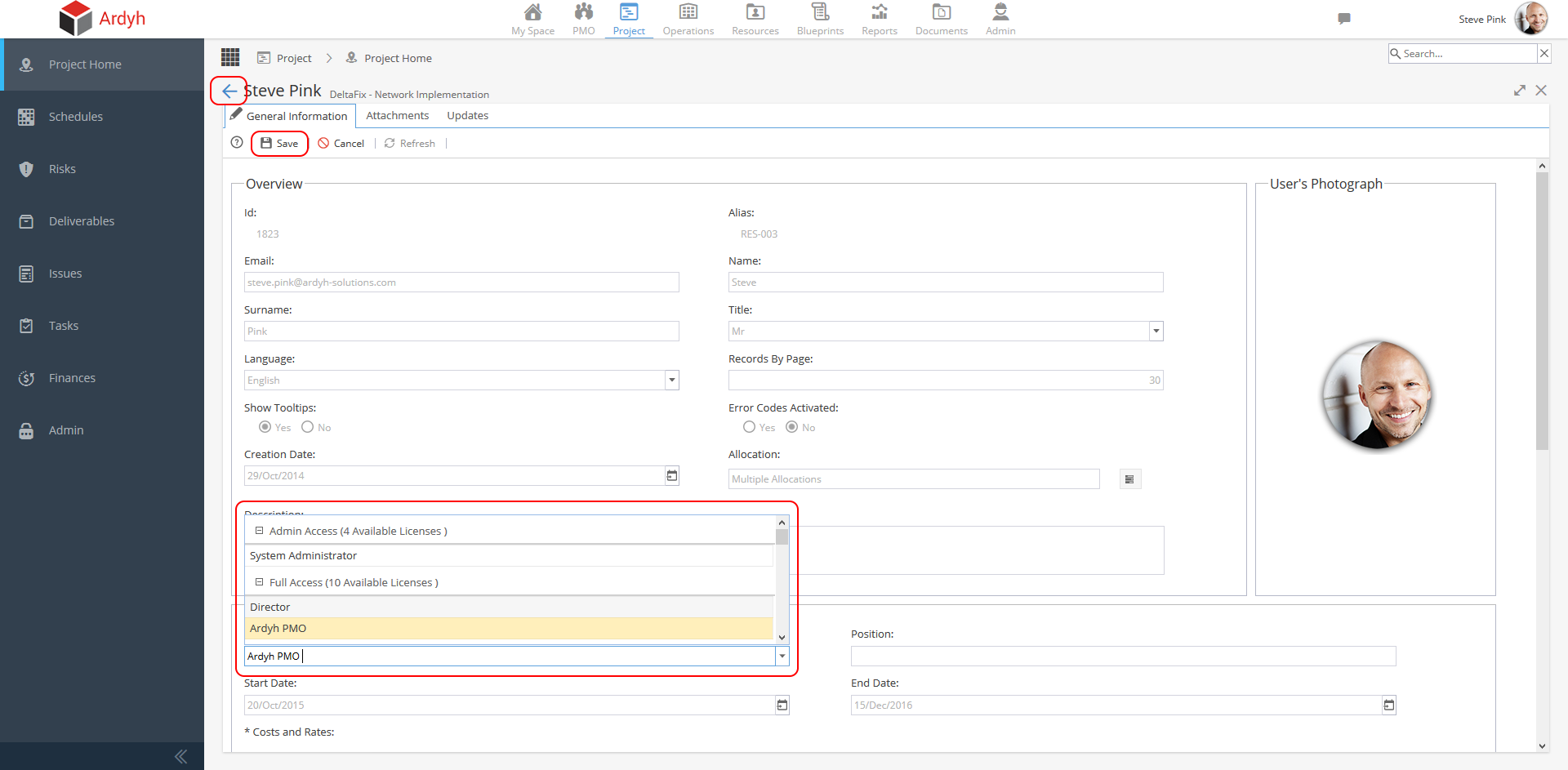
Then click Save and go back (and click Refresh), the Project Position will be updated: