Generic Users can come from being added to a Project manually, or from being used in the Blueprint Template Project.
To remove a Generic User from a single project:
Check the Gantt to make sure the Generic User is not assigned to any Tasks.
Go to Project > Schedules > Gantt
Click on the Show Resources List icon
This will bring up the Resource Manager
Select a Generic Resource from the list (the row will highlight yellow)
Click the Remove button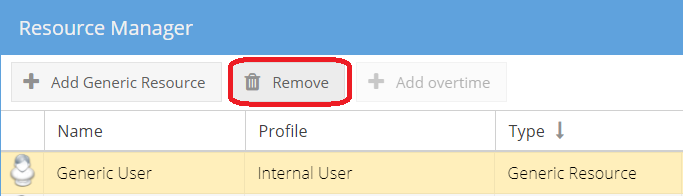
If the Generic User is assigned to a Task in the Gantt, you will see an error: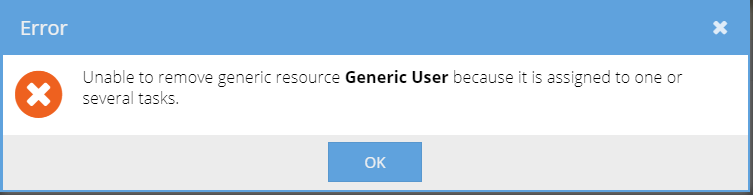
If no errors appear, the Generic User will no longer appear in the Resource Manager screen.
Click OK to return to the Gantt.
Click the Save icon to keep the changes
(Otherwise the Generic User will reappear when you Refresh).
To remove a Generic User from a Blueprint:
Removing a generic user from a Blueprint will stop this user appearing on future projects created using the Blueprint.
Check which Blueprint you need to update, you can look at the Project > Project Home > Overview tab
or the PMO > Projects > Details tab.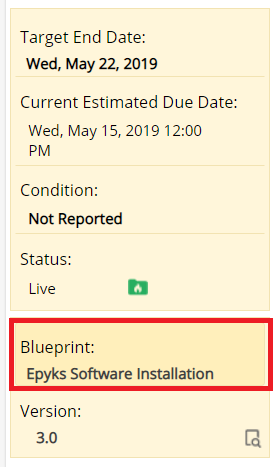
Go to Knowledge > Blueprints > Company Blueprints tab.
Double click on the Blueprint Name.
Go to the Template Project.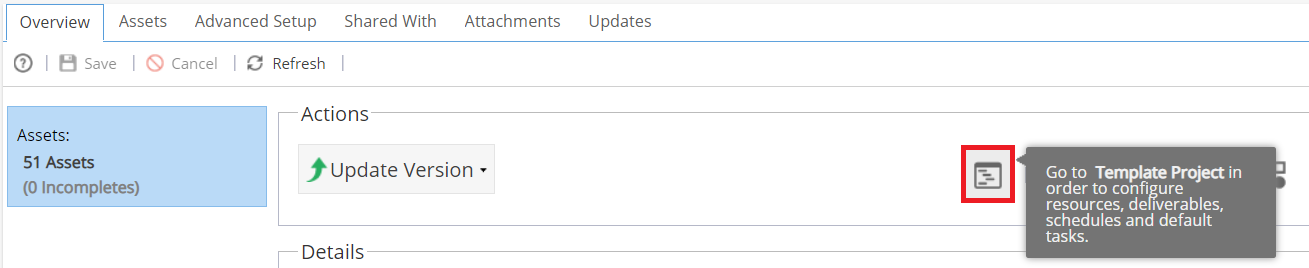
Go to the Gantt and check if you have the Generic User assigned to any Tasks.
Follow the steps listed above to remove the Generic User from the Blueprint Schedule to apply to any projects created in the future.