Project Overview
The Details tab is broken down into several sections:
Yellow Information Panel
Actions
Additional Information
Details
Customer List
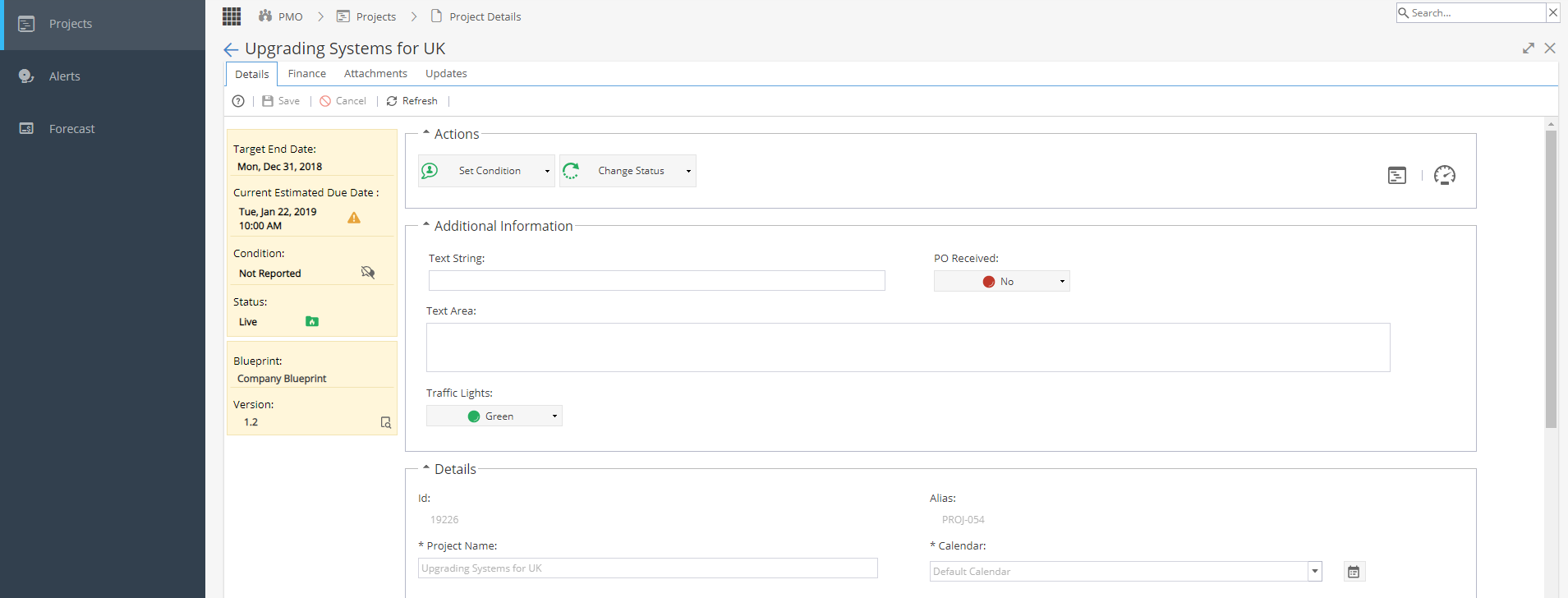
Yellow Information Panel
The current Status, Progress, and Start / End Dates can be seen within the yellow box to the left.
You may also see the Company Blueprint Name and Version Number.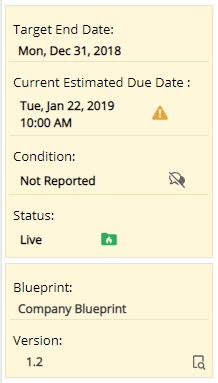
The current estimated due date (based on the latest Schedule end date).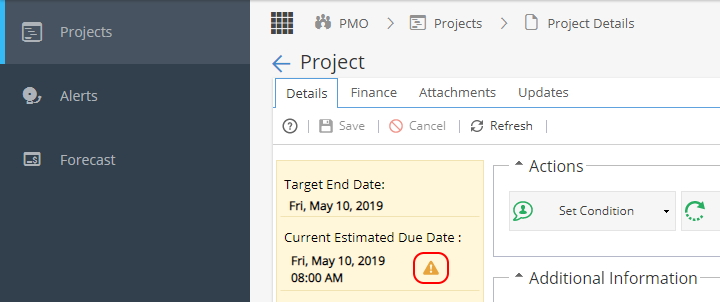
The current estimated due date will show a yellow warning triangle if the due date is on or past the Target End Date.
In the above example this warning could be useful because any delays in the Project from now until the end could cause the Project to finish later than expected.
Actions
This section allows you to update the Condition or Project Status or go to the main Project or Report menus.
Set Condition - Drop down choice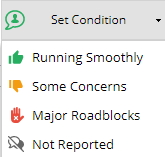
Change Status - Set Project to Draft, Live, Closed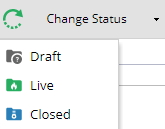
Go to Project - Takes you to Project > Home > Overview tab
Go to Dashboard - Takes you to Reports > Dashboards > Project Dashboardsview for this Project
Additional Information
This area relates to any custom fields configured under Admin > Configuration > Company Preferences > Project Custom Fields
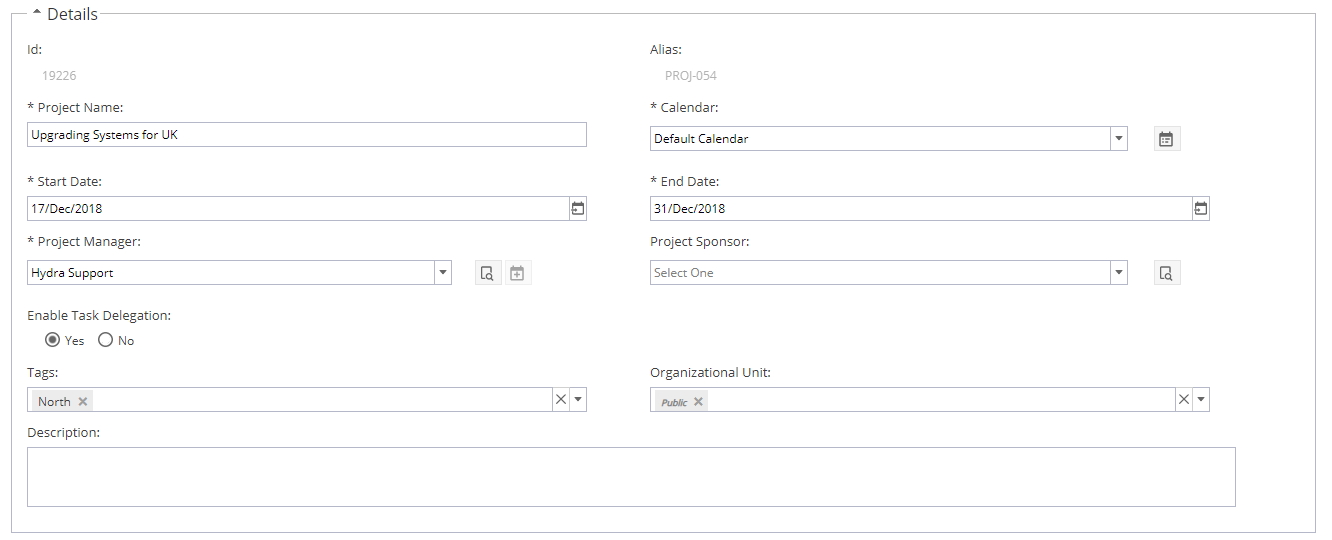
Details
This section shows:
- ID - ID# given by system when Project created
- Alias - System Created / Manually Entered depending on settings under Admin > Configuration > Company Preferences > Automatic Alias
- Project Name
- Calendar - Choice of Active calendars from Admin > Calendars > Calendars List
- Start Date
- End Date
- Project Manager
- Project Sponsor
- Enable Task Delegation - This option will only appear if Admin > Configuration > Company Preferences > Enable Task Delegation is set to Yes
- Tags - Options will depend on Tags configured under Admin > Configuration > Company Preferences > Tags Management
- Organizational Unit - Field will only appear if enabled under Admin > Configuration > Company Pereferences > Activate Organizational Units
- Description - Optional text field to provide more information
Customer List
Use this section to add an existing (Active) Customer to the Project
This will also update Operations > Customers > Overview under the Projects section