To view your Project Schedules navigate to Project then click on Schedules.
Your Schedules List will be displayed:

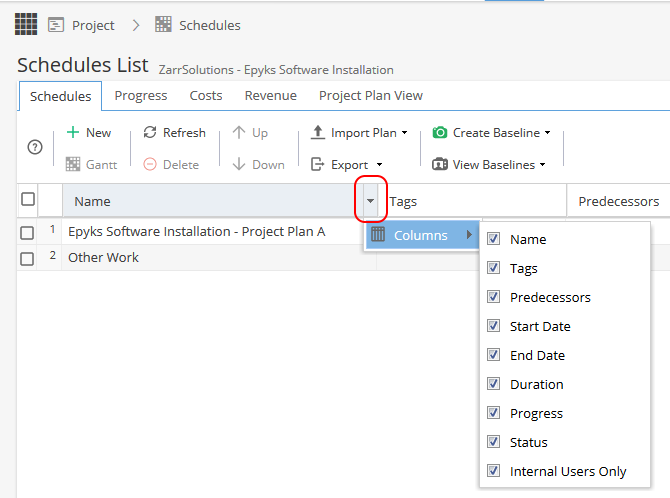
Information about the schedules will be displayed, including Name, Duration, Progress and more.
To Hide/display a column, click the drop-down arrow on the right of a column heading, scroll to 'Columns' and tick/untick a column as desired:
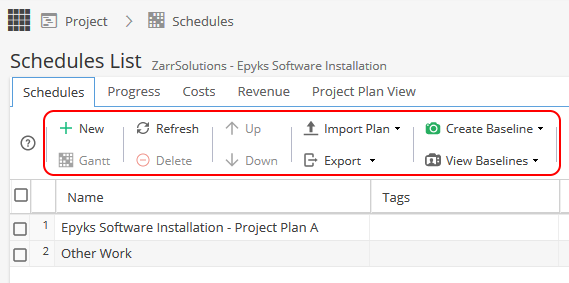
The options at the top left of the Schedules List page allow you to:
- Create a Schedule by clicking the New button
- Open a Schedule by selecting it then clicking the Gantt button or by double-clicking it
- Refresh the page to check for any changes and see the data in real time
- Delete a Schedule by clicking the Schedule and then clicking the Delete button.
NOTE: This is a permanent action. It is not possible to undo a deletion! - Order multiple Schedules by selecting the Schedule then clicking the Up or Down button
- Import a project plan (in .mpp or .mpx format) by clicking Import Plan. In the drop-down menu, click Browse to find and select your project plan, enter a Schedule Name, then tick either or both boxes to 'Separate top activities into schedules' or 'Import resources' and click OK
- Export the contents of the page by clicking the Export button then choosing the desired export format
- Create a new Baseline for the project by clicking Create Baseline, entering a Baseline Description then clicking OK
- Manage existing Baselines, including deleting unwanted baselines, by clicking View Baselines. To delete a baseline, select the baseline and click the delete button on the right.
NOTE: This is a permanent action. It is not possible to undo a deletion!
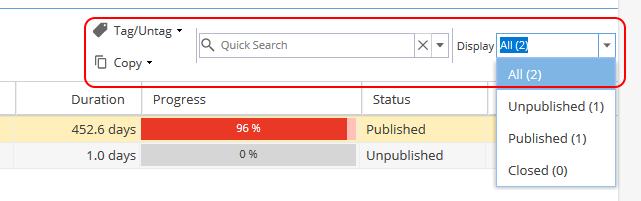
The options at the top right of the Schedules List page allow you to:
- Choose any Tags to apply to or remove from a schedule by selecting the schedule, clicking Tag/Untag, ticking the desired Tags and clicking Tag or Untag as desired
- Duplicate a schedule by selecting it, clicking the Copy button, entering a Schedule Name then clicking OK
- Quick Search for a keyword in all of the Schedule columns. For example, you could search for 'integration' by typing the word 'integration', then pressing Enter on your keyboard
- It is also possible to filter by Tags by clicking the drop-down arrow next to the Quick Search box and clicking the desired Tags
- Filter the schedules based on status by choosing to display Draft, Live, Closed or All Schedules. To do this, click the Display drop-down arrow and click the desired option