The Revenue tab in the Schedules List shows you a high level view of the Revenue of the Schedule(s) in your Project.
Example:
The columns in this view are:
- Name (Of the Schedule)
- Predecessors - Is the schedule dependent on any of the other Schedules in the list
- Budget Revenue - This is the total amount based on the Revenue that has been scheduled in the Schedule
- Planned to Date - How much of the Budget Revenue should have been completed (invoiced) at this time
- Actual Revenue - This is the hours logged against the Schedule to date x hourly revenue per Resource.
Note: 'Hourly revenue per Resource' is set on a per-project basis in Project > Finances > Resources Sheet
or on a company-wide basis in Resources > Profiles > Costs and Rates - EAC - (Estimate At Completion) This is calculated as ( AC + ( BAC - EV )) / CPI
- ETC - (Estimate To Completion) This is calculated as ( BAC - EV ) / CPI
.
Clicking on a Schedule (the selected row will highlight yellow) and clicking View or double clicking on a Schedule will take you the Gantt view.

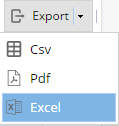
Export allows you to export the information available in this screen to various file formats, to do so click Export and select which file format from the drop-down menu that appears. The file will then download to your local computer automatically.
Quick Search allows you to search for specific Schedules(s).The down arrow button next to the search allows you to Filter the list of Schedules using the Project Tags you have set up.

Finally the Display menu allows you to filter the list based on the Schedule Status (Published, Unpublished, Closed, or All)
