The default view for the Blueprints menu will be the Blueprints List for Company Blueprints.
If you need to look at Project Blueprints, click on the other tab.
Hover your mouse over the column headings to see a drop down arrow appear, this will allow you to:
- Sort on a column, click the drop-down arrow on the right of a column heading and click 'Sort Ascending' or 'Sort Descending'.
- Hide/display a column, click the drop-down arrow on the right of a column heading, scroll to 'Columns' and tick/untick a column as desired.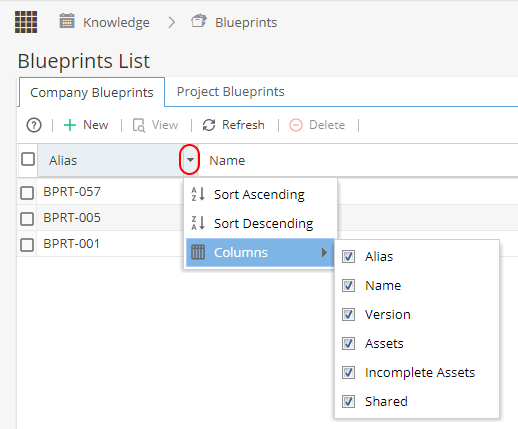
On the top left hand side you will see:
+ New - Allows you to create a new Blueprint
View - When a Blueprint is selected (the row shows highlighted yellow) this will take you to the Overview tab
Refresh - Update the information displayed on the screen
Delete - When a Blueprint is selected (the row shows highlighted yellow) you will be asked to confirm if you want to Delete the Blueprint, once deleted the details of the Blueprint can not be recovered.
On the top right side you will see: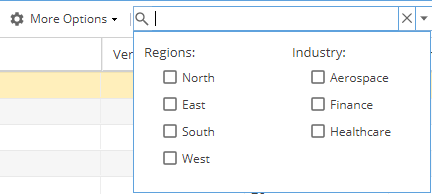
More Options has several options, some will only appear available when a Blueprint is selected:
- Activate / Deactivate - Make a Blueprint Active / Inactive
- Blueprint Copy - Make a replica of an existing Blueprint with a new Name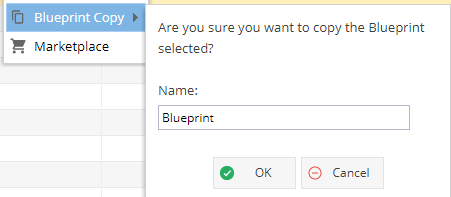
- Marketplace - More information about sharing Blueprints can be found here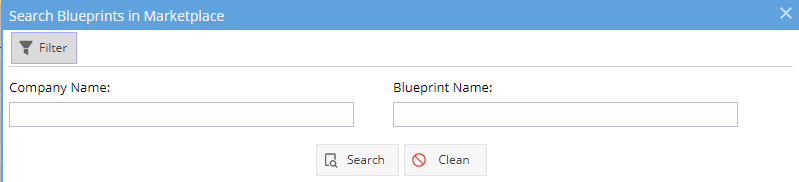
On the top right side you will also see: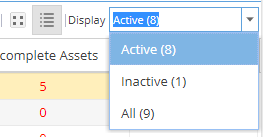
The two icons allow you to switch between a tile and list view of your Blueprints
The Display Drop down allows you to switch the view to show Active / Inactive or All of the Company Blueprints