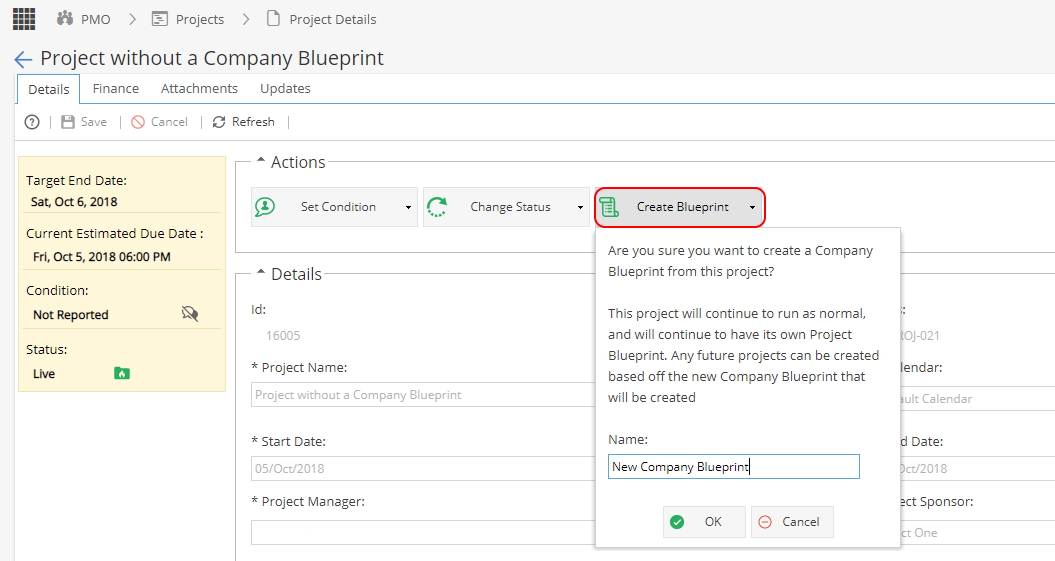
A Project Blueprint is automatically created by the system and shown in this tab whenever a Project is created without being linked to a Company Blueprint:

You can view / edit the Project Blueprint by:
- Knowledge > Blueprints > Project Blueprints tab > Double click on a Project
- Knowledge > Blueprints > Project Blueprints tab > Select a Project row and click View

- Project > Project Home > Scroll icon under Actions to Configure Blueprint

This will take you to the Blueprint to edit Assets / Advanced Setup options for the Project
From the Project Blueprints List screen, hover your mouse over the column headings to see a drop down arrow appear, this will allow you to:
- Sort on a column, click the drop-down arrow on the right of a column heading and click 'Sort Ascending' or 'Sort Descending'.
- Hide/display a column, click the drop-down arrow on the right of a column heading, scroll to 'Columns' and tick/untick a column as desired.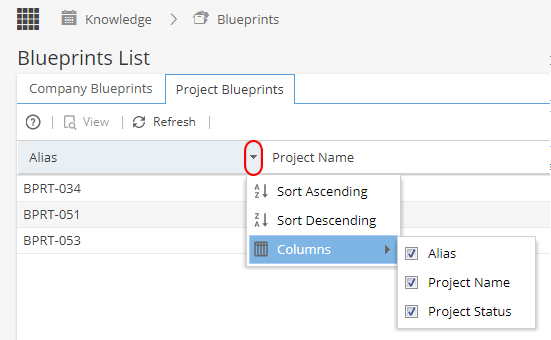
On the top right side you will see: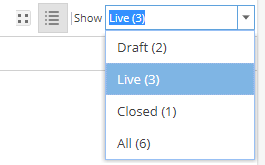
The two icons allow you to switch between a tile and list view of your Blueprints
The Display Drop down allows you to switch the view to show Active / Inactive or All of the Company Blueprints
Difference between Project & Company Blueprints:
If you are ever viewing the Company Blueprint the box on the left will show in Blue
For other Project views, including the Project Blueprint, the box on the left will show as Yellow as a reminder this is part of a Project
The benefit of Project Blueprints is they can be transformed into a Company Blueprint as a starting point for future Projects.
(Note: Assets still need to be configured, the schedule will not create these for you)
At any time you can go to PMO > Projects > Project Details and Create Blueprint.