There are a few steps to re-opening a Project:
1) Change the Project Status back to Live
Go to Project > Project Home > Overview tab
Click the Change Status button and select Live.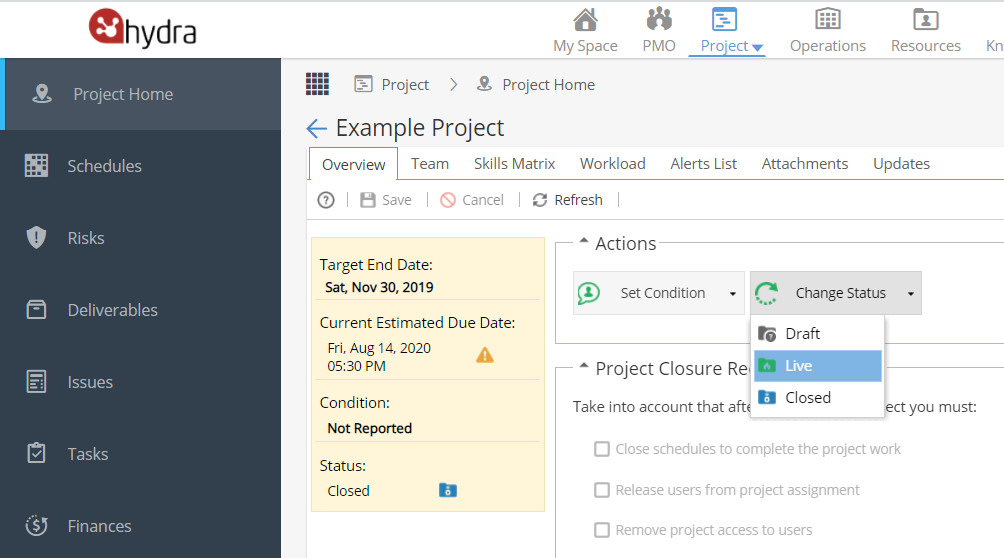
A pop up will appear: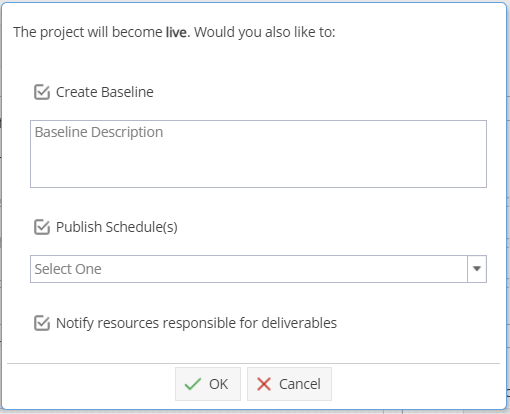
If you select to Create Baseline, you need to select at least one Schedule from the drop down to publish.
Click OK to confirm.
2) Check your Project Team / Resources
When the Project was closed, it is likely your team were made Inactive.
On the Project > Admin > Project Users tab.
Change the drop down on the top right to show Invalid.
If any resources appear on this list that need to work on Tasks / Update Timesheets, select their name and click Activate
3) Check the Team assignments
Note: If you are re-opening the project to add hours on the timesheets for existing tasks, you may not need to do this step.
If the project is going to have further work, you may need to update / extend your team members assignment to the project
Go to the Project > Project Home > Team tab
Change the drop down on the top right to show All
Check the end dates of your team members.
Extend the assignment end dates (if needed).