Add Task adds an extra row to your Schedule with a blue circle icon called "New Task".
Select the place in your Schedule you would like the Task to be added underneath.
(If the first row, or nothing, is selected, the Task will be created at the bottom of your schedule).
Click on the Add Task icon in the Gantt toolbar.
You can use this button multiple times to create as many new tasks as required.
 Tasks may look like Milestones in the Gantt chart, once a Real/Generic Resource is assigned to the Task, the duration will update and the Task will show as a blue block.
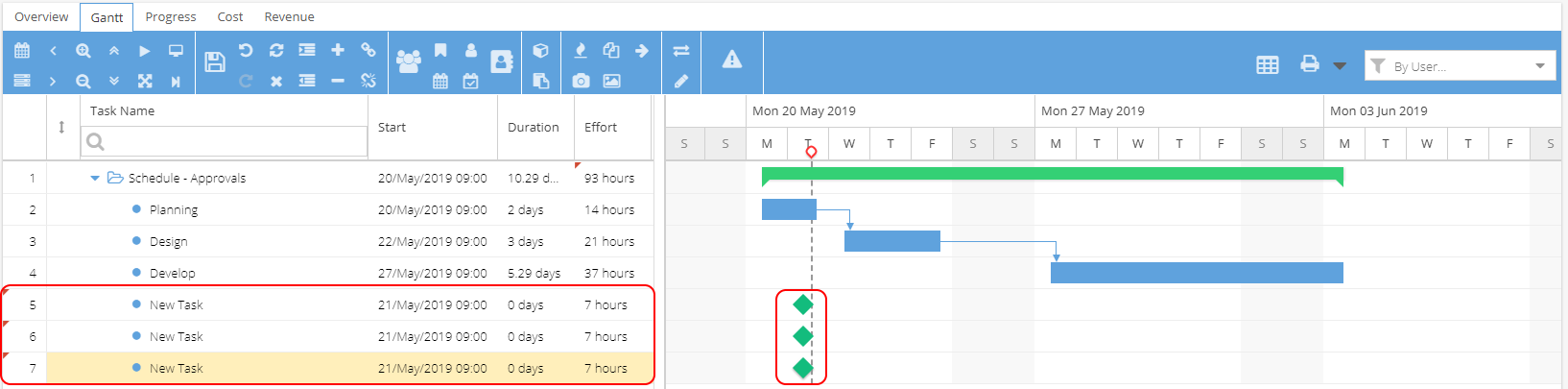
Now you can configure your Task(s):
- Double click on a cell such as Task Name, Start Date, Effort / Duration to edit.
- Assign Resources as required.
- Right click to view Task Information and make changes such as the Scheduling Mode.
- Set up Dependencies
- Create an Activity Folder to group Tasks
Once the Task has been Saved  when you right click you will have the option to view the Task Details.
Task Details allows you to set Checklists, add Documents, add Materials etc.
To Remove Tasks you need to select Tasks and/or Activity Folders and then click the minus icon.
To select multiple rows hold down the Ctrl key and click on the rows (they will highlight yellow).
If you try to delete a task with time logs you will see a warning: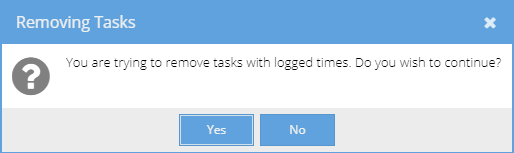
Remember if you remove a Folder, any sub tasks will also be removed.