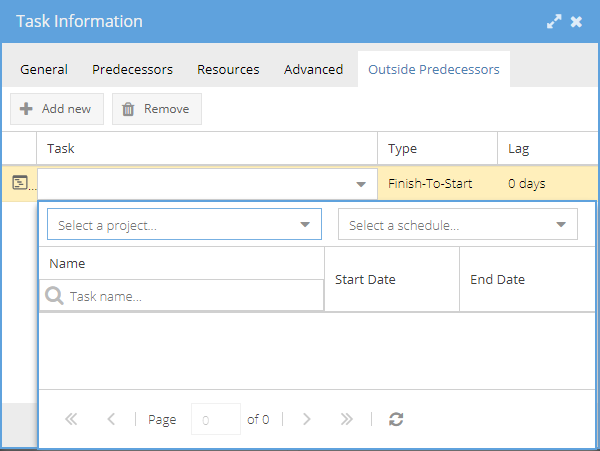
The Task Information screen is split into tabs.
Expand a section below to learn more.
Tabs:
-
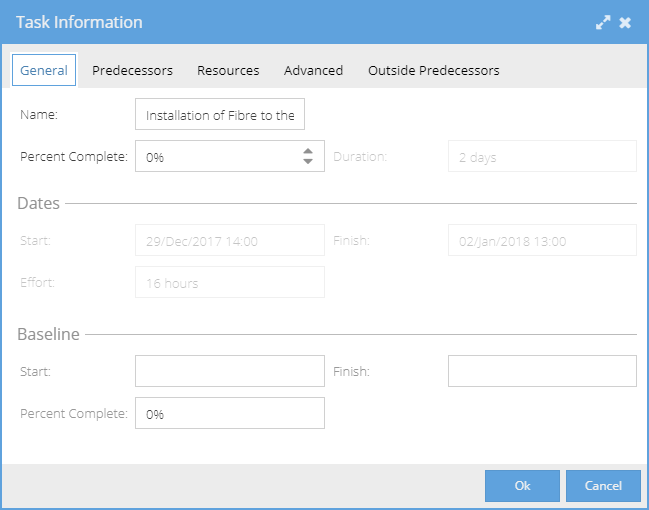
Within the General tab you can change the tasks:
Name
Percent Complete
The Duration of the task (if it is fixed duration / dynamic assignment)
The tasks Effort (if it is effort driven / dynamic assignment)
The Start and Finish dates
The following information is also displayed if a Baseline is being viewed:
The baselines Start and Finish dates
The baseline Percent Complete
-
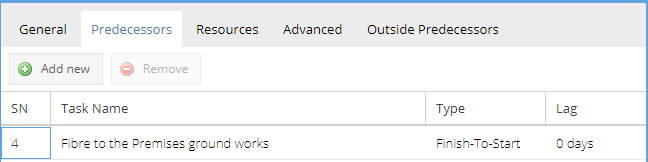
The Predecessors tab lists all the predecessors related to the selected task. It lists the Task Name, the Type of relationship between the predecessor and the selected task along with the Lag - the time delay in days before this task starts once the Type is satisfied.
Extra Outside Predecessors can be added with the Add New button, or removed using the Remove button.
-
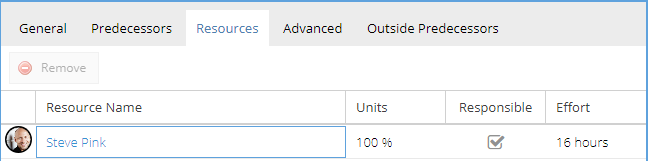
The Resources tab lists the resource assigned to the task, their Name, the Units, whether the resource is the primary Responsible, or a secondary resource and the amount of Effort they are responsible for.
Using this tab you can also Add resources to the task or Remove already assigned resource.
-
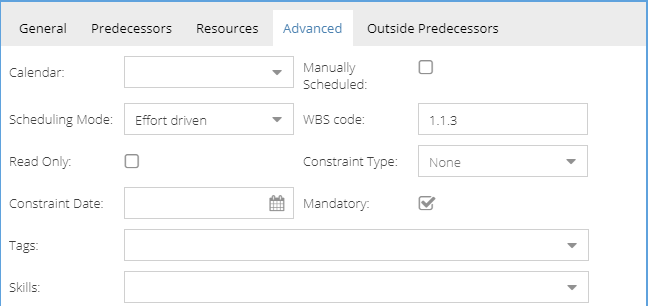
The Advanced tab allows you to change the following information:
The Calendar defaults to the projects calendar, however you can change this to match a resources personal calendar.
When Manually Scheduled is checked, the start date of the task will not be affected by any of its dependencies or constraints.
The tasks Scheduling Mode can be Effort driven, Fixed duration, or Dynamic assignment.
WBS code is a code identifying where the task is within the structure of the schedule.
When the checkbox Read Only is selected, none of the tasks attributes can be changed except the read only checkbox and the task cannot be deleted.
You can add a constraint to the task using the Constraint Type drop down list. Options include Finish no earlier than, Finish no later than, Must finish on, Must start on, Start no earlier than and Start no later than.
The Constraint Date is used with the Constraint Type drop down to set a constraint on the task.
The Mandatory checkbox determines whether the task needs to be completed before the schedule can be closed.
-
The Outside Predecessors tab lists the predecessors from other Projects / Schedules.
It lists the Task Name, the Type of relationship between the predecessor and the selected task along with the Lag - the time delay in days before this task starts once the Type is satisfied.Extra Outside Predecessors can be added with the Add New button, or removed using the Remove button.