Dependencies can be added in the following ways:
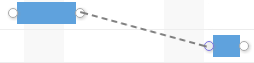
Within the graphical section of the Gantt, drag from the end of one task to the start of another.
Links can also be created by selecting more than one task and clicking on the link  button. Links can also be removed by selecting multiple tasks and clicking on the un-link
  button.
To select multiple Tasks hover your mouse over the line number on the left hand side, hold down the Ctrl key and click on multiple rows (within the numbered column)
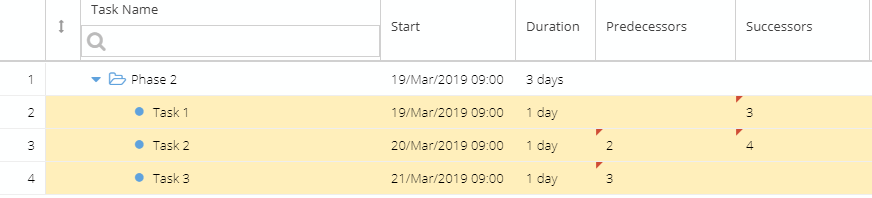
The Predecessors / Successors column can be added from the "Add New Column" option in the Gantt. This column lists the line number of predecessor tasks. Multiple predecessors / successors can be separated using ; as the delimiter. As an example of this, 3;7 would indicate that lines 3 and 7 are predecessors / successors.
If the task has multiple predecessors, you can add them by separating them with a semicolon ;
Example: 3; 8
Dependency Relationships
By default, the system creates dependencies as Finish-Start, but you can modify it using these acronyms:
SS: Start - Start
SF: Start - Finish
FS: Finish - Start
FF: Finish – Finish
Example: 5SS
Lag / Lead Times
Lag time causes a gap in timing, which delays the start of the successor task.
You can set Lag by adding a + sign and the number of days after the predecessor
Example: 5+3 means that row 5 is the predecessor task and once completed there will be a delay of 3 days before this task can begin.
Lead time is overlap between tasks that have a dependency, where the successor task can begin before the predecessor has been completed (this can only happen for tasks with a Finish - Start relationship).
Example: 3-1 means that the task starts 1 day before the task in row 3 is due to be completed.
Outside Predecessor
You can create dependencies between Tasks from different Schedules (providing the Schedules are part of the same Project).
From the Gantt, find the successor task to be linked and right click.
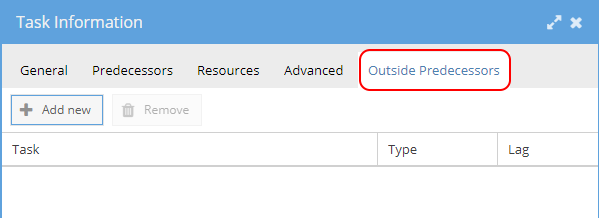
Click Task Information and select the "Outside Predecessors" tab.
Click the "Add New" button, select a Schedule / Task and click OK to create the Dependency.