Some elements in Hydra allow you to add a user who is Responsible for an aspect of the Project / Blueprint.
A few of the report dashboards (company and Project) will allow you to filter or Group By the Responsible user.
-
From Project > Schedules > Schedule Detail Overview
If the Company / Project Admin settings have "Schedule Grouping" set to Yes, this will give you the option to set a user Responsible in the Details section of a schedule.
(If Schedule Grouping is set to No, the Responsible field will not be available)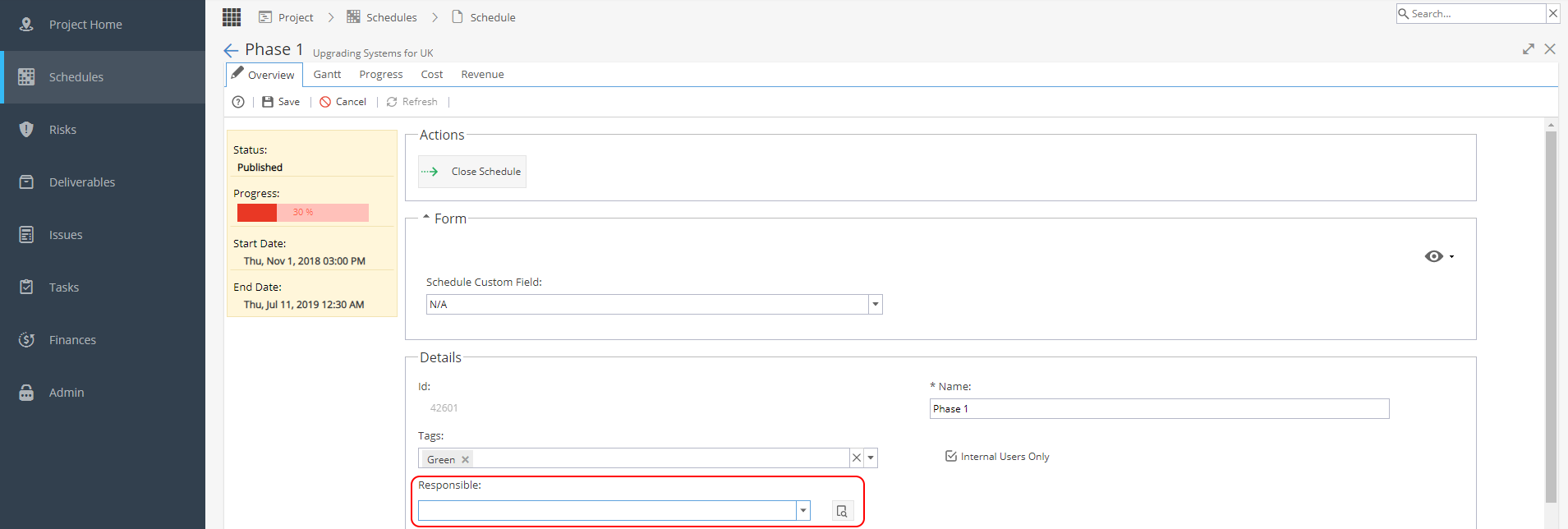
-
From Project > Risks > Risk Overview or Project > Risks > Create new Risk
You will have the option to set a user Responsible in the Details section of a Risk.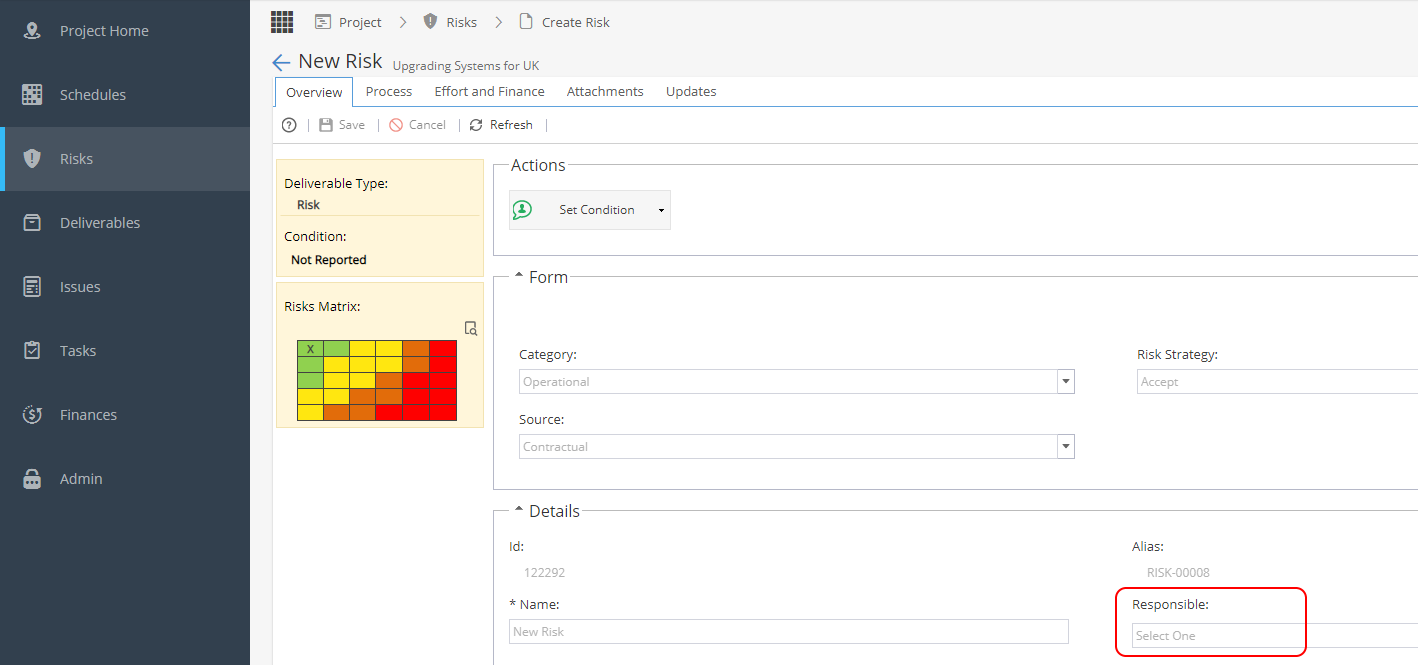
-
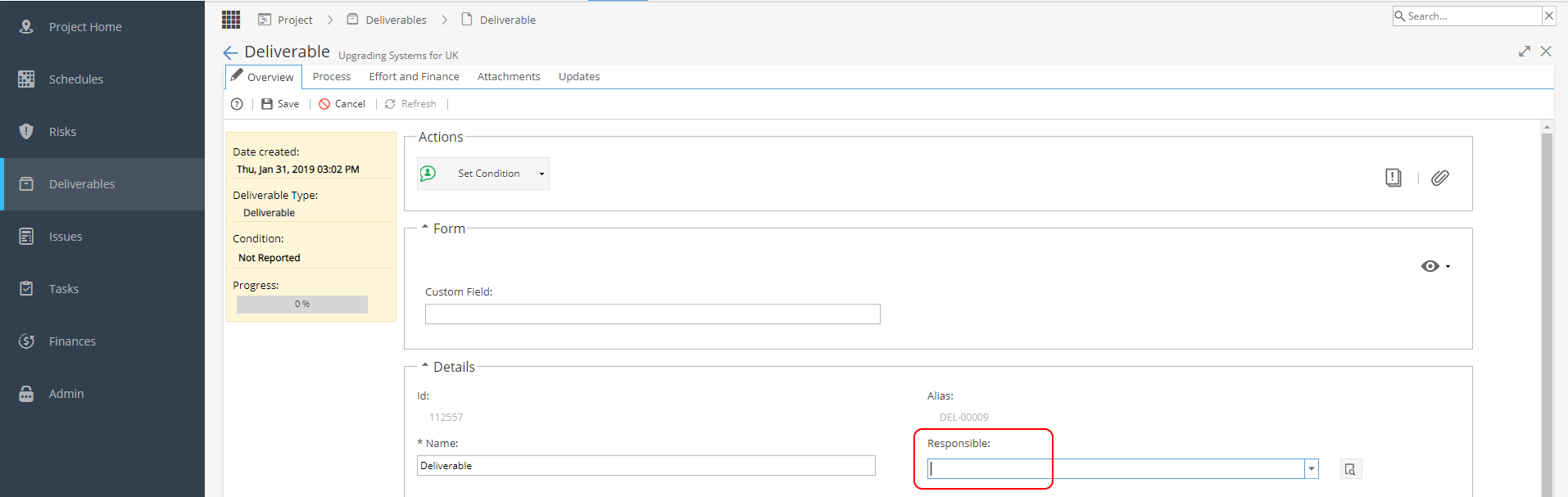
From Project > Deliverables > Overview you will have the option to set a user Responsible in the Details panel.
-
A Responsible user can be added from the Project > Issues > Issue Overview tab or when creating a new Issue.
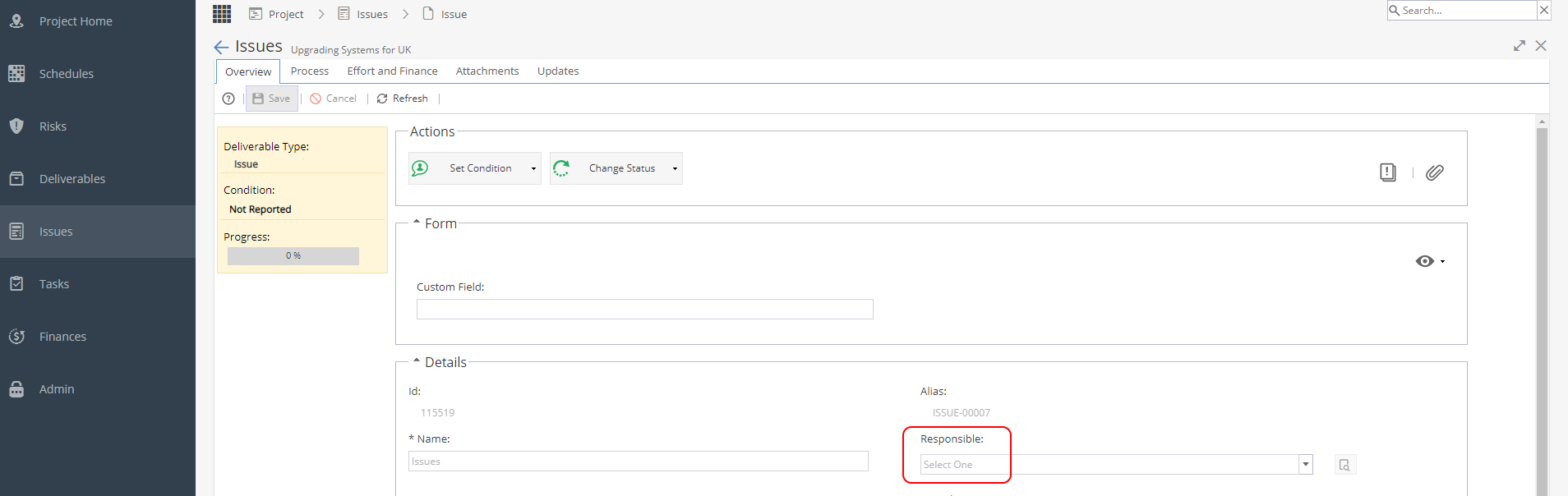
The responsible users will also be visible on the Project > Issues > Issues List screen. -
When you allocate a Resource to a Task in the Project > Gantt
You will also see a check box option to make them responsible: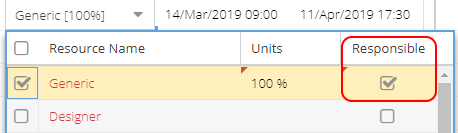
When you view the Project > Tasks Detail> Overview screen you will see the Responsible user in the yellow information box.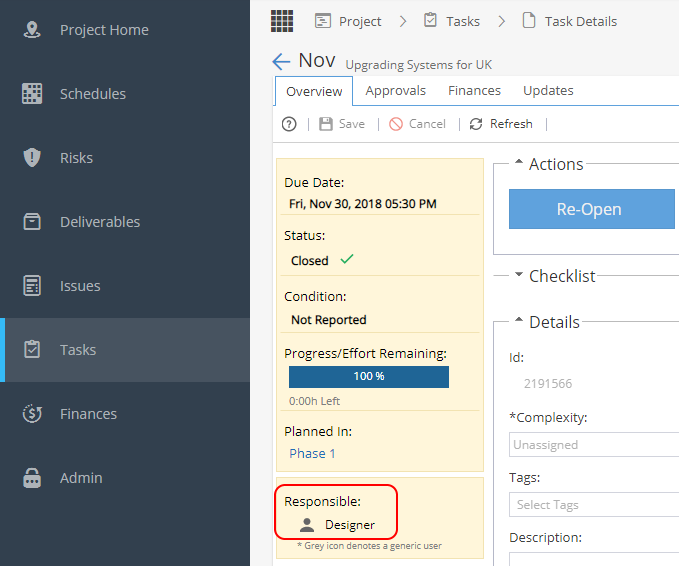
-
Being responsible for a Blueprint allows you to view / edit the Template Project.
The Overview screen will only allow you to see the last user to be added.
If another user is added, this is in addition to any existing users.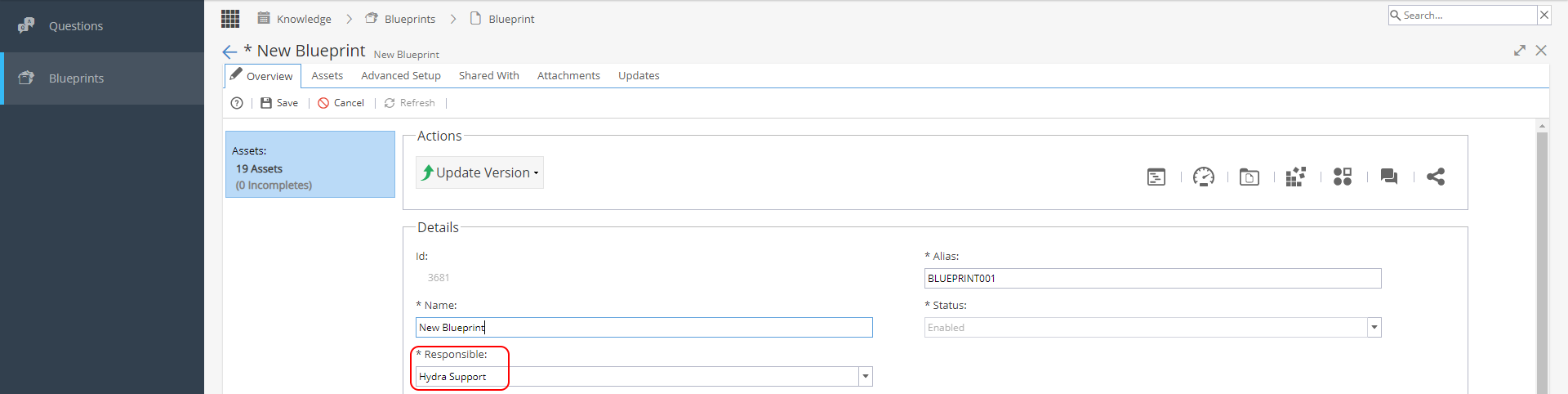
You can view changes to the responsible field from the Knowledge > Company Blueprints > Updates tab using the Change Logs filter