The Issue Overview tab allows you to see the main details of the Issue, this tab has 3 sections:
Yellow Information Panel
Actions section
Form section
Details section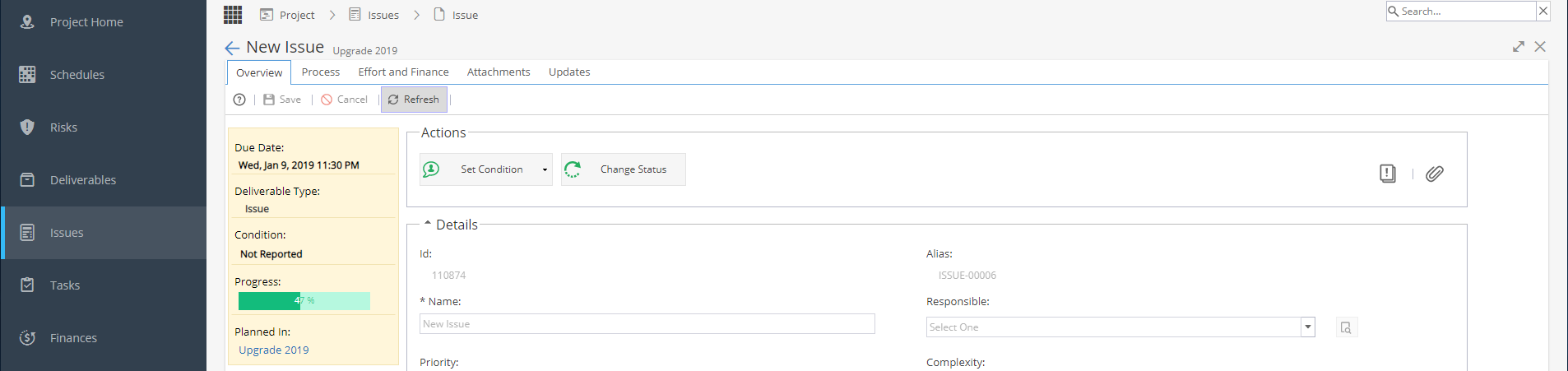
To Save or Cancel any changes you make, use the Buttons in the Toolbar
Yellow Information Panel
Deliverable Type = Issue
 It is helpful to remember Issues are a type of Deliverable. This will help you understand how Issues work in Hydra.
Condition - If set using the option under Actions
Progress - Will only appear if at least one Task exists under the Process tab, the % will be based on the Task so the Issue must be planned in the Schedule and assigned to a user to be updated or closed.
Planned in - Will only appear if the Tasks under Process have been planned in a Schedule.
Actions
Set Condition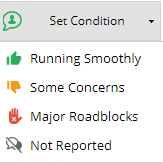
Change Status - This option will only show if States are configured under Blueprints > Deliverables > Assets
 View Guide, including Instructions, Custom Fields, Description
Based on configuration in Blueprint > Assets > Deliverables
Look at the Process / States / Fields and Instructions tabs. Add / View Documents - Shortcut to the Attachments tab
Form
These are custom fields, so if this section is not visible it means none have been configured.
These fields are set as visible / mandatory in Blueprints > Assets > Deliverables under the Fields tab.
The drop down options available are set under Blueprints > Advanced Setup > Fields
On the top right of the Form section you will see an eye icon
This allows you to change which fields are visible from the checkbox options:
Details
- ID
- Alias
- Name of the Issue
- User Responsible
- Priority
- Target Date
- Share with Stakeholder?
- Tags
- Description