From Project > Issues when a specific Issue is selected you will have the Attachments tab.
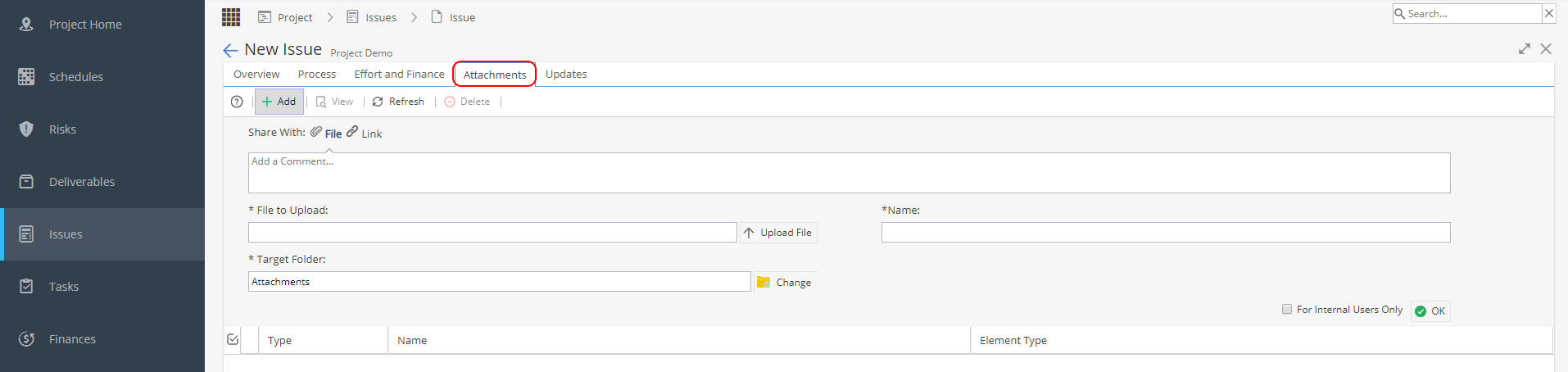
When adding a File, you need to add a comment and select the file to upload (the name will populate using the file name).
You have the option to change the Target Folder where this file can be seen under Documents > Library > Company Library
A Link is not a URL, Issues can be linked to any object in the system which also has the attachments tab.
When you click on the Link option a pop up window will show giving you the options available: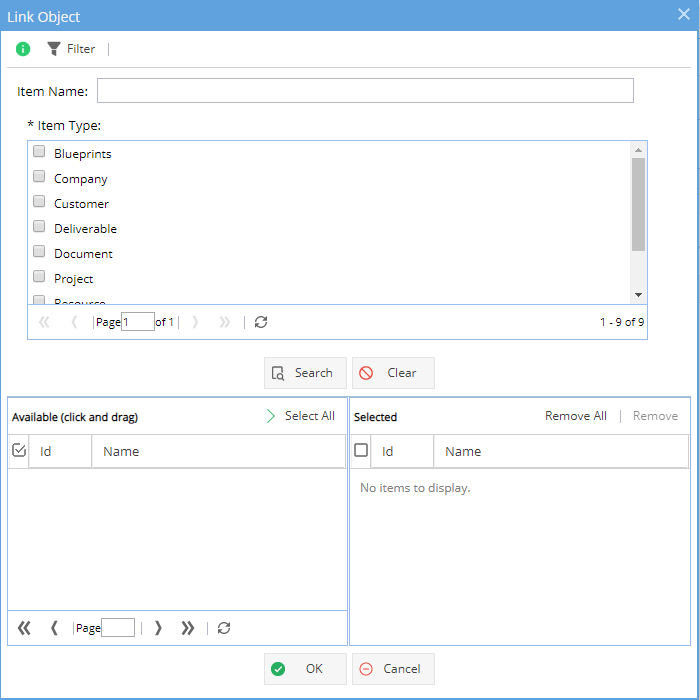
The top half of the window is to search. You can select an Item Type and click Search or you can also add a partial name (you will still need to select the Item Type).
Once an item e.g. Project is selected click OK - You will need to add a comment before you can click OK to save.
When you look at the Object you have linked to - The link will show in the Attachments tab: 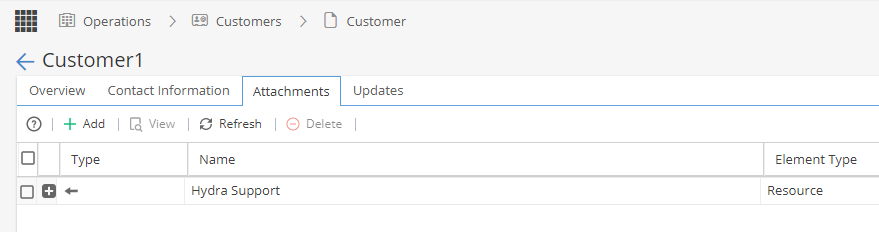
For both files or links, on the bottom right hand side you can select if only Internal Users should be able to see the attachments.
Attachments (files or links) will also be visible in the Updates tab.