Like other objects in Hydra, Updates can be added to Issues.
From the top right of the screen you can:
+ Follow - Follow this Customer to keep track of any updates
Expand All
Collapse All
Display - Filter which type of updates you would like to see
Including Change Logs in your Display Filter will give you some of the audit history for changes to the Issue, you can click Show Details for more information:
For the Updates, you can add:
Comment
File
Link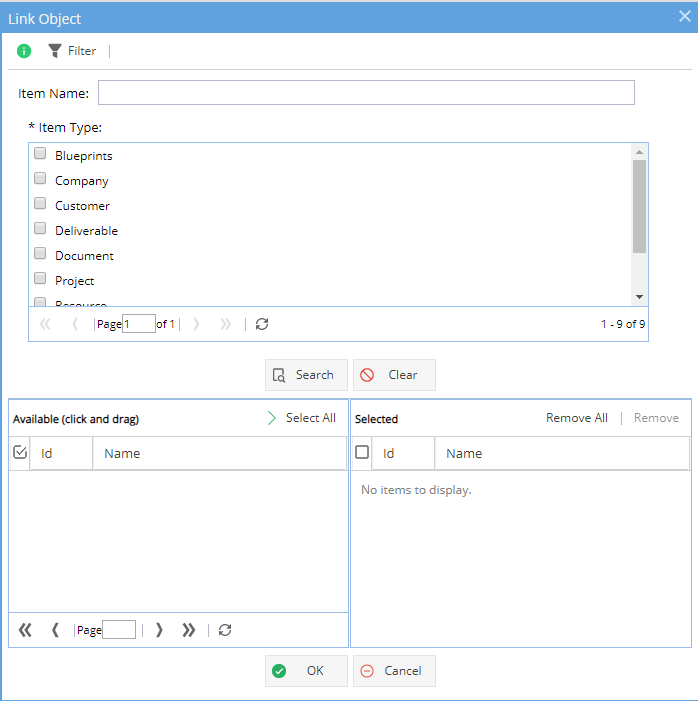
A Link is not a URL, Issues can be linked to any object in the system which also has the attachments tab.
When you click on the Link option a pop up window will show giving you the options available (as shown above)
The top half of the window is to search. You can select an Item Type and click Search or you can also add a partial name (you will still need to select the Item Type).
Once an item e.g. Project is selected click OK - You will need to add a comment before you can click OK to save.
When you look at the Object you have linked to - The link will show in the Attachments tab: 
Notify Specific Users of Updates
Whenever adding an update you will see an icon on the top right which allows you to specify who needs to know about this update. 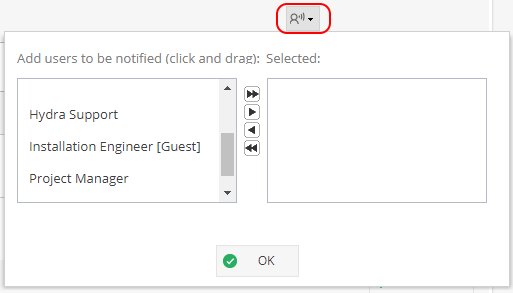
If people are not selected they will be able to see the update when looking at this tab but they will not get the notification on their updates wall to let them know something has changed unless they are already "following" this object: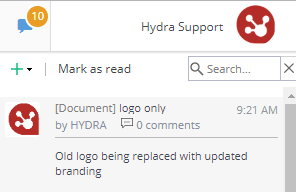
Limit update to internal users only
If you do not want external users e.g Customers to see an update, remember to select the "For internal users only" option on the bottom right of the screen.