Clicking into a Task from the Tasks List will give you more information, allow you to link the task to a Customer, add/edit Cost and Rate, or add any Expenses and Materials.
-
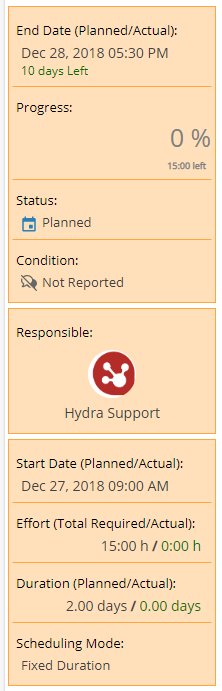
End Date (Planned / Actual)
Progress
Status
Condition
Responsible (Resource with Non Project Task assigned)
Start Date (Planned / Actual)
Effort (Total Required / Actual)
Duration (Planned / Actual)
Scheduling Mode
Most of this information comes from Resources > Planning > Scheduling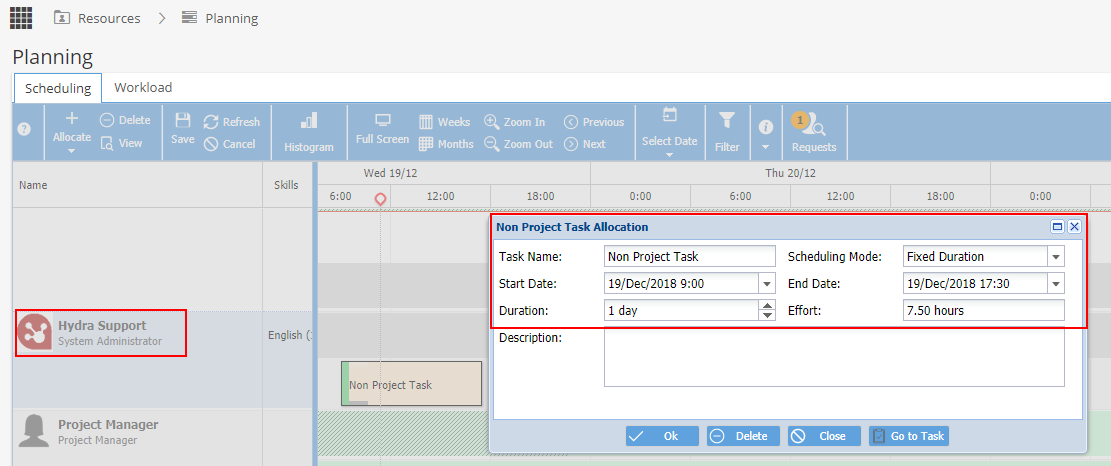
-
The Actions section will only show if you are listed as the person responsible for the Task, otherwise the first section will be Details instead.

The Blue button will allow you to Start / Complete / Re-open the Non Project Task
This will change the Status from Planned to In Progress / Closed
Change Condition gives you the drop down options: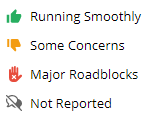
Time Logs will only show if enabled in the Preferences section and you are the owner of the Task.
The Time Logs button allows you to add time against the Non Project Task, which will automatically update the Progress %.
Time can also be added via My Space > My Timesheets -
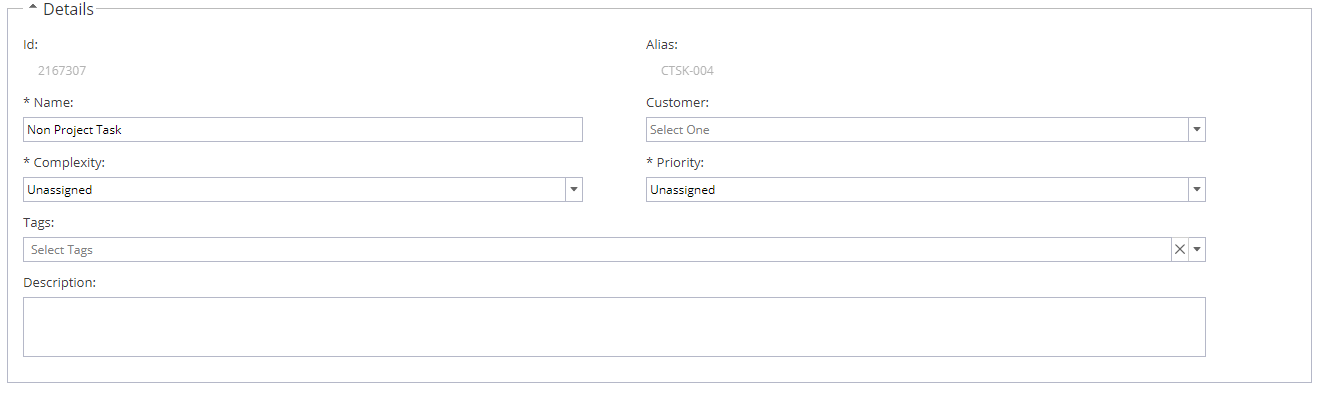
ID - ID # for the Non-Project Task
Alias - Usually system generated but this is based on the settings from Admin > Configuration > Company Preferences > Automatic Alias for the item called "Company Task"
Name - Name of Non-Project Task
Customer - Drop down choice of Active customers from Operations > Customers > Customers List
Complexity - Unassigned, Easy, Medium Difficult or Very Difficult
Priority - Unassigned, Low, Medium, High
Tags - Available from list set under Admin > Configuration > Company Preferences > Tags Management -
The default Preferences are set via Admin > Configuration > Company Preferences - Tracking Mode Non-Project Tasks but this can be updated from here.

If Enable Time Log is set to Yes, the user responsible can add time here or via their Timesheet
If Enable Time Log is set to No, the task is updated by changing the Progress % on the top left. -

Owner - When the Non-Project Task is first created, the owner will be set to the
Calendar - This will show the calendar of the resource the non-project task was added to
Cost Centre - Optional field
Currency - Will use the default from Admin > Configuration > Company Preferences > Currency Configuration
Cost per Hour / Rate per Hour - Will set as 0 unless details entered on this screen -

Click on the + Add button on the top left and select Material or Expense
Update Name, Description, Value, Cost and Rate as applicable.
You can delete the Expense or Material by clicking on the red icon on the far right hand side.