Customers can be linked to your Projects but basic information needs to be added to Hydra for them to appear in the drop down list.
This screen allows you to view, create or edit your Customers.
When you go to Operations > Customers you will see the Customers List screen.
This will show:
Alias - Customer Code (e.g. for billing purposes)
Name - Customer Company Name
Status - Active / Inactive
Web Site - The Company's Web Site

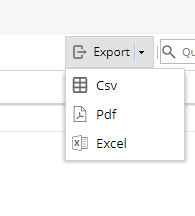
Using the Export button you can export a copy of the Customer List information to CSV, PDF or Excel format.
Quick Search bar can be used to look for:
- Text
- Organisational Units
*Org Units must be enabled up via Admin > Configuration > Company Preferences and the names are created within Admin > Configuration > Organizational Units
- Tags
*Tags must be set up via Admin > Configuration > Company Preferences > Tags Management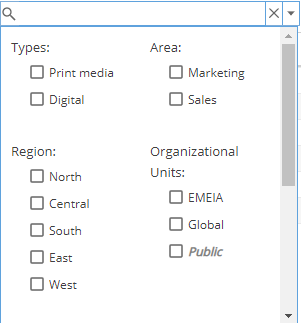
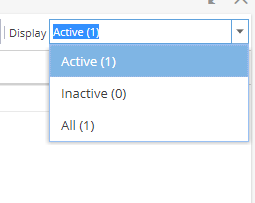
Use the drop down list to filter the Display to choose if you want to see Active, Inactive or All Customers in your view.
You can update the Customer Status by selecting a row and then using the Activate / Deactivate options.
This action also updates the status for Users associated to the Customer.
To create a new Customer click on the + New button, this will give you a blank Overview screen to start filling in some details.
To view information for or to add users to an existing Customer, double click on the name to go to the Overview screen.