My Space > My Calendar
This screen is view only, you can not add Time Off (such as annual leave) or Tasks from this screen.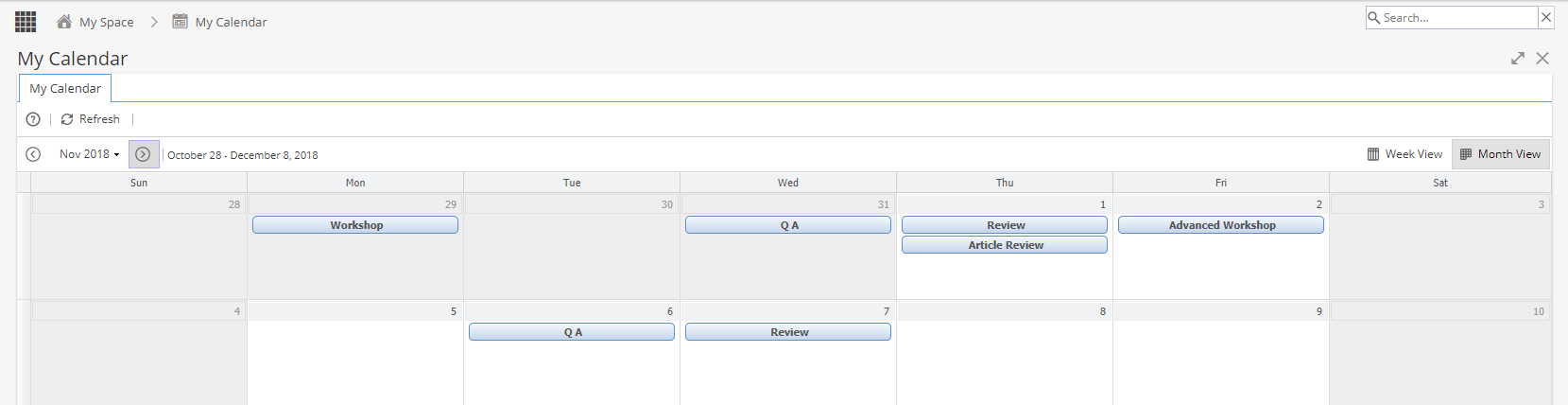
Tasks are shown in Blue
Hover your mouse over a Task to see:
Start Date & Time
End Date & Time
Project Name
Status (Calendar Icon = Planned, Cog = In Progress, Green Tick = Completed)
Double clicking on a Task will take you to Project > Tasks > Task Details > Overview
Calendar Exceptions (Typically Bank Holidays) are shown in Yellow
These times come from Admin > Calendars > Calendar Exceptions
Admin Time (such as annual leave) is shown in grey
Hover your mouse over Admin Time to see the start / end date and time.
Admin Time for future dates are usually added by Resources > Planning > Scheduling or via an update from another system (e.g. integration with a holiday system)
Admin Time for current day / past dates can be added to My Space > My Timesheets
Double clicking on an exception or Admin Time in the Monthly view will take you to the Week view, or you can toggle the view using the Week / Month buttons on the top right of the screen.