The Resources > Timesheets Report > Configuration screen allows you to create timesheet reports, export them and have them sent out at regular intervals.
To configure a report: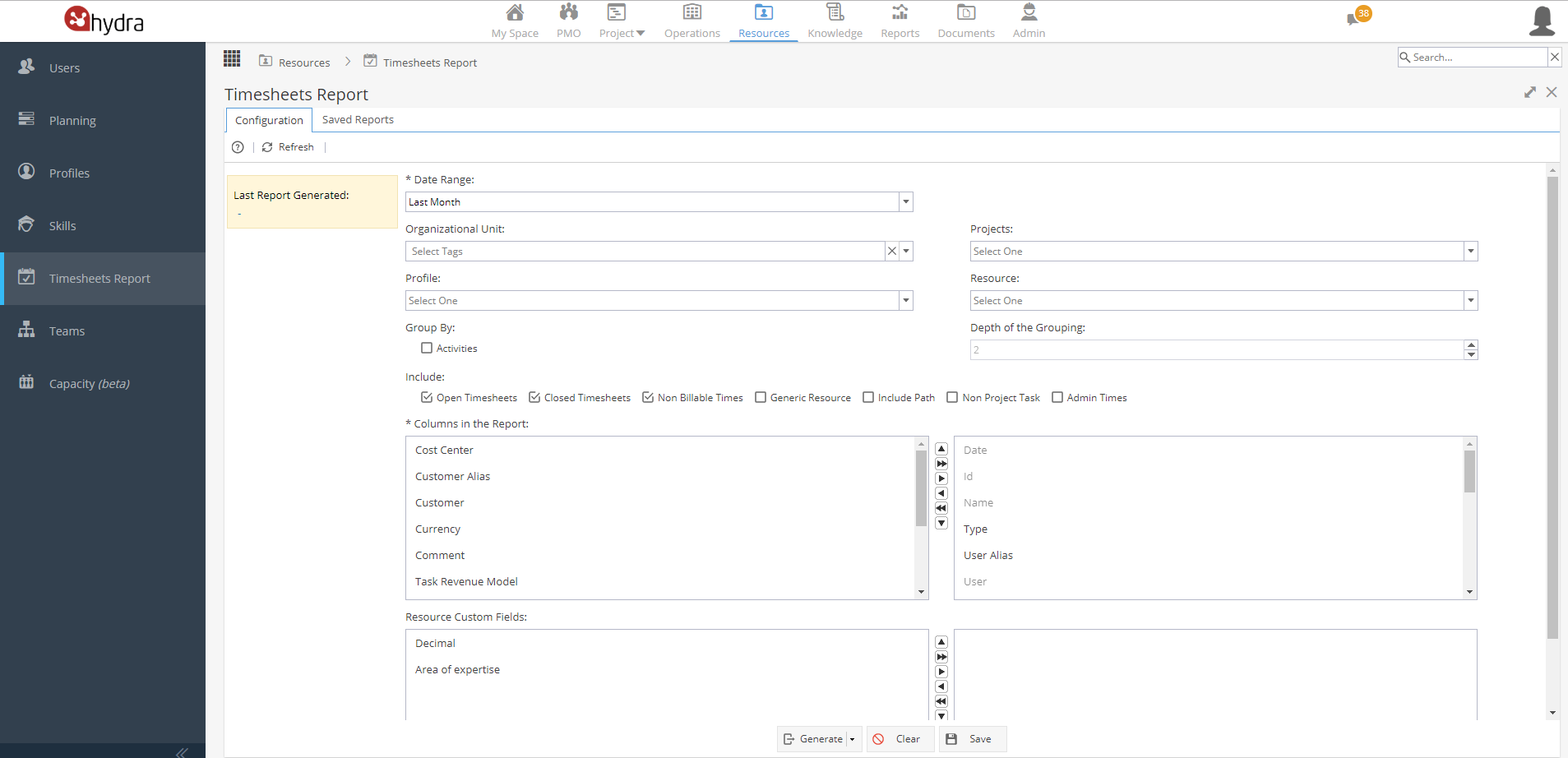
To generate a report go to the Configuration tab:
Date Range - Choose from drop down options
Organizational Unit - To search by org unit
*only visible if Organizational Units activated in Admin > Configuration > Company Preferences
Projects - Select which project(s) you wish to report on.
(When you select the drop down it will show Live Projects unless you change the drop down from the top right, you can choose Live, Closed or All - Draft will not apply as you can not log time to a draft project)
*OR*
Profile - Select which profiles(s) you wish to report on.
*OR*
Resources - Select which resources(s) you wish to report on.
Note: As the filters are intended to be OR (rather than AND) you will see the lists do not change, so if you select a Project, the Resources option will still show ALL available Resources for the company, not just the selected project(s). It is possible to use multiple filters or you can simply export data for a selected filter and then filter the results further in Excel.
Group by: Activities - Groups the output by activities.
*If you tick Group by the Date will show as N/A if there are multiple time entries for same user & task.
Depth of the Grouping
Profile - Filters the extracted time to only show the selected profile(s).
Include - Check boxes for additional filter options. For example, including generic resources or Admin Times.
*If a Project has been selected, Admin Times will appear greyed out but Unscheduled Events will be included in your report along with Tasks.
Columns in the Report- Choose which items from the list on the left are in the created report. Use the buttons between the two lists to add or remove columns, and reposition them within the report.
This will also give you the option to select Resource Custom Fields (if applicable to your company).
At the bottom of the screen are three buttons:
Generate - Export the report (Choose from Excel, CSV or Html formats).
To open the file once it has been exported, click on the link found in the yellow box on the top left: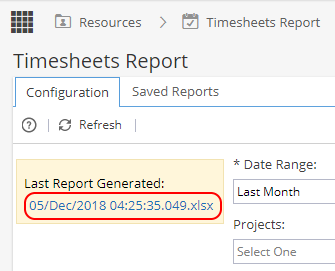
Clear - Clears the form.
Save - Save the report so you can generate it again with the same settings.
You will be asked to add a Name / Description and set the frequency.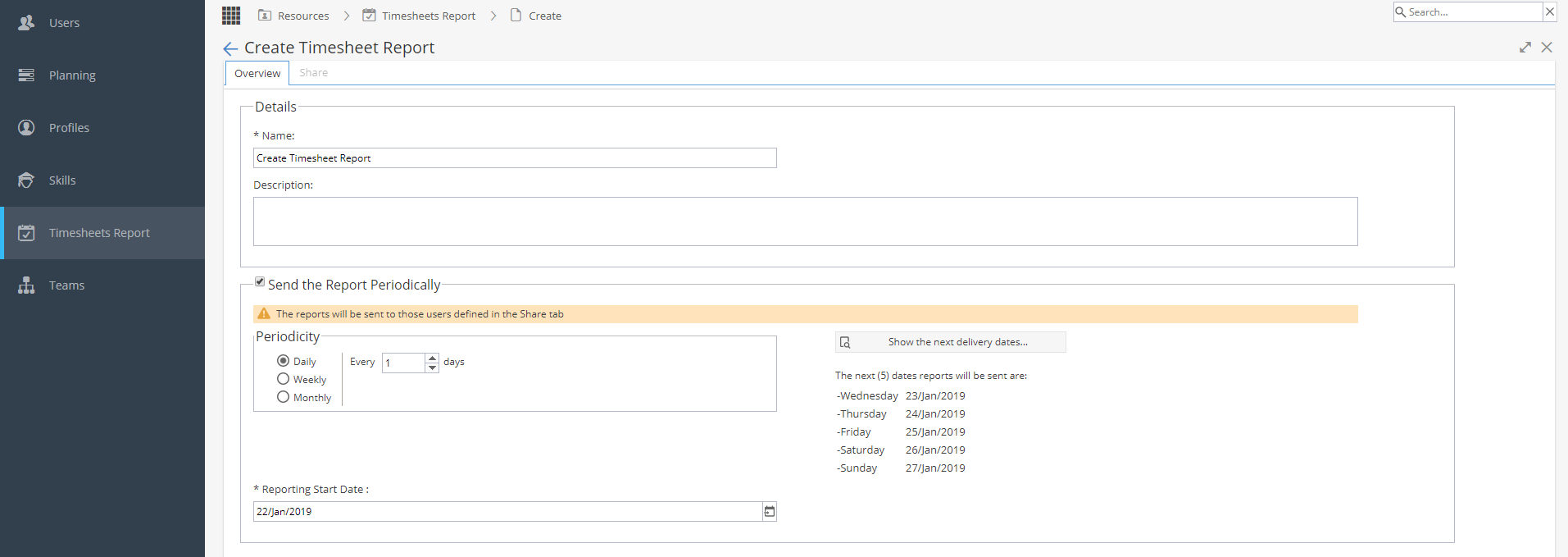
Once you click OK you will be taken to the Resources > Timesheets Report > Saved Reports > Overview tab.
More information can be found in the Saved Reports article.
-


-

-

-

-
For Tasks or Unscheduled Events check Project > Finances > Resources Sheet
The most common reason is a profile has not been set up with any costs and rates
OR the Valid From is after the start of the Task, so no rate was used.
*If time has been logged as an Unscheduled Event, check if the user was granted access as they should have been allocated to the Project before logging time.
For Admin Times check Resources > Users > General Information
For Non Project Tasks check Operations > Tasks > Overview -
Remember the report provides time in decimal format, so if you see 1.25 this is actually 1 hour 15 mins.
If the times logged are causing confusion you can manipulate the data in Excel to make this easier to follow.
Add a new column in your spreadsheet (to the right of Hours Registered)
Add a formula =(Cell)/24 and drag this down the report.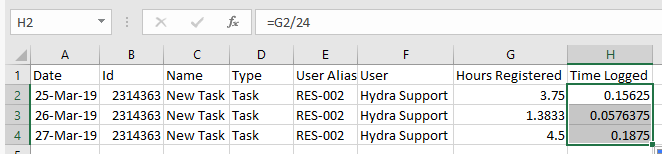
Highlight the new column, right click and select Format Cells.
Select Custom and pick hh:mm in the Type list.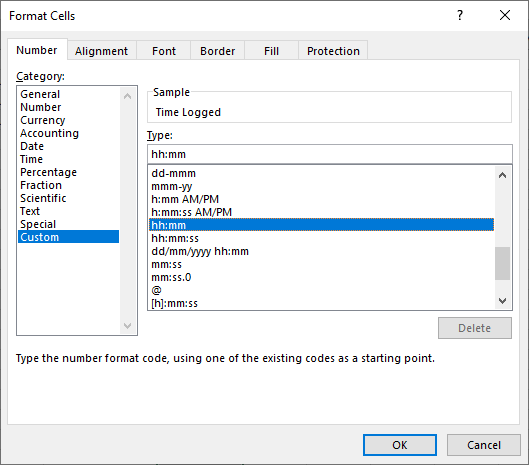
The report will now show time as hours and minutes: