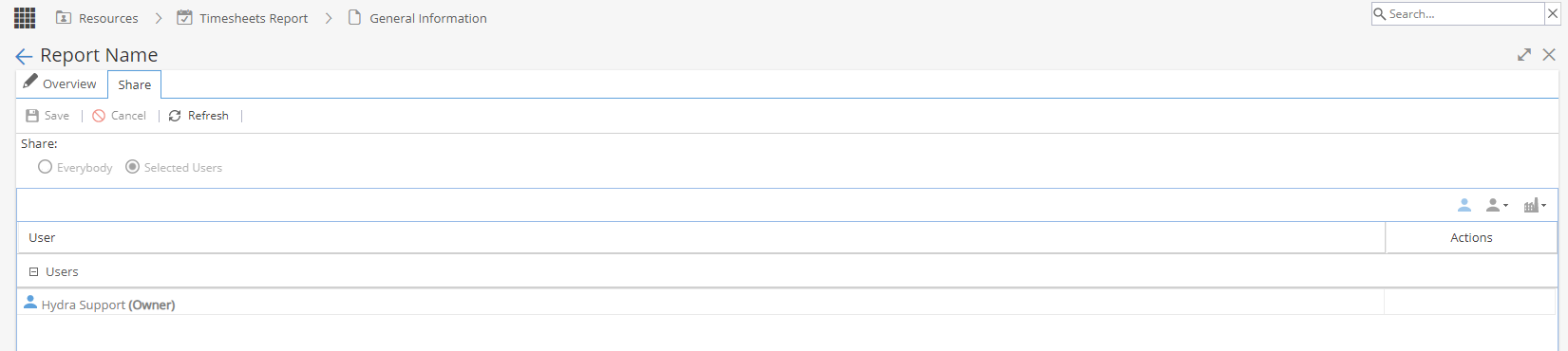
The Saved Reports tab lists all reports that have been saved within your company.

-
The table shows Name, Description, Created By, Last Generated (manually) and Last Sent (automatically).
Options on top left:

View - Will become available when one report is selected, takes you to the Overview.
Refresh - Updates any information visible on the Saved Reports on the screen.
Delete - Remove the saved report.
Option on top right:
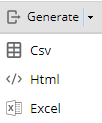
Generate - This button will only be available if one saved report is selected.
Generate the report in CSV, HTML or Excel format.
Right clicking on a report will bring up a menu allowing you to:
View - Will become available when one report is selected, takes you to the Overview.
Refresh - Updates any information visible on the Saved Reports on the screen.
Delete - Remove the saved report.
Generate - Generate the report in CSV, HTML or Excel format.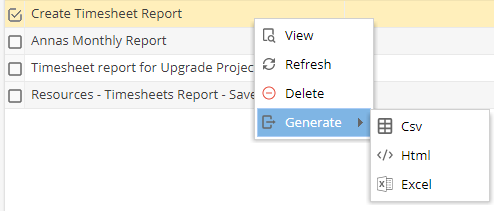
When you generate a report you need to keep an eye on the yellow Progress box at the top right of the screen.
Once the progress shows as 100% completed you will see a new link to download the file.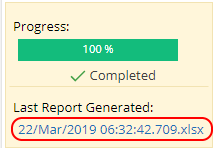
Note: The file name timestamp may show as 5/6 hours behind UK time. -
When you view an existing saved report you will go to the Overview tab
This is broken down into 3 sections
1) Details
Name & Description
2) Advanced Setup
Date Range
Organizational Unit
Projects
Group By / Depth of Grouping
Profiles
Include (Open Timesheets, Closed Timesheets, Non Billable Time, Generic Resource, Path, Non Project Task, Admin Times)
Columns in the Report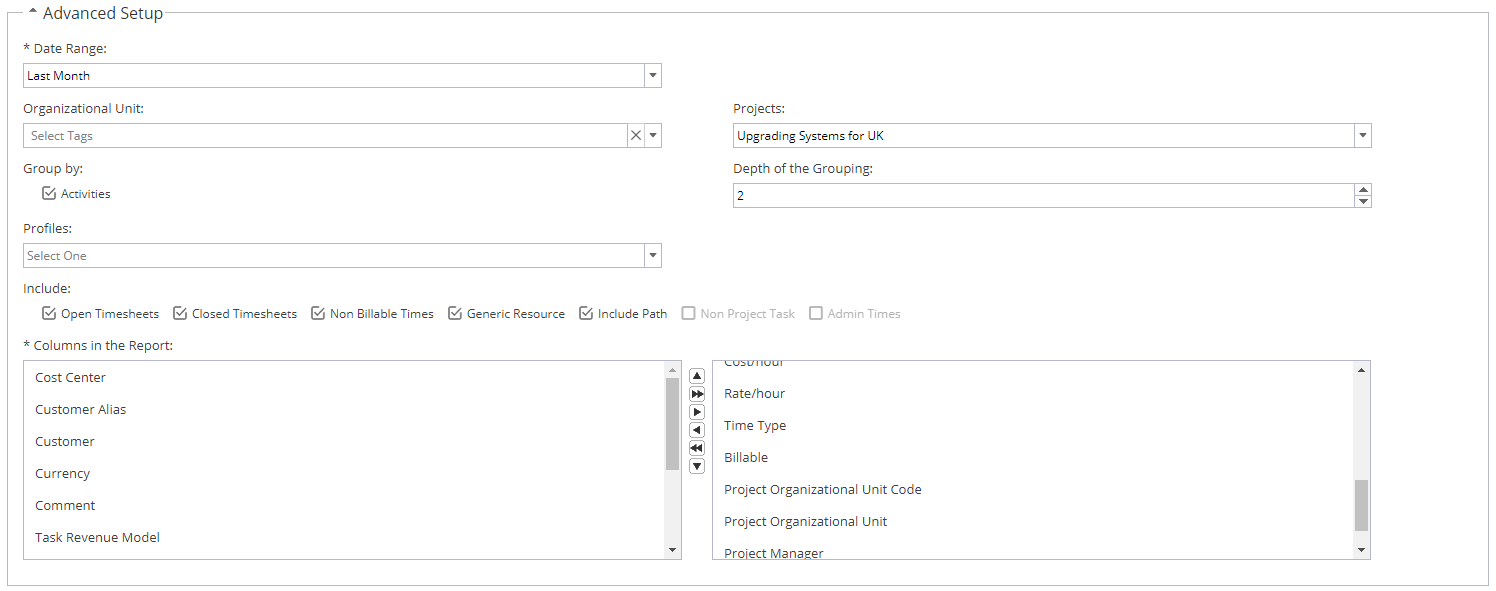
3) Send the Report Periodically (Option to Send Automatically)
Specify how frequently you would the system to send the report, when you would like the automated reports to be start being sent and click to show the next 5 delivery dates.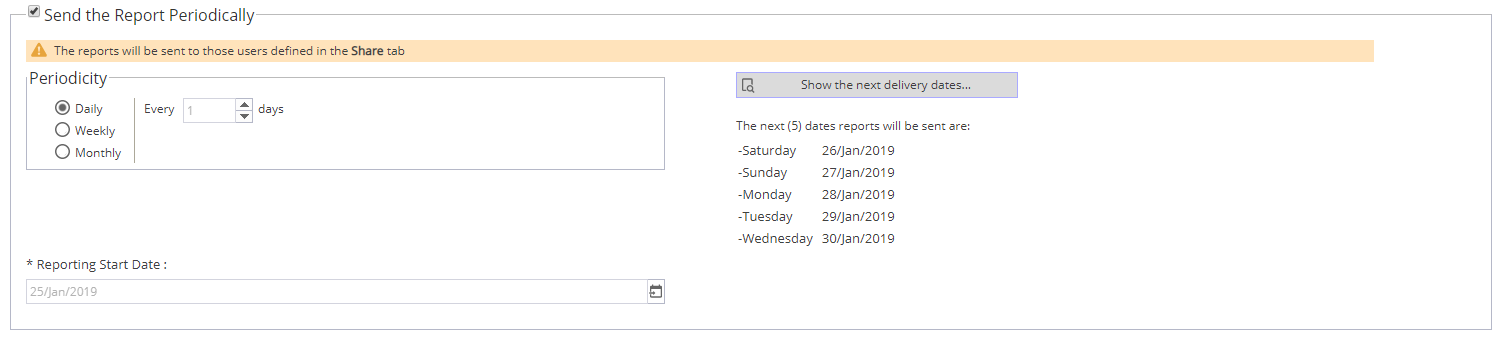
Note: The emails are generated by the system overnight, it is not possible to send emails more frequent than this (even for testing purposes).
The email will have either an attachment or a download link depending on the option selected under Admin > Configuration > Company Preferences > Scheduling Report Delivery -
The Share tab shows you the owner of the report.