From the Workload tab you will see your resource allocation.
How much work your real resources have been given to do and how many hours for generic profiles are yet to be assigned to your resources. This helps you to manage your Resources effectively.
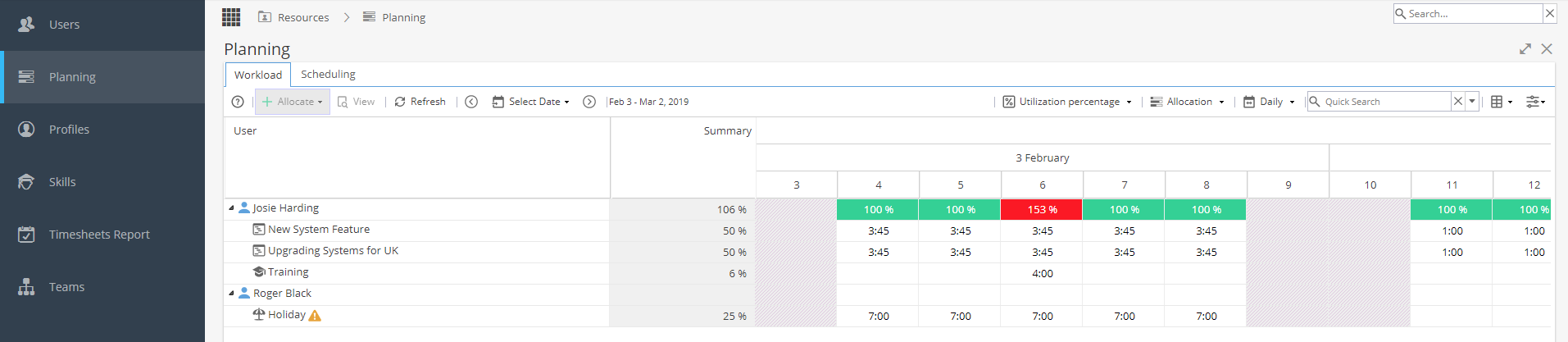
In the Daily view, you will see non-working days such as weekends / exceptions greyed out.
Working Days are from the Admin > Calendar > Calendar Settings
Exceptions are taken from the Admin > Calendar > Calendar Exceptions.
On the top left you can:

Allocate - When a User is selected (Row is highlighted yellow) this option allows you to allocate a Project, Non Project Task or Admin Time. 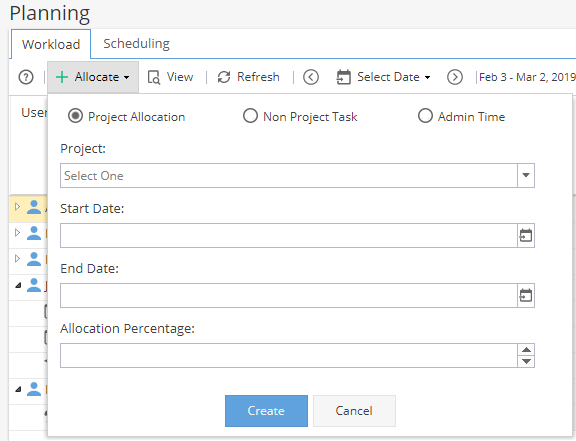
View - Depending on filters / item selected this button takes you to view:
Resource - Resources > Users > General Information
Project - Project > Project Home > Overview
Task - Project > Tasks > Task Details - Overview
Refresh - To show any updated information on the screen.
Select Date - Select a date from the calendar or use the arrow options to scroll to a different date.
On the top right you can: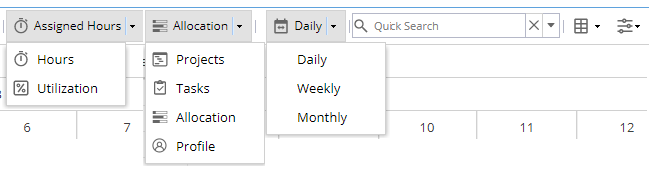
Switch view between Hours / Utilization
Switch view between Projects / Tasks / Allocation / Profile
*Note: Allocation will not show as an option if Simple Project Access is being used because this is not applicable.
View Daily / Weekly / Monthly
Quick Search by Resource Name (or filter by Organizational Units)
Apply Filter to view:
- Project Status
- Profile
- Skills
- Administrative Times (Admin Time Types)
- Include Non Project Tasks
If using the Profile View, you will see each profile listed on the left hand side.
Click to expand and you will see assigned (real resources) and unassigned (generic resources):
Note: Generic Users can not be colour coded using the thresholds and will always appear as white.
Default Colour coding of Workload tab (*for real resources only):
 When scheduling or allocation is less than 80%
 When scheduling or allocation is between 80% and 100%
 When scheduling or allocation is greater than 100%
The thresholds can be set by using the grid icon: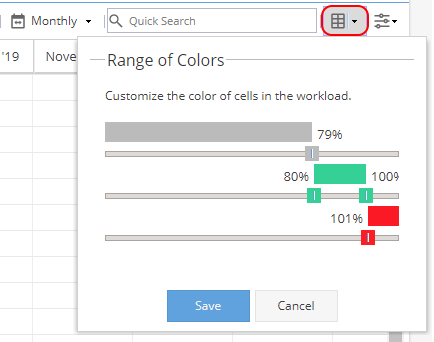
Filter options: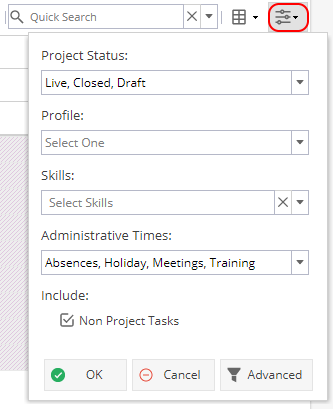
Click the Advanced option to add Resource Custom Fields to your Filter.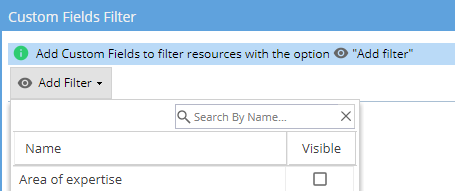
In the main view:
User - Name of Resource
Click on the arrow to the left of Resource to expand/collapse
This will show additional breakdown by Project / Task
Project Name - Only included when a user has been expanded
Summary - Hours or Utilization % depending on option selected from top right
Date View - Depending on Date Ranges selected:
| Daily | 4 Weeks |
| Weekly | 12 Weeks |
| Monthly | 12 Months (1 Year) |
How Time / % is calculated:
The Reserved Hours will depend on Admin > Configuration > Company Preferences > Availability Calculation if conversion values or precision is being used.
 Hours Hours |
Assigned / Scheduled Hours |
 Utilization % Utilization % |
Number of Assigned Hours / Number of Reserved Hours *See  below for Reserved Hours below for Reserved Hours |
 Project Project |
Assigned / Scheduled Hours to the Project |
 Tasks Tasks |
Assigned / Scheduled Hours to the Task |
 Allocation Allocation |
% Scheduled per Project / Reserved Hours per Project |
| Reserved Hours - Daily |
Hours per Day x Days per Week x 4 Weeks |
| Reserved Hours - Weekly |
Hours per Day x Days per Week x 12 Weeks |
| Reserved Hours - Monthly |
Days per Month x Hours per Day x 12 Months |
 Watch out for the yellow warning triangle
If you have a Time Type set as a calendar exception (i.e. Time not worked, such as Annual Leave) this will not be included in the workload totals but this does not mean that the Resource has free time available.
This setting is controlled under Admin > Configuration > Company Preferences > Time Types - Administrative