*Note: The Access to Project tab will only be visible if you are using Enable Simple Project Access.
Otherwise you will see the Resources > Planning > Scheduling tab instead.
Example of Access to Project tab:
+ New |
 |
If the Resources (head) icon is selected on the right hand side, select a user from the list and then the + New button will become available.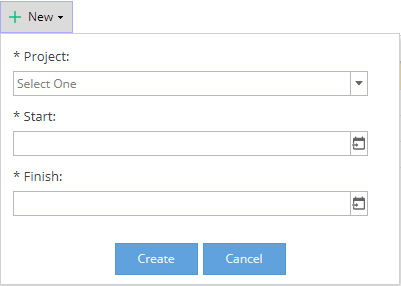 Select a Project from the drop down list and the Start / End dates will be populated but they can be adjusted. Click Create to confirm. |
 |
If the Project icon is selected on the right hand side, select a Project from the list and then the + New button will become available.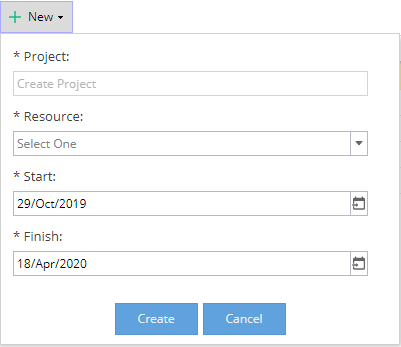 The name of the Project selected will show greyed out. You can then select multiple resources for your Project Team, along with the Start and End dates. Click Create to confirm. |
|
Deactivate Access |
|
If the Resources (head) icon is selected on the right hand side, select a single Project from the list and then the Deactivate Access button will become available. |
|
If the Project icon is selected on the right hand side, select a single Resource from the list and then the Deactivate Access button will become available. | |
View |
|
If a Resource is selected and you click on the View button, this will take you to Resources > Users > General Information. |
|
If a Project is selected and you click on the View button, this will take you to Project > Project Home > Overview. | |
| In either case, you can click the Back Arrow on the top left of the screen to return to the Access to Project tab.  |
||
Refresh |
Looks for any updates to information displayed on the page. | |
| Resources / Profiles | |
If the Resources (head) icon is selected on the right hand side, the list will show Resources, which can be expanded to show the Projects they have been added to. |
|
If the Project icon is selected on the right hand side, the list will show Projects, which can be expanded to show the Resources added to them. | |
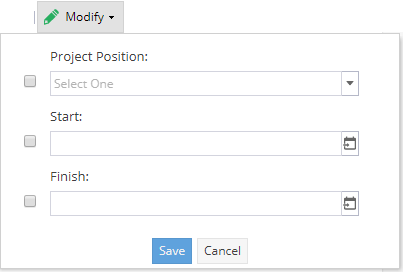
Modify |
Select one (or multiple) Resources or Projects to modify the user's Project Position or the Start / End Dates.
|
|
| Quick Search |
|
If the Resources (head) icon is selected on the left of the search box, the Quick Search will search for users by Name. |
|
If the Project icon is selected on the left of the search box, the Quick Search will search for Projects by Name. |
|
| You can also use Quick Search to filter by Org Units | ||
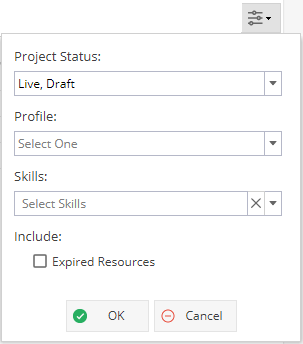
Filter |
Use the Filter to change the view based on Project Status, Profile, Skills or to include expired resources. |
|