When you log in to Hydra the homepage will be My Space - Overview.
This page is made up of Widgets which allows you to easily see important information.
Example: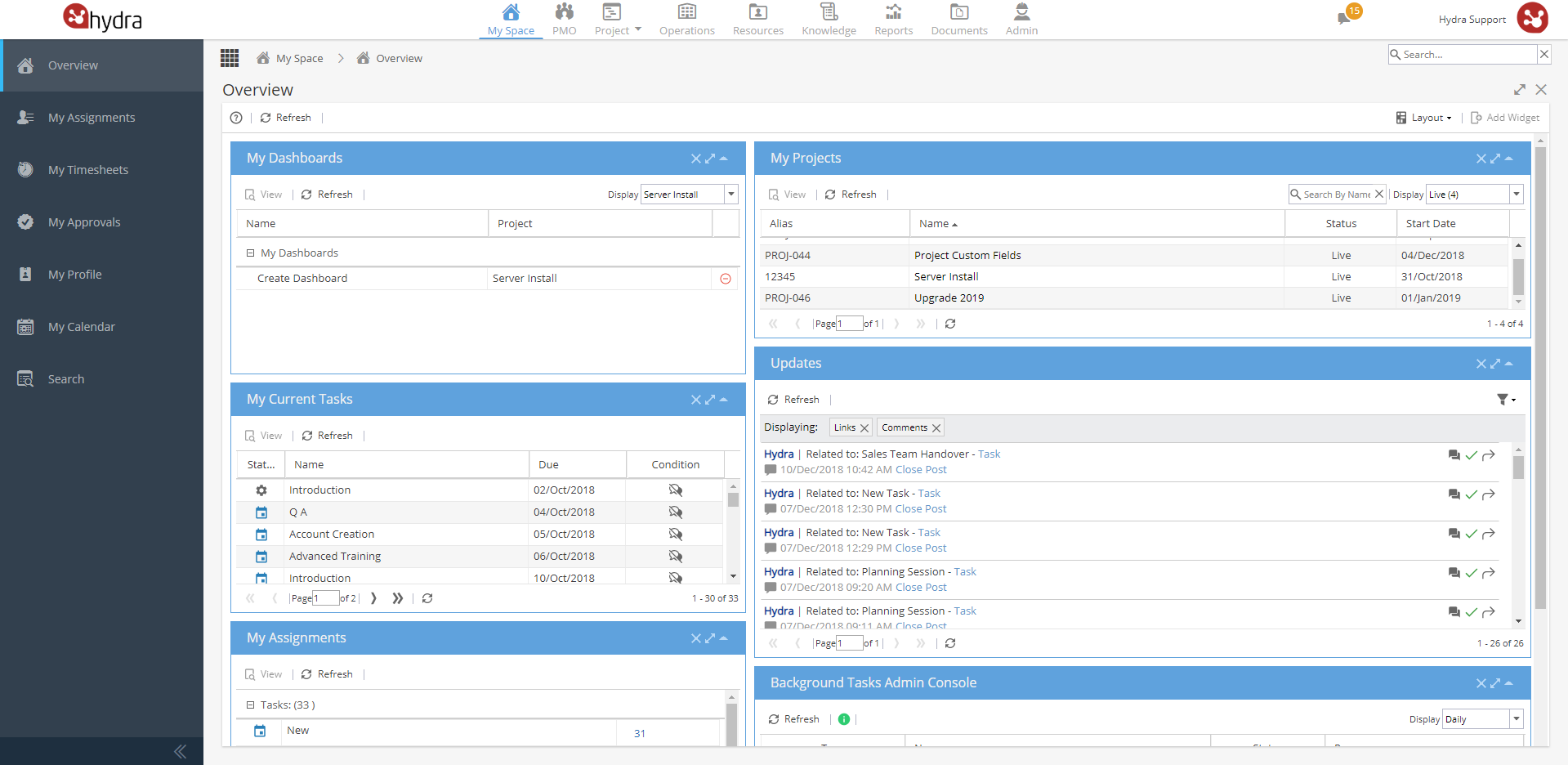
Menus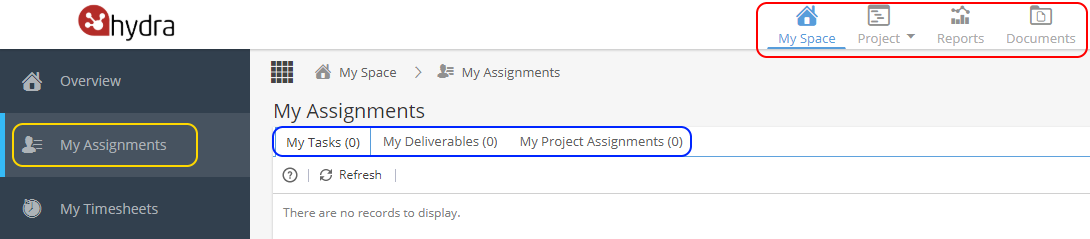
Across the top you will see Sections, how many depends on your access level.
You will always have My Space, this is your homepage to configure how you like with the available widgets.
On the left hand menu, you can see the sub-menus to access other areas of your My Space:
My Assignments
My Timesheets
My Approvals
My Profile
My Calendar
Search (*Linked to search bar shown on top right)
Most sub-menus are broken down into tabs.
Useful Tips for Navigating
-
Breadcrumbs - Underneath the sections, you will see the pathway of how to get there:

-
Currently Open - Squares to the left hand side of the breadcrumb trail.
Shows the pages currently stored in the cache, can be used for quick navigation.
Remember to use Refresh if revisiting a page to make sure the latest information is displayed)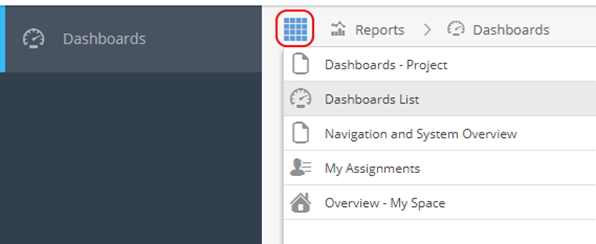
-
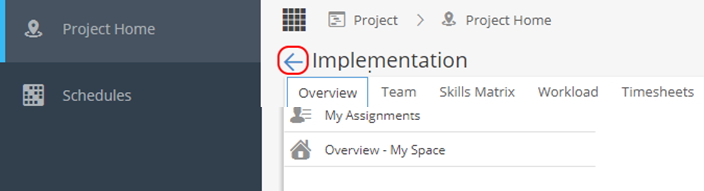
Back button, Left hand side of the page title. To take you to the page you were on previously.
On the right hand side you will see a selection of blue panels, called Widgets.
Widgets are small sections which provide users with summarised information about Tasks, Projects, Report Dashboards and Updates.
Using Widgets:
-
On the top right of the screen you will have the Add Widget button.
This will display a list of any widgets which are available to add by clicking on the white arrow on the top right of the blue header bar.
Note: If a widget does not show in this list it means it is already on your Overview screen.
If the Add Widget option is greyed out it means all widgets are already added. -
To remove a widget click the X on the top right.
Any widgets which have been removed will always be available to add back in again.
-
On the top right hand side you have an option to change the layout.
The most commonly used is 2 columns (split 50/50) but you can select whatever option you prefer.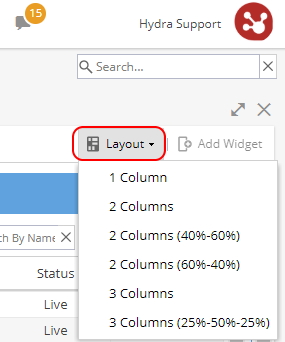
-
Click the title of a Widget and drag it to the desired position.
Move your most commonly used widgets to the top of the screen or whichever order you prefer. -
Using the single arrow on the top right of a Widget allows you to minimise the widget so only the blue header row is visible.

-
Clicking on the arrow in the middle will expand the widget to full screen.

Once expanded, the arrow icon will change to point inwards, this will set the widget back to normal size.
The expand arrow is also shown again at the top right of the screen, this will maximise your Overview screen by hiding the menu items on the left.
The X will close the Overview screen until a new menu/screen is selected to be displayed.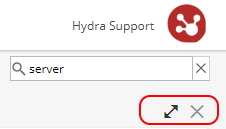
Widgets Available:
-
Widget:

Types of Tasks which show in the widget:
Create Project using Company Blueprint
Create Project using MS Project File
Remove (Delete) Project
Display (Date Range Filter) drop down options:
Daily
Weekly
All
Example (Clicking on arrow to expand will also include the date):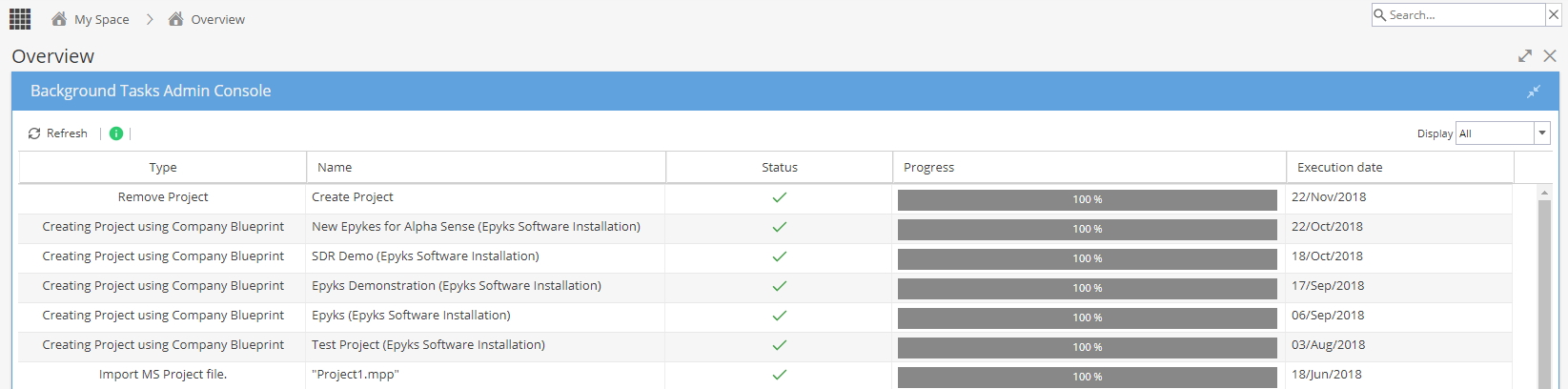
You would usually have this widget on the bottom of your My Space > Overview screen.
The widget is for reference, so details can not be hidden or deleted.
If you do not wish to have this widget displayed you can click the x on the top right to remove it:
If removed, the widget can be added back in at any time by clicking the Add Widget option. -
Widget:
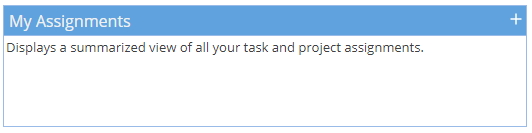
This widget shows a summary of Tasks and Projects by Status.
Clicking on the number on the right hand side will take you to either your Tasks or Projects with a filter on the status selected
Example: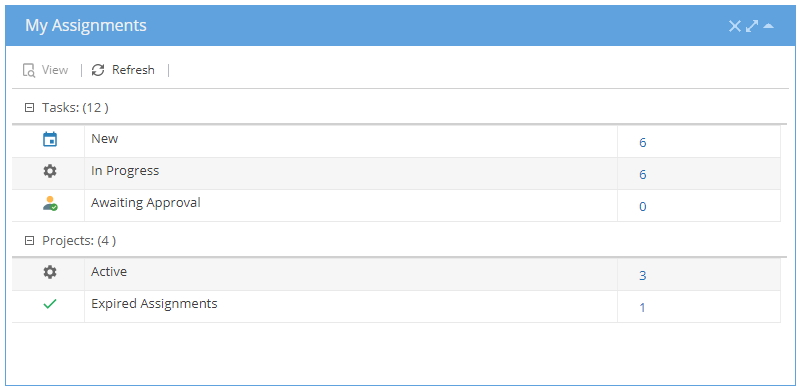
If you do not wish to have this widget displayed you can click the x on the top right to remove it.
If removed, the widget can be added back in at any time by clicking the Add Widget option. -
Widget:
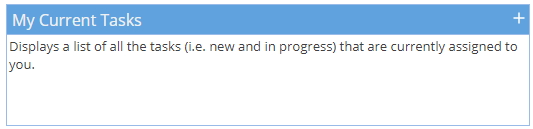
This widget shows a summary of Tasks, Status, Due Date and Condition with the total shown on the bottom right.
This screen is a condensed view of My Assignments > My Tasks
Double clicking on the Name of a Task will take you to Project > Tasks > Task Details > Overview
Example: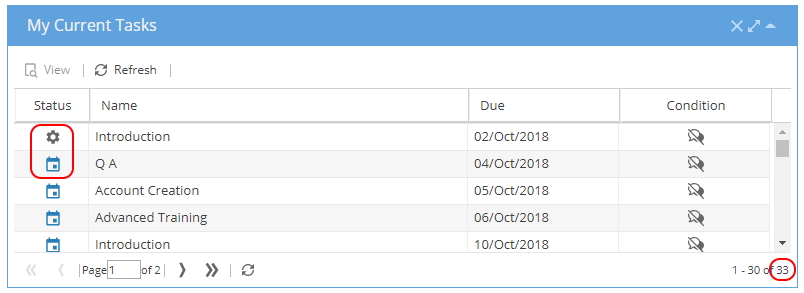
If you do not wish to have this widget displayed you can click the x on the top right to remove it.
If removed, the widget can be added back in at any time by clicking the Add Widget option.
If the Due Date does not show correctly you need to edit the Task in the Gantt.
Remember, the way you edit a Task depends on the Scheduling Mode.
If a Task is "effort driven", the end date is changed by editing the start date & effort.
If you were to increase the effort just to make the end date show later, this will impact costs etc. -
Widget:
Display filter :
All
Specific Project (Projects can have multiple Dashboards)
Example: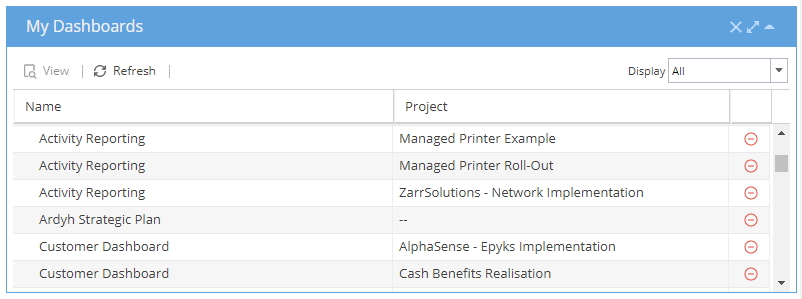
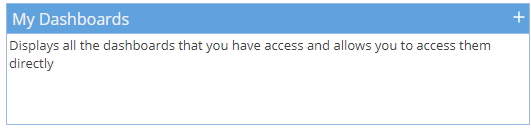
This is a helpful widget which can allow you to quickly jump to a Dashboard by double clicking on the Name it will take you to Reports > Dashboard > Dashboards - Project.
If you click on the red icon it will Delete the Dashboard
If you are the owner of the Dashboard, anyone the Dashboard was shared with will be able to see it but you will not be able to get the control back to make any future changes.
Using the arrow icon to expand the widget will make My Dashboards full screen but will not give any more columns or options.If you do not wish to have this widget displayed you can click the x on the top right to remove it.
If removed, the widget can be added back in at any time by clicking the Add Widget option. -
Widget:
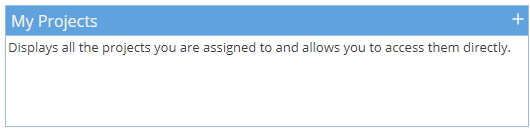
Display filter:
Draft
Live
Closed
AllSearch by Name will only search the Name field, Alias will not be included
Example: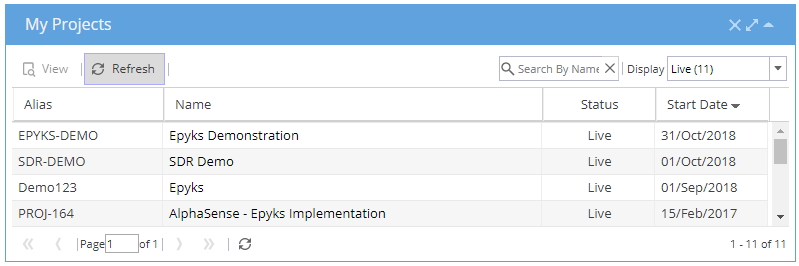
This widget is not a mirror of My Assignments > My Project Assignments, as it will also include Projects you have been granted access to.
This is a helpful widget which can allow you to quickly jump to a Project by double clicking on the Name it will take you to Project > Project Home > Overview.
Using the arrow icon to expand the widget will make My Projects full screen but will not give any more columns or options.If you do not wish to have this widget displayed you can click the x on the top right to remove it.
If removed, the widget can be added back in at any time by clicking the Add Widget option. -
This widget will show you the same information as the Updates Wall (speech bubble icon on the top right)
Widget:
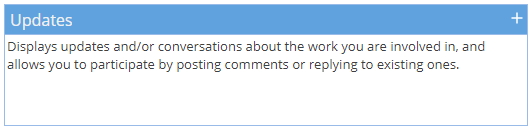
Filter (Funnel Icon):
Comments / Links / All (Both)
Example: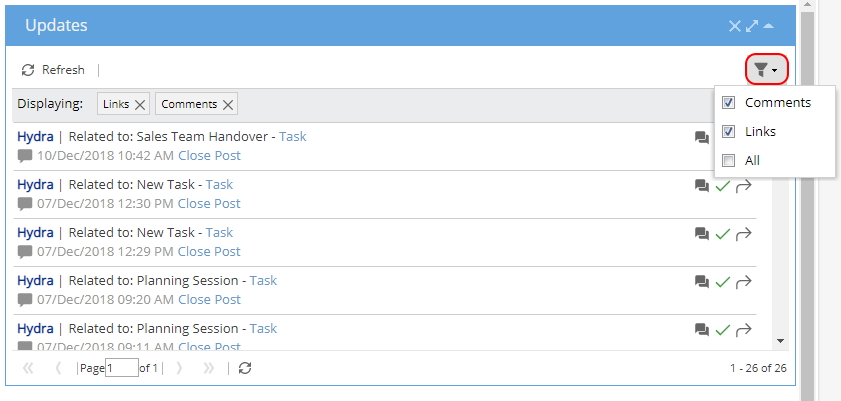
Icons: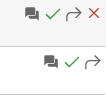
Speech Bubble - View updates / Reply with Comment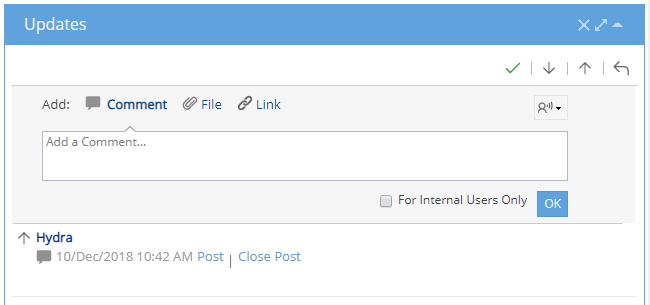
Green Tick / Red Cross - Following / Unfollow object for updates
Arrow - Show full post
Red X - Only appears when hovering over an update, allows you to delete message
The Updates Widget is another view of your Updates Panel from the Speech Bubble on the very top right of all menu screens.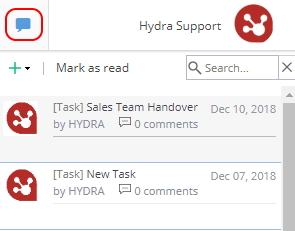
Using the arrow icon to expand the widget will make My Projects full screen but will not give any more columns or options.If you do not wish to have this widget displayed you can click the x on the top right to remove it.
If removed, the widget can be added back in at any time by clicking the Add Widget option.