This section can be accessed via My Space > My Profile or clicking on your picture on the top right of any screen and clicking About Me.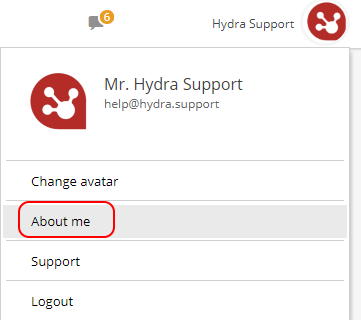
On the top left you can change password: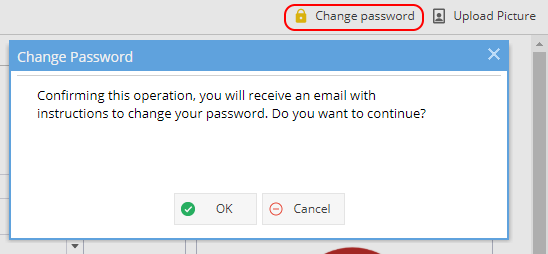
Or upload picture / photo / avatar:
(This is also available from clicking on your icon on the top right and selecting change avatar)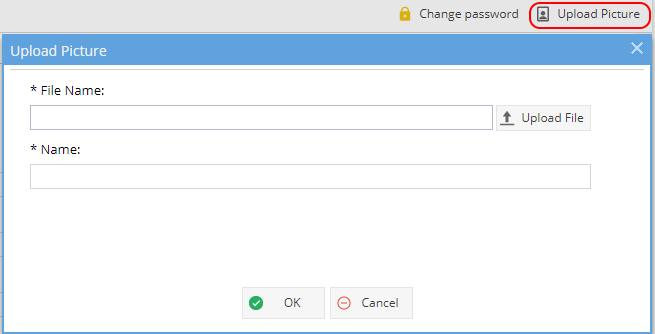
The current picture will be shown in the user picture section on the right hand side.
When logged in this picture is shown at the top right with your name.
The picture is visible to other users in various places around the system.
E.g on any Updates you make, when your user is viewed in the Resources menu and on the Planning screen.
Overview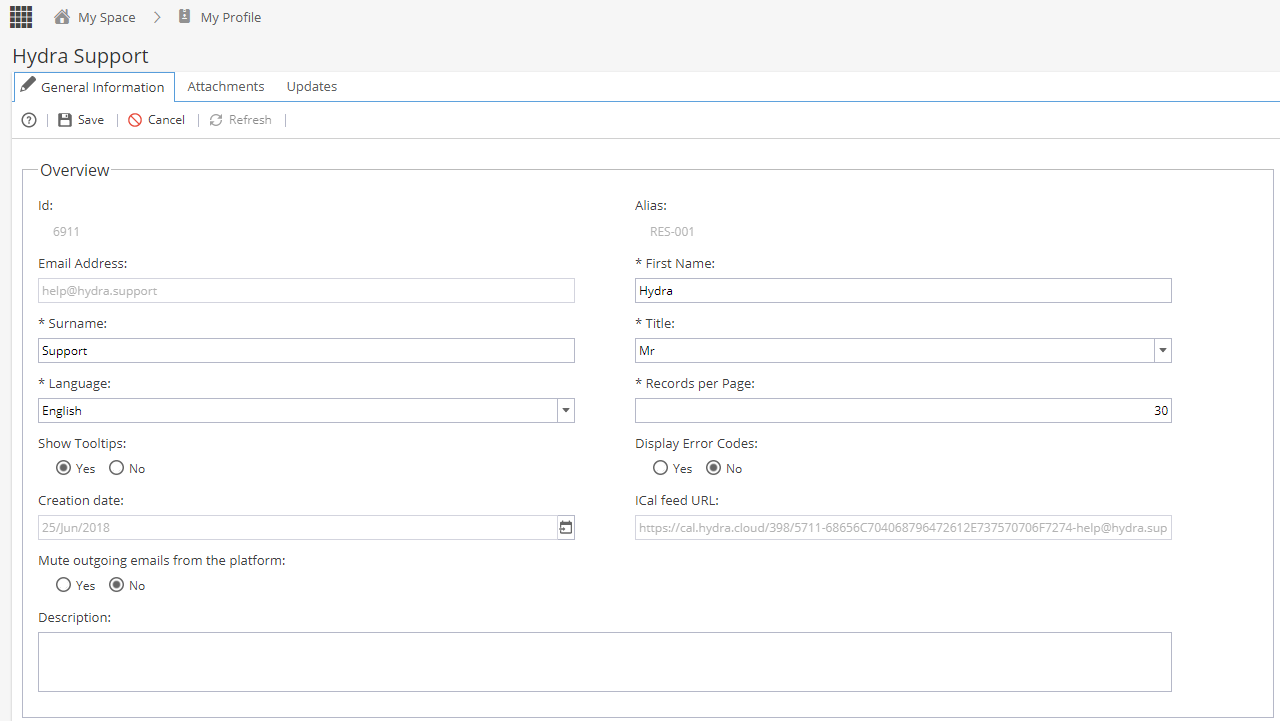
ID - Created by the system
Alias - Usually created by the system if set under Admin > Configuration > Company Preferences > Automatic Alias (for "Resources")
Email Address
First Name / Surname / Title
Language - Choice of English / Spanish
Records per Page - Default set to 30
Show Tooltips - example: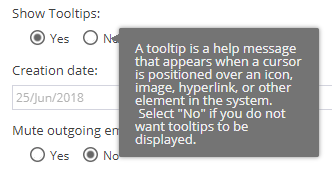
Display Error Codes
Creation Date - Can not be edited, date your record was created in Hydra
iCal feed URL - Click here to read more about iCal
Mute outgoing emails from the platform - sets if the user will receive emails from Hydra
Company Information
Profile - List from Resources > Profiles
Position - Job Title
Manager - Visible in Resources > Teams
Calendar - Choose from list based on Admin > Calendars > Calendar List
Skills - If enabled on Admin > Configuration > Company Preferences > Activate Skills
End Date / Start Date
Additional Information
Based on custom fields set under Admin > Configuration > Company Preferences > Resources Custom Fields - If not configured, this section will not be visible.
You can also access the Attachments or Updates tabs.