The Speech Bubble icon to the right of the Sections accesses the Updates Panel. This will have a yellow circle when it needs to show the number of Unread Updates. To open your updates panel click the Speech Bubble.

Each update includes the following:
- Object Type and Name
- Date of update
- Name of Resource
- Number of Comments about this update
- The Update itself
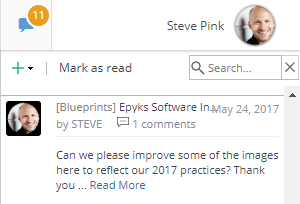
If the Update is short, the entire message will be shown. For longer Updates, clicking Read More will expand the update, allowing you to read the entire message.
Clicking on the Object Name will take you directly to the object
Hovering over the date will give you the time that this update was posted, hovering over any other part of the update will show the Name of the object, the Date / Time and the Project Name (if applicable)
Clicking on any part of the update will allow you to enter a Comment about it. Updates are like a conversation so Comments will look like a chat window: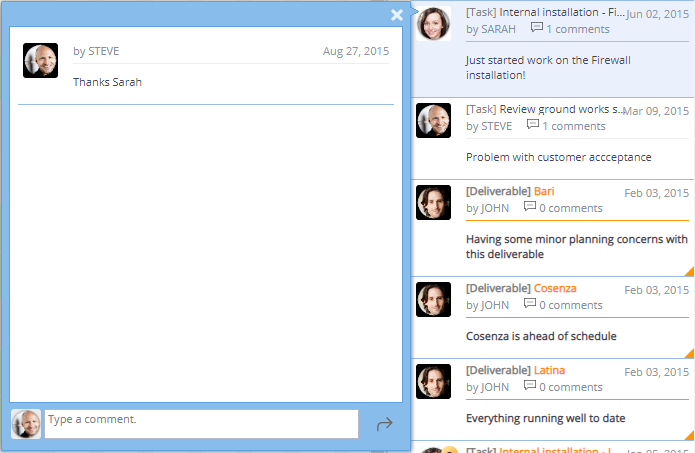
The + button at the top right within the updates wall allows you to create a new update. After clicking this button you can select the Object you want to provide an Update to, the resource to Notify and the Comment for the update.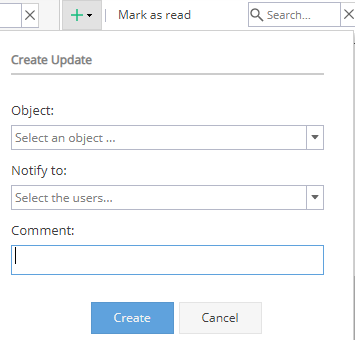
Clicking Mark As Read will flag all messages as read.
The search box allows you to search updates with the specified text.
Finally, to close the Updates Wall, click on the Speech Bubble icon.