To connect Hydra with your email / calendar, follow these steps:
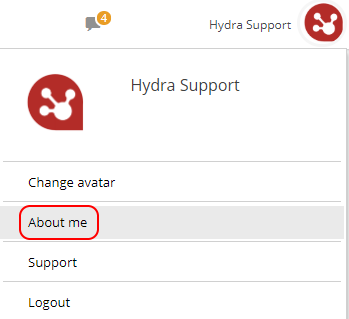
- Click on the icon next to your name on the top right of the screen
- Click About Me (this will take you to My Space > My Profile > General Information)
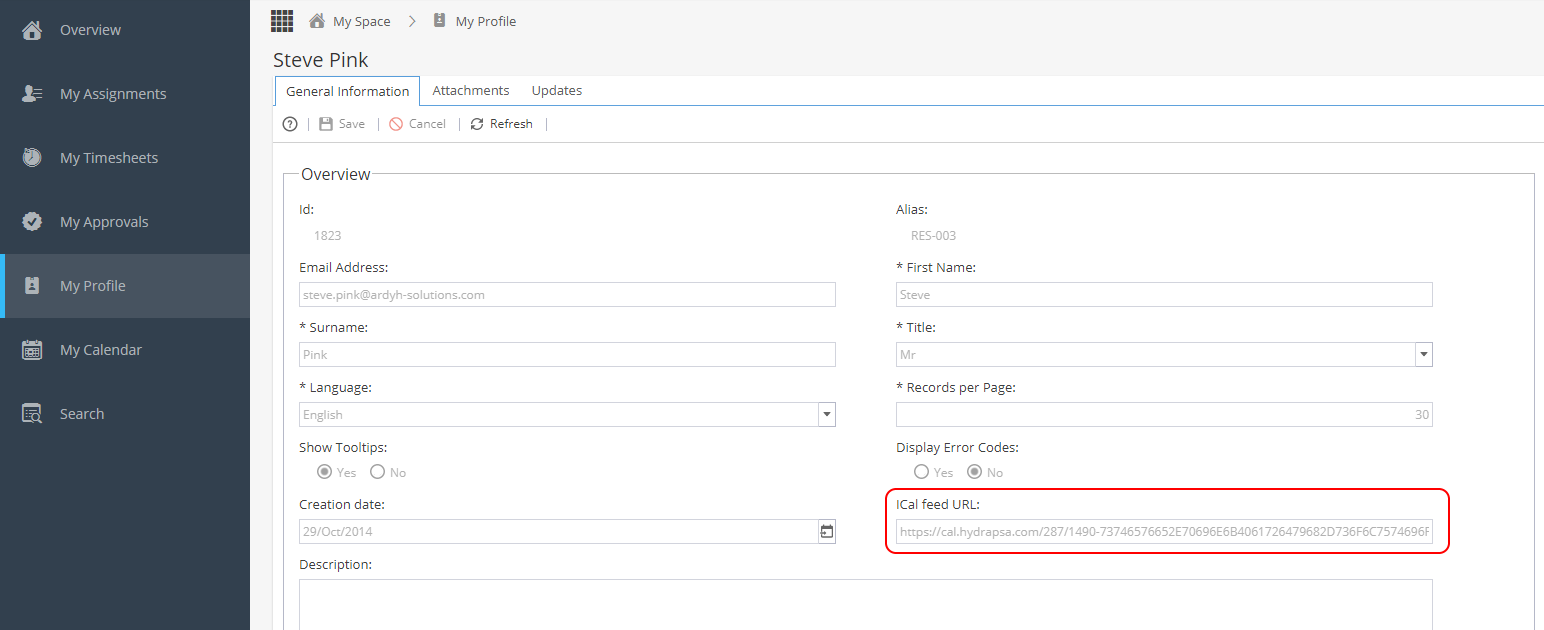
- Triple click on the iCal feed URL and copy :
- Select the type of email/calendar you use:
-
 Outlook - Desktop
- From Outlook click on the Calendar icon on the bottom left
 .
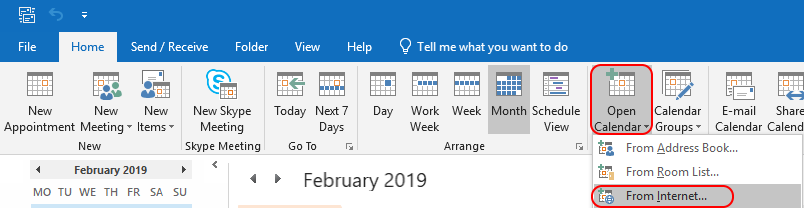
. - Click on the Open Calendar option and s elect From Internet.
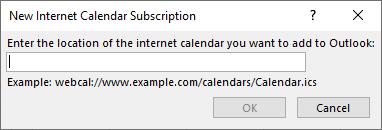
- Paste the URL you previously copied from Hydra and click OK .
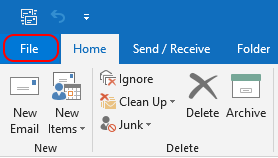
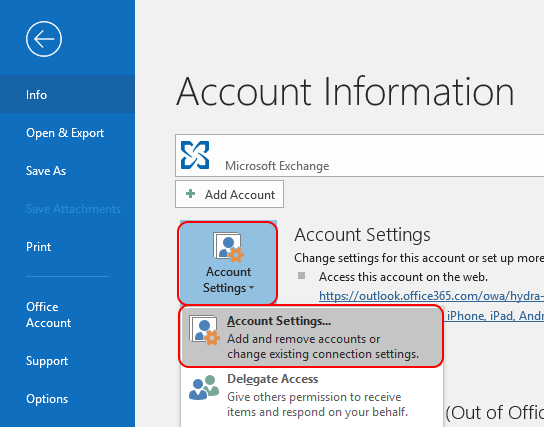
If you decide you no longer wish to have the calendar, from Outlook click on File > Account Settings > Account Settings
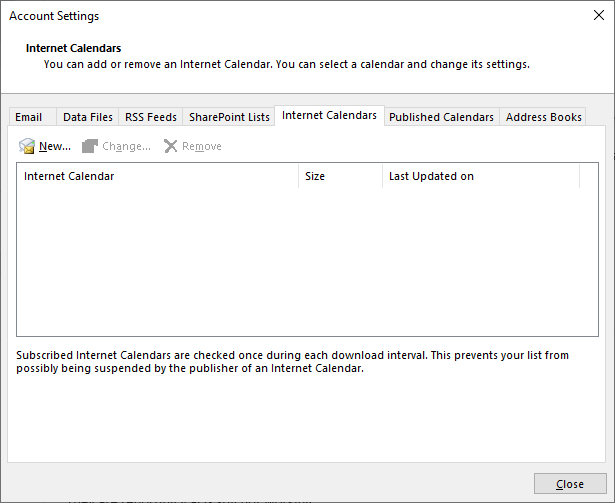
From the Account Settings pop up, click on the Internet Calendars tab.
Select a calendar and click Remove.
- From Outlook click on the Calendar icon on the bottom left
-
 Outlook - Web (OWA)
From Outlook Web click on the Calendar icon on the bottom left
Click on the Add calendar option and select From the Internet :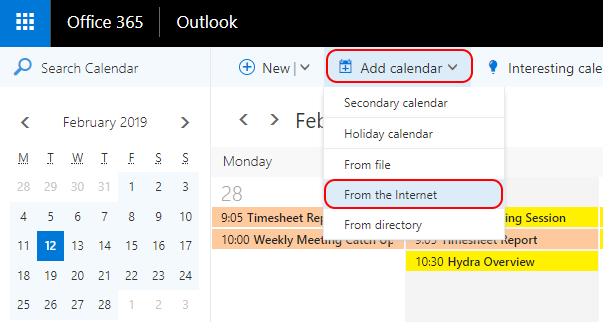
Paste the URL you previously copied from Hydra, add a Name for your Calendar and click on Save :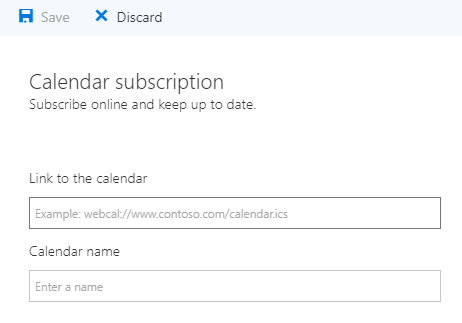
If you decide you no longer wish to have the calendar, from Outlook Web click on the calendar icon on the bottom left.
Find the calendar in the list, right click and Remove.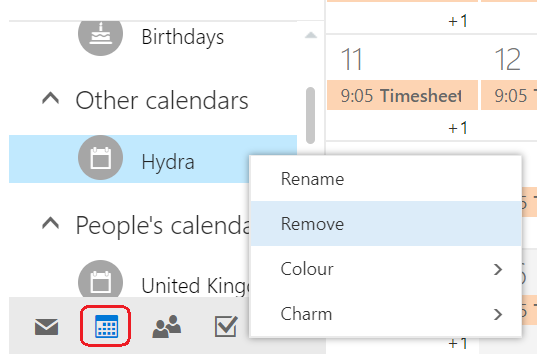
-
 Google
Click on the Google Apps icon
 and select the Calendar option.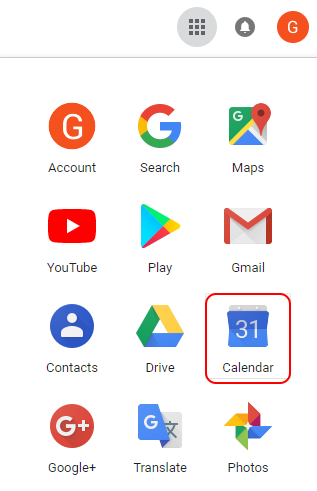
Click on the
 to the right of Add Calendar and select the From URL option: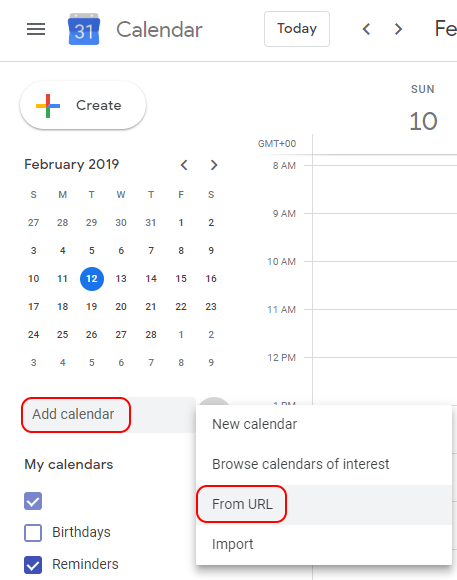
Paste the URL you previously copied from Hydra and c lick on the Add calendar button.
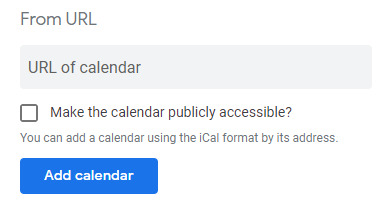
Click the Back Arrow on the top left of the screen.
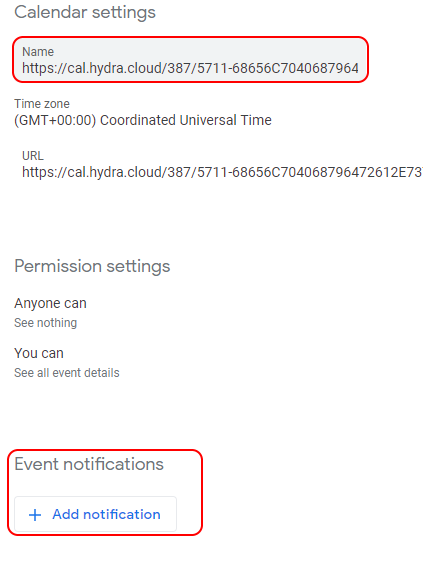
On the left hand side under Other Calendars click the next to the Hydra calendar and click Settings .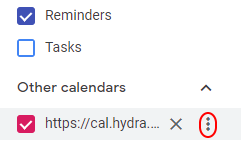
From here you can update the Name / Notifications
If you decide you no longer wish to have the calendar, from Google Calendar find the name in the list, hover your mouse over the name and an X will appear to Remove.
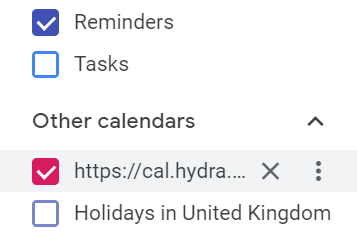
You will also get a pop up to confirm you want to remove this calendar: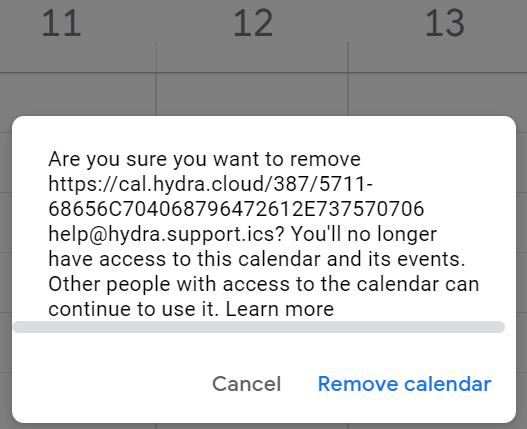
-
 Apple
Apple
Click on File > New Calendar Subscription: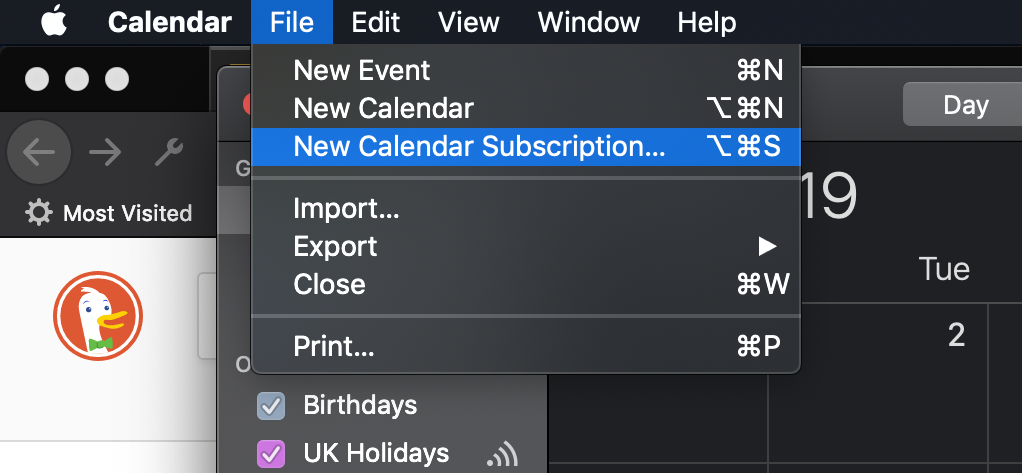
Paste the URL you previously copied from Hydra and click Subscribe :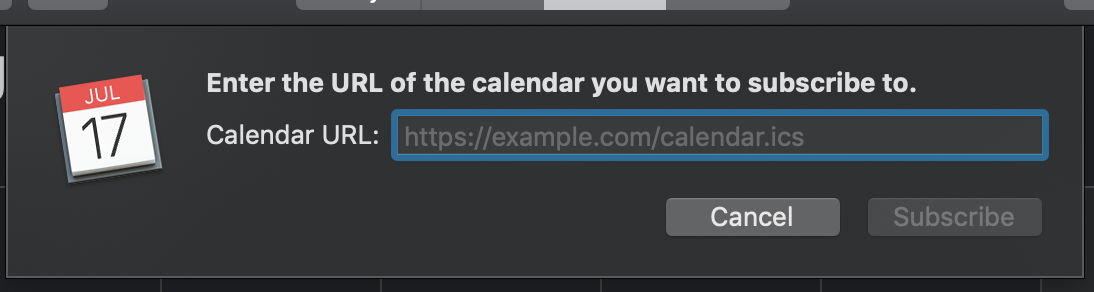
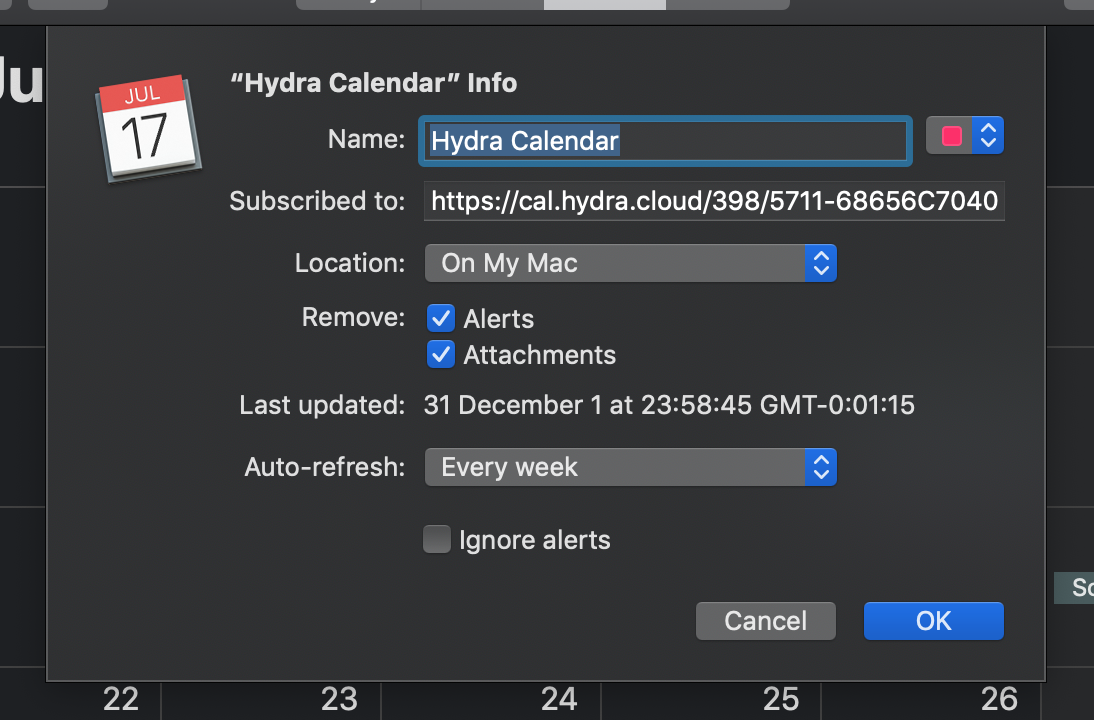
Update the Name and adjust any other settings as required, then click OK:
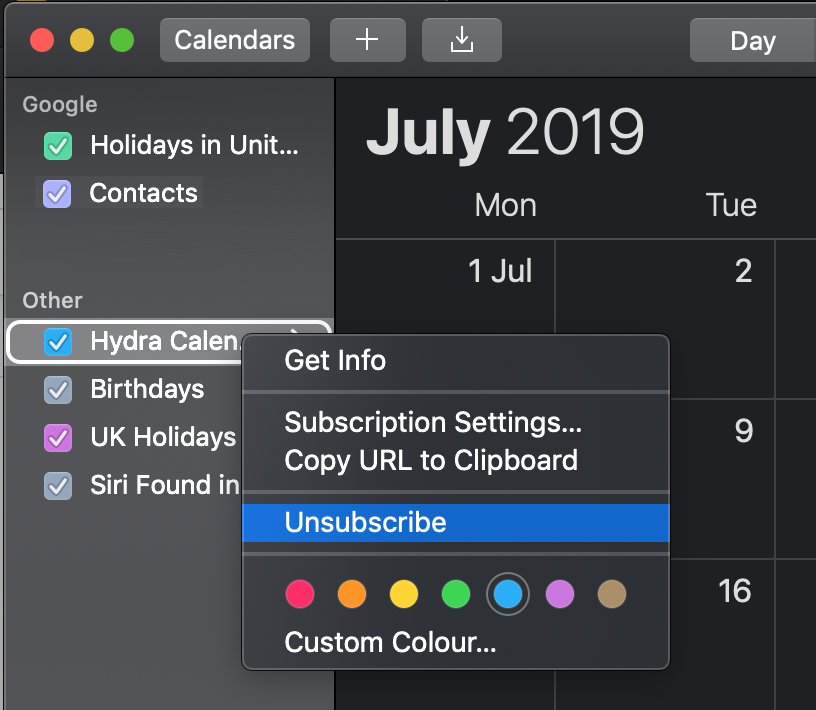
If you decide you no longer wish to have the calendar, from your Apple Calendar find the calendar in the list, right click on the name and click Unsubscribe:
-
 Notes about iCal:
- iCal must be switched on for your company, if you experience any difficulty using iCal please contact the Support team to make some checks for you.
- If a user has just been created, it will take 10-15 minutes before the calendar will work.
- Updates to iCal only happen during working hours, so any changes made over night / weekends etc will pull through but not instantly.
- The Outlook calendar has limitations and does not have the option to set reminders / notifications for Tasks, if this is required you will need to consider using a different calendar type.