My Tasks
The My Tasks tab allows you to search for, view details of and manage tasks that are assigned to you.
On the top right you have:
- Search Bar allows you to search using task or project name
- Filter on status by clicking the different icons to include / exclude: New (Planned)
 In Progress
 Awaiting Approval
 Closed
  You can change the date range to see Tasks planned for the next 1 day up to 7 months
The Sort By option allows you to sort the list by due date, task or project name
The main screen shows all tasks you have been assigned along with the following information:
The project the task belongs to
The percentage complete
The due date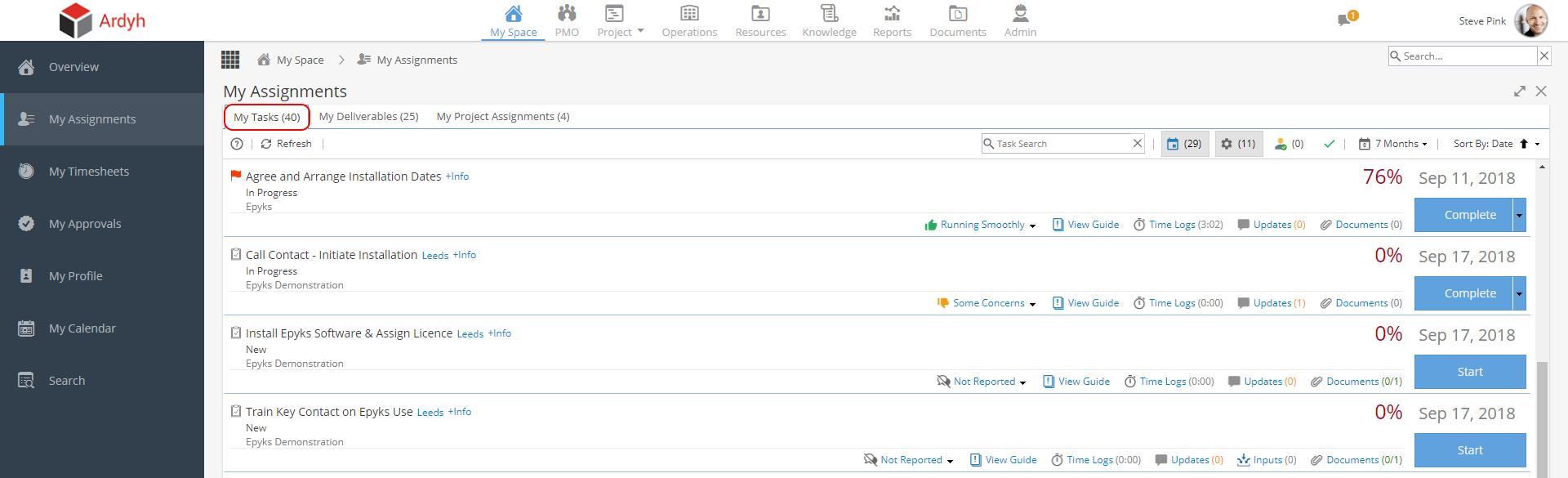
From this screen you can also maintain the task: The Condition of the task can be updated
 You can Log Time against tasks
 You can view and respond to updates
 View Inputs (if not configured this option will not appear)
 You can view and attach documents
 The Task Status can be changed to started or completed
Clicking on the Task Name will take you to Project > Tasks > Tasks Detail > Overview
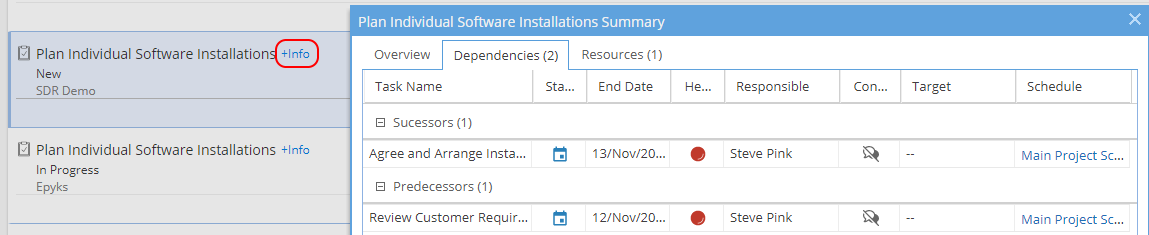
Additional information can be found by clicking +info found next to the task name.
This provides further information on the overview tab, along with details on dependencies (predecessors and successors) and assigned resource(s).