It is possible to create Tasks which require Approvals to be carried out before the Task can be marked as completed. This means successor Tasks cannot be completed until the Approval for the Task has been completed.
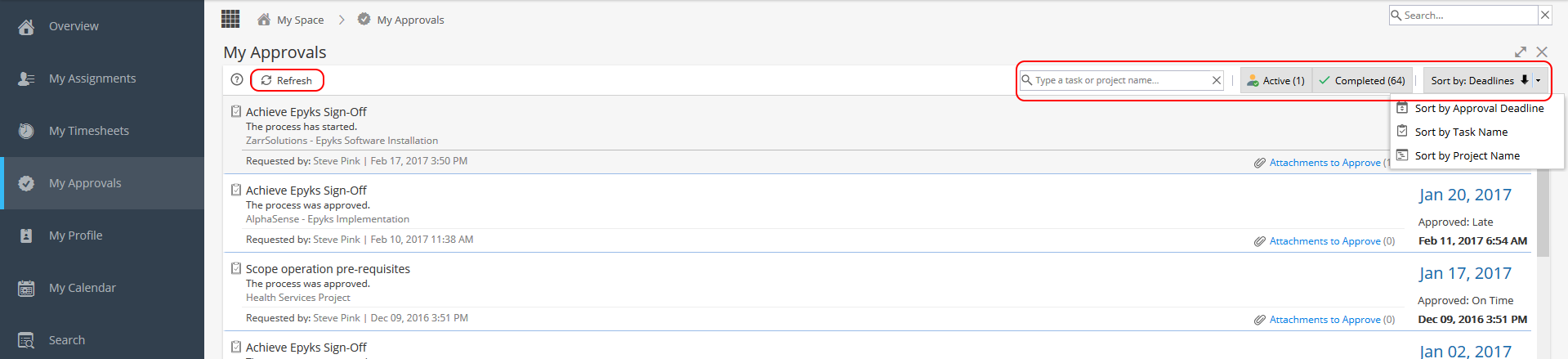
To find Tasks which have been submitted for your approval, navigate to My Space then click My Approvals on the left hand side. Your list of Tasks to approve will be displayed. An example (containing one Task to approve) is below:

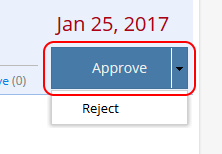
To approve a Task, click the 'Approve' button. The Task will be completed and removed from the list:
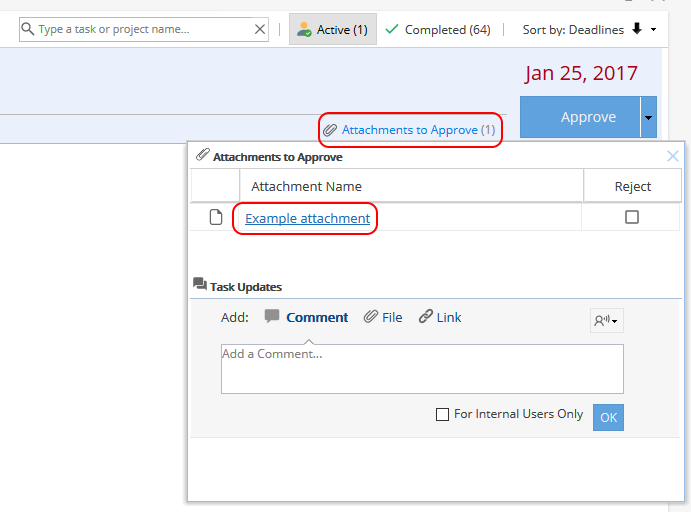
As part of an approval process it may be necessary to approve Task Attachments.
To do this, click 'Attachments to Approve' then click on the Attachment:
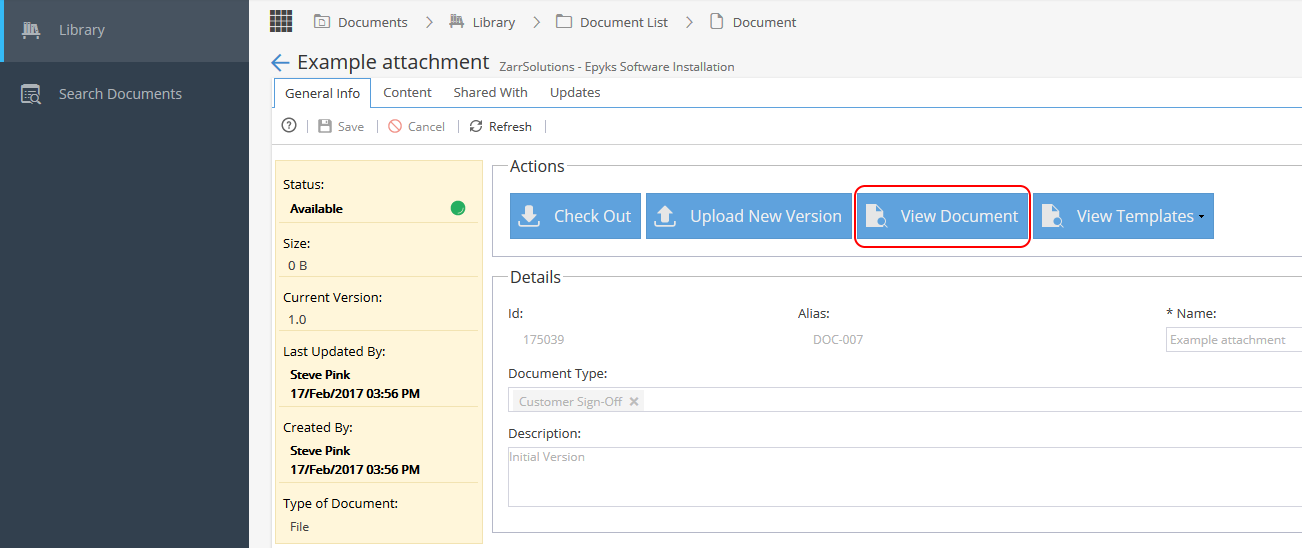
The Attachment General Info will appear.
To view the Attachment, click View Document:
If you wish to Reject an Attachment, tick the box on the right hand side before responding to the approval request:
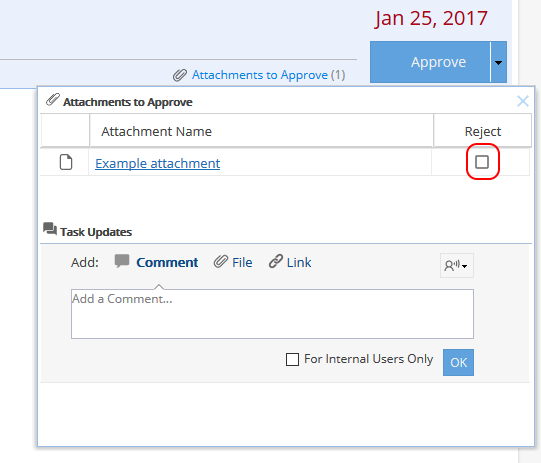
Alternatively, you can Reject an entire Approval Request by clicking the drop-down arrow to the right of the Approve button and clicking Reject. If you click Reject, you will be prompted to add a Task Update.
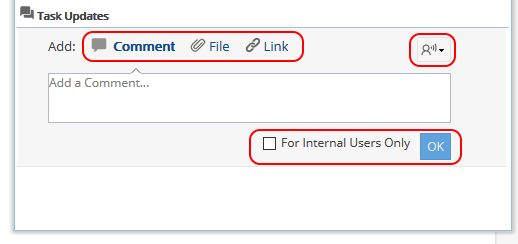
Add a comment and choose any other options such as to add a File or a Link, or to share the comment to certain Users only, or to submit the comment to Internal Users Only, and when finished, click OK:
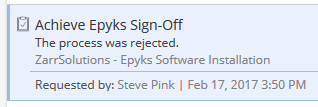
This will return the Task to the Resource and specify that the process was rejected:
Finally, you can:
- Click the Refresh button to refresh the content of the page
- Enter a Task or Project name in the search box then press Enter on your keyboard to perform a Search
- Click on the buttons Active and/or Completed to display Active and/or Completed Approvals
- Change the Sort option by clicking the Sort button. Sort options include by Approval Deadline, by Task Name and by Project Name