If a Task is In Progress you will have the option to Cancel the Task.
You can go this from right clicking on the Task in the Gantt
(Remember to click Save after selecting Cancel).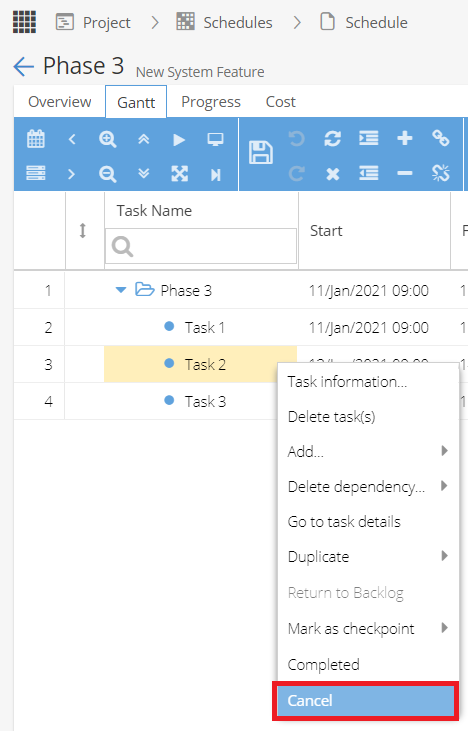
The assigned resource can also mark the Task as Cancelled from the Timesheets List
(This method is only available if Timesheets are being used and the Task is In Progress).
Click on the Status icon and select to Cancel: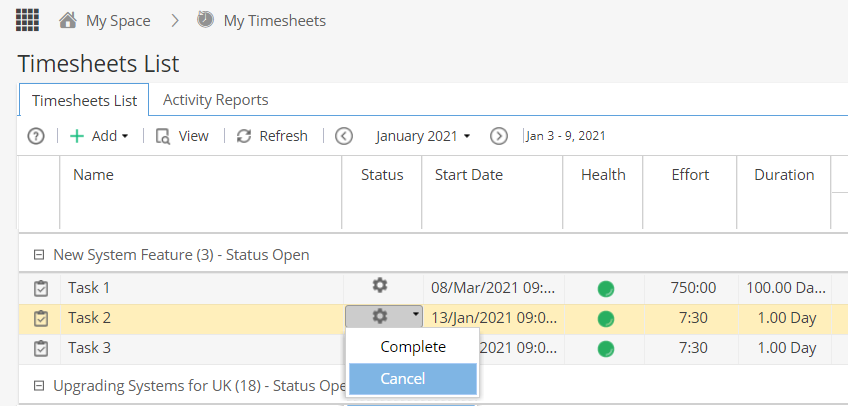
Once this option has been selected, the Task will continue to show.
The Status icon will be updated.
Health will show as Blue (completed).
Any existing time logs will be kept.
The Task will show as 100% completed.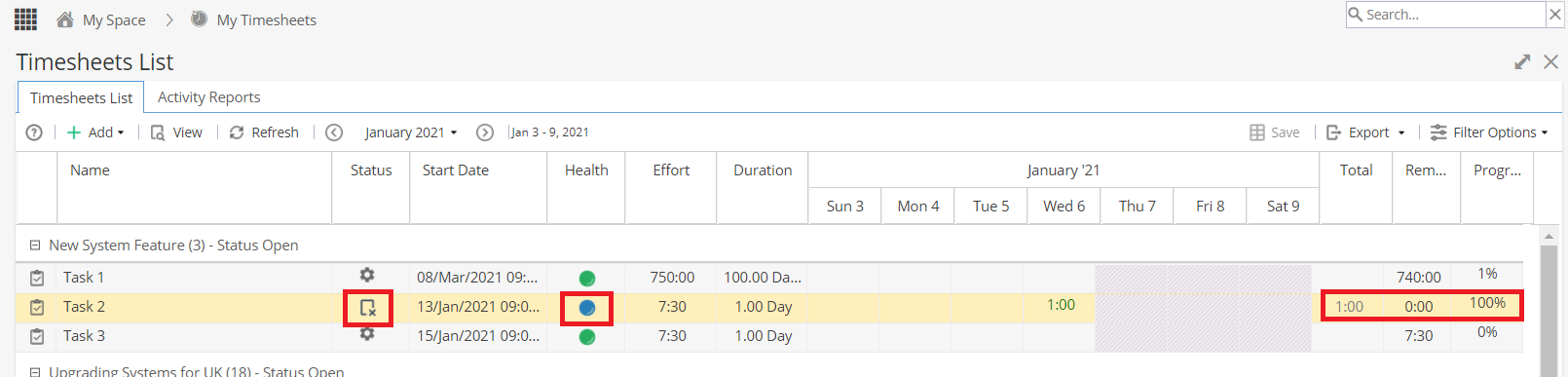
Tasks can also be cancelled from the Task Detail view.
If the Task is In Progress, click on the arrow next to the button to update the Status (in the Actions section).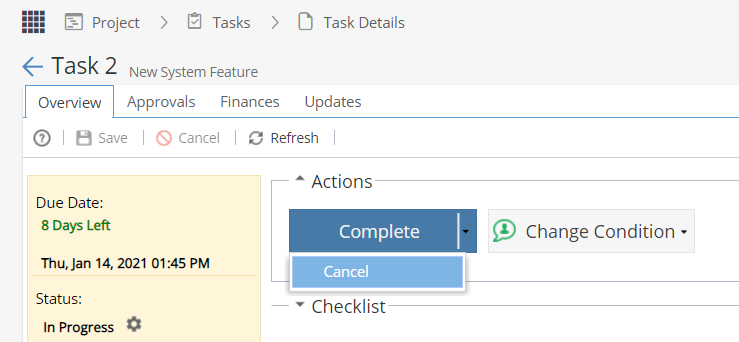
If you have the Status column displayed in your Gantt, this will show as Cancelled.
As before, existing time logs will be retained and the Task will show as 100% Completed.
If the Cancelled Task is a predecessor, it will not prevent a successor Task from being started.
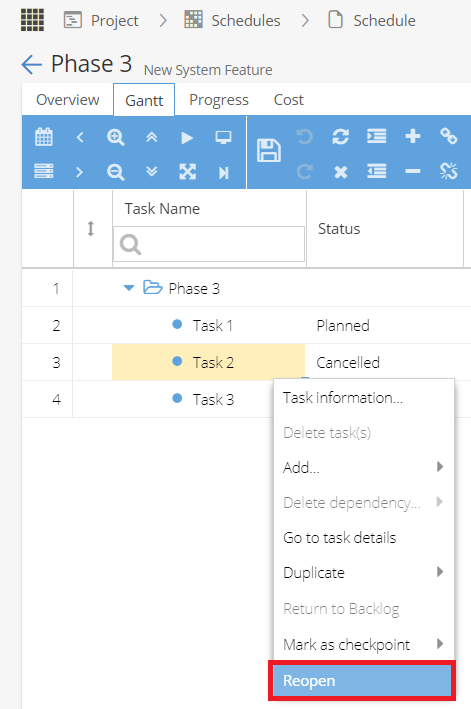
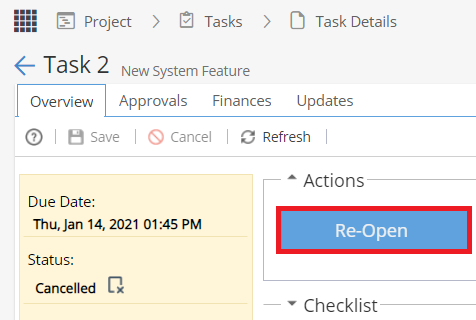
Re-opening a Cancelled Task
If cancelled, you can re-open a Task from right clicking and selecting to Re-open the Task from the Gantt view (click Save to keep the changes), or selecting to Re-open the Task using the button on the Task Details screen.