How do I check if a Resource's assignment is expired?
Check the Project > Project Home > Team tab.
Change the drop down on the top right to show Expired Assignments (or All).
How do I extend the assignment for Internal Users?
Go to Resources > Planning
If you can see the Access to Project tab
Search for the Resource's name on the top right
Then use the filter to include expired assignments.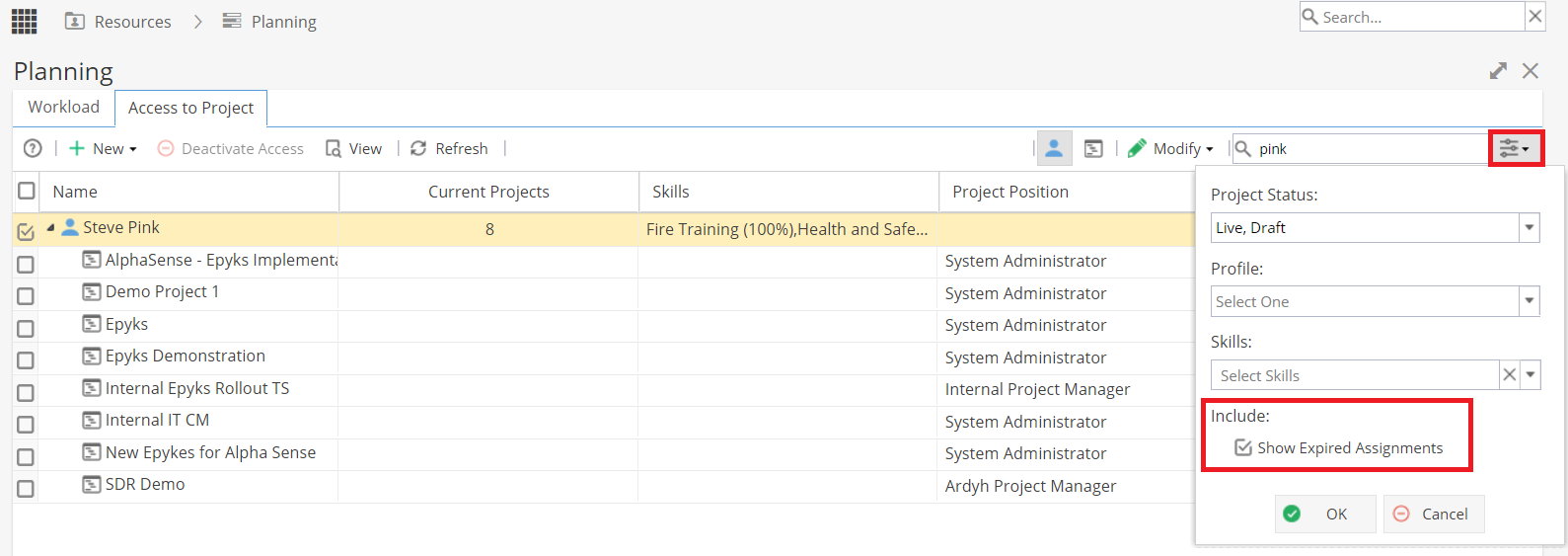
Select a Project which needs to be updated (the row will highlight yellow).
Click on the Modify button
Tick the check box to the left of the Finish Date
Use the calendar icon to select a new date
Click Save.
(If you go back to the Project you may need to Refresh to see the changes)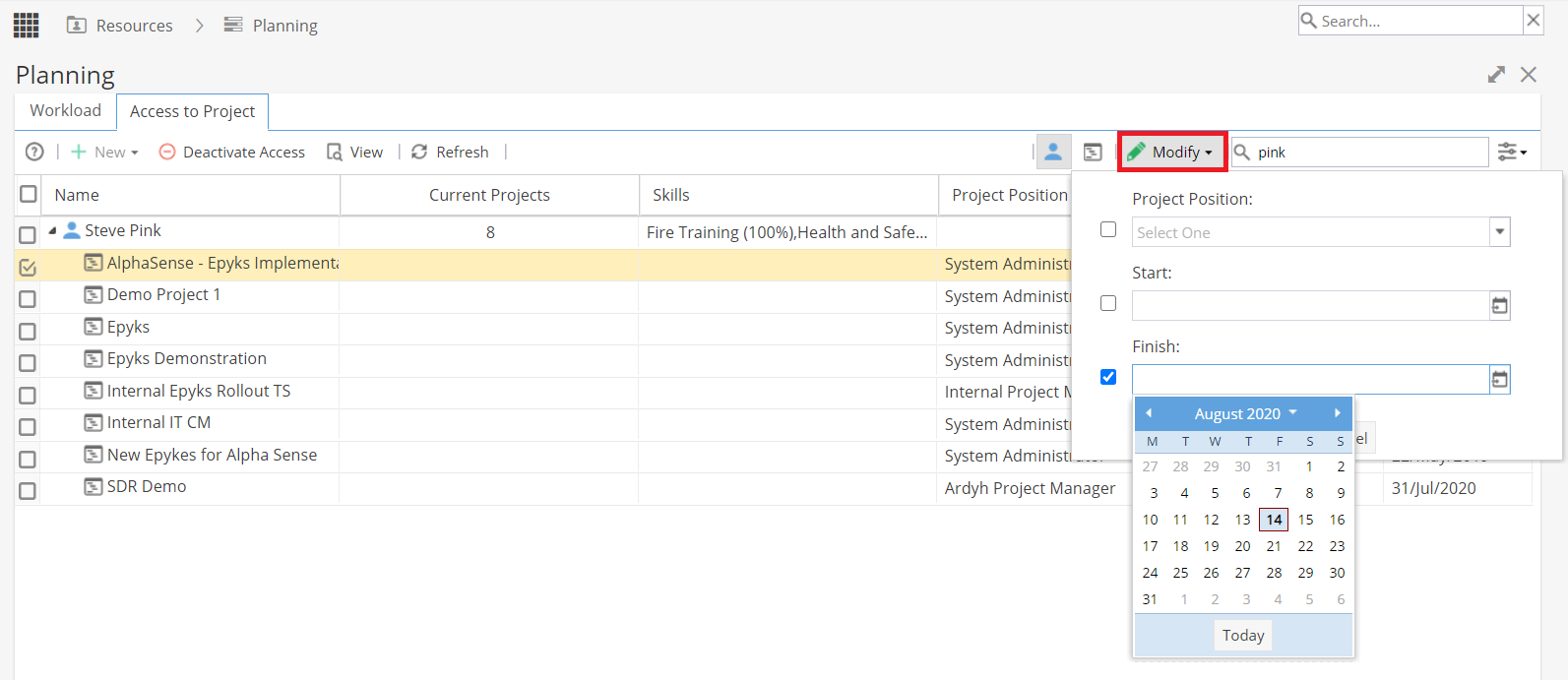
If you go to Resources > Planning and see the Scheduling tab.
Find the Resource in the list and change the date range until you can see the expired project.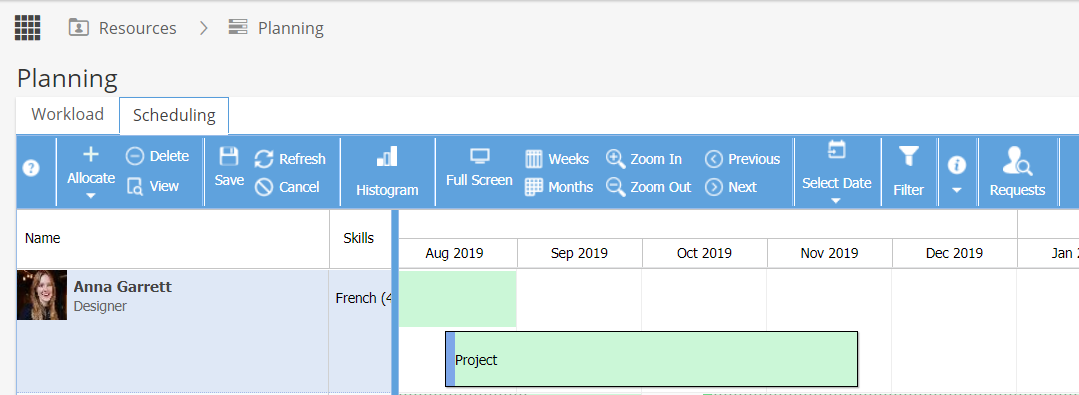
Double click on the Project and update the End Date.
Click OK.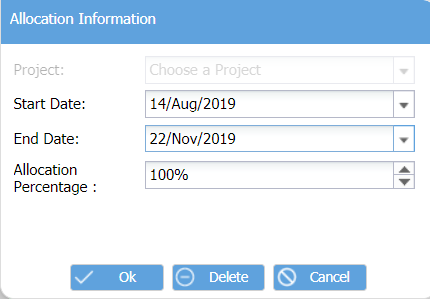
Remember to click the Save icon on the top left to keep the changes.
(If you go back to the Project you may need to Refresh to see the changes)
How do I extend the assignment for External Users
External Users can be extended directly from the project.
From the Project > Project Home > Team tab
Double click on the Resource's Name.
This will take you to the User's General Information screen.
Scroll down to the Project Info section.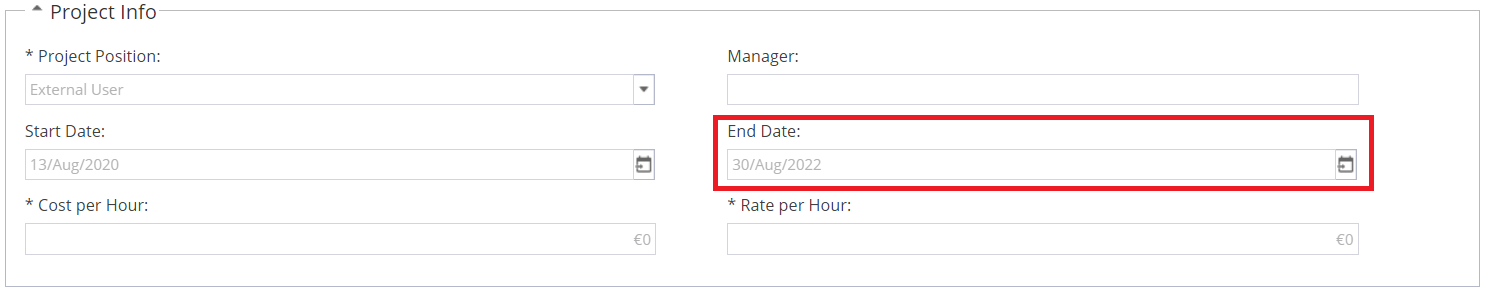
Double click on the date under End Date.
Then use the calendar icon on the right to update to a new date.
Click Save on the top left of the page to save the changes.