Risks are problems which could potentially happen and can be identified, prioritised and mitigated.
In Hydra, Risks show as a different type of Deliverable and rely on having a Process (Task) for a user to complete.
Best Practice for Blueprint Setup:
Make sure your Blueprint is set up correctly to allow users to complete Risks.
You could have a set list of Risks but the Blueprint should have a process in place to handle a Risk if one gets created.
Create the assets for your company use to handle a risk, this could be a single task or an activity folder with a more defined process as shown in the example below.
Under Knowledge > Blueprint > Assets > Deliverables select Risk and click on Process from the tabs on the right hand side
Click the green + on the far right of Risk
Add an Activity folder or any Tasks you created for managing Risks: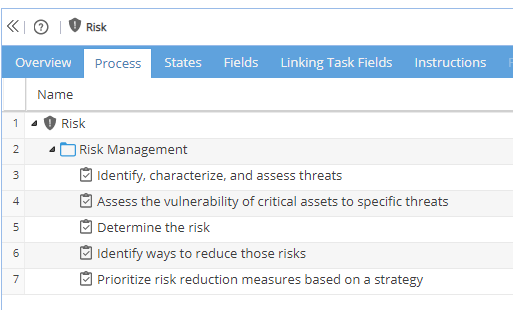
Remember to click Save and Complete on the top right
Clicking on the States tab allows you configure the status which will show, example below: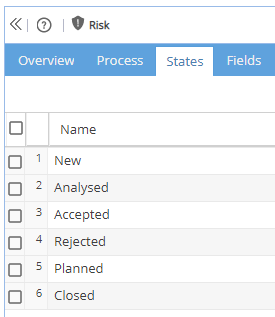
You must make sure the Deliverable for Risks is not showing as Incomplete or Risks can not be logged.

Adding an Existing Risk:
If you have Risks which are common e.g. Resource Availability, you can create these in your Blueprint Template Project so they will automatically exist for every new Project created.
Project > Schedules > Schedule > Gantt tab
Click the box icon to get the Deliverable Manager Panel
Existing Risks will show in the list ready to be planned in to your Schedule: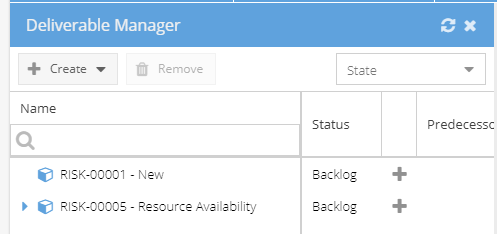
Creating a New Risk:
If you have checked that the Blueprint is set up correctly you can then add Risks to your Project.
Project > Schedules > Schedule > Gantt tab
Click the box icon to get the Deliverable Manager Panel
Click + Create and then Risk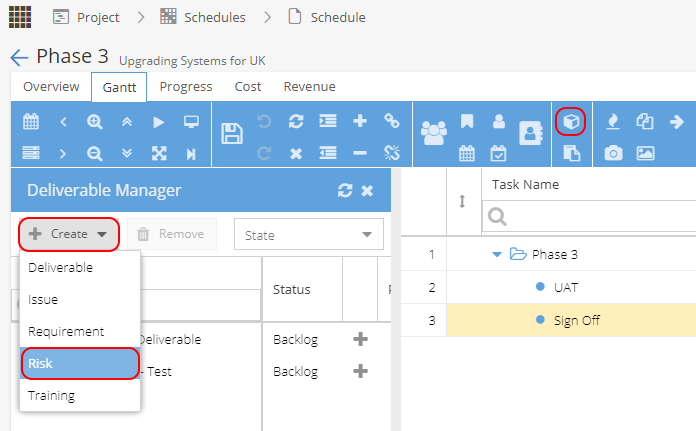
You can change the name of the Risk (but you should be able to expand to see a Process / Tasks)
When you plan the Risk using the grey + you can then assign the Task to a Resource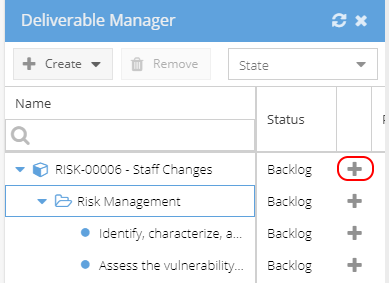
Risks can also be managed / added from the Project > Risks > Risks List screen.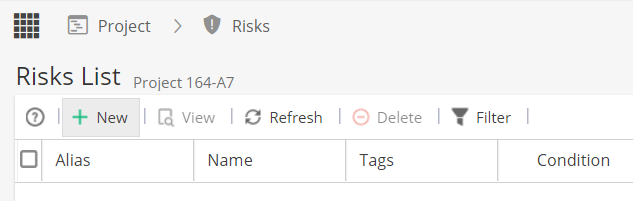
Unable to add a new risk?
If the + New button is missing this would indicate the Blueprint has Risks marked as Incomplete.
Resolving the Risk:
If set up as above, the assigned Resource completes the Task(s).
Once completed or updated the Risk linked to the Task will update too.
The Task will allow the Progress to be updated and will remind you which Risk this relates to.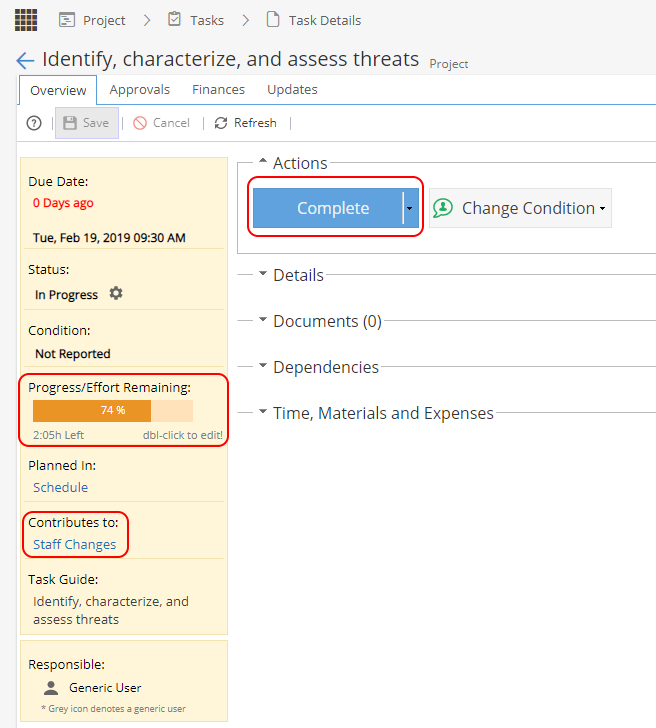
Updating a Risk
Updates to the details of a Risk are made from Project > Risks > Risk Overview
Status of Risks:
From Project > Risks> Risks List
The Status column shown here is from the States tab in the Blueprint, so will show as blank if States have not been configured.
If States were not configured you can view the Risk (Project > Risks > Risks > Process tab)
The Process tab Status will show you if In Backlog / Planned / In Progress / Closed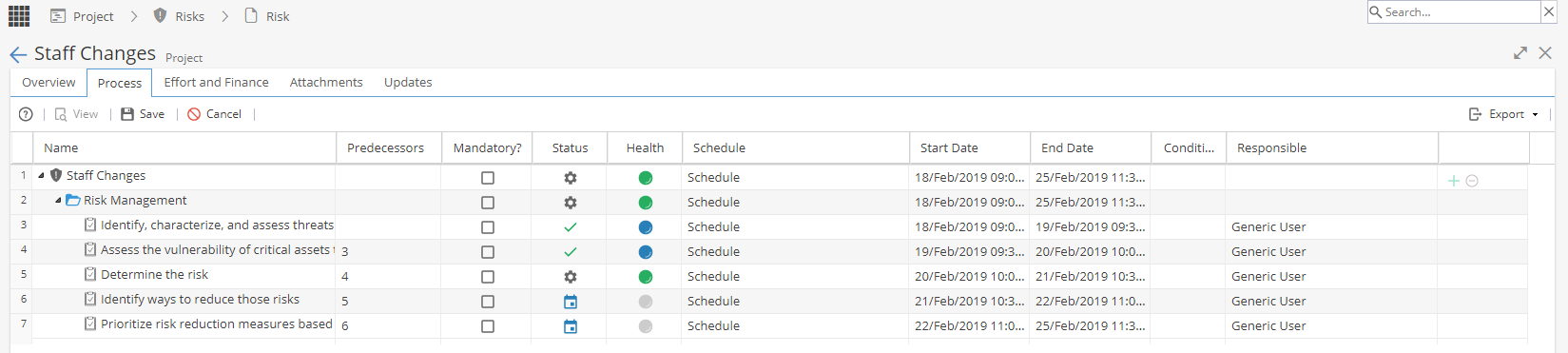
Keeping Track of Risks:
Project > Risks > Risks List
Reports > Project Dashboards > Risks Widget or Tabular View Widget
Reports > Company Dashboards > Tabular View Widget