Project > Schedule > Gantt - Dependencies in the Gantt Chart
In the graphical section of the Gantt, drag the end of one Task to the start of another: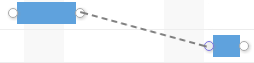
Add the Predecessor column to your Gantt chart
Find the column to the far right which will say "Add new column..."
Use the drop down option or start typing to find Predecessors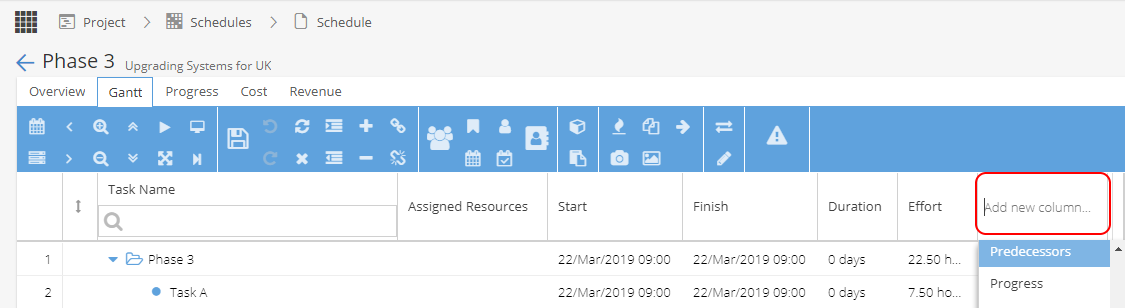
If you want to make sure this column stays included in your view remember to click this option to keep the columns as default: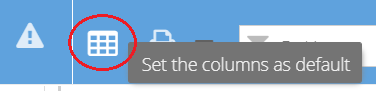
Once you have the predecessor column, you link tasks by using the row numbers on the far left.
You can also select more than one Task and use the Link button  to create dependencies.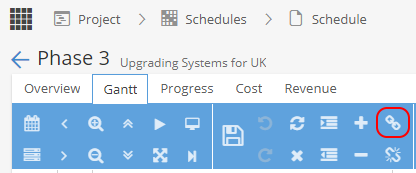
Project > Schedule > Gantt > Task Information > Predecessors tab
From the Gantt view, right click on a Task and click Task Information
Select the Predecessors tab and + Add new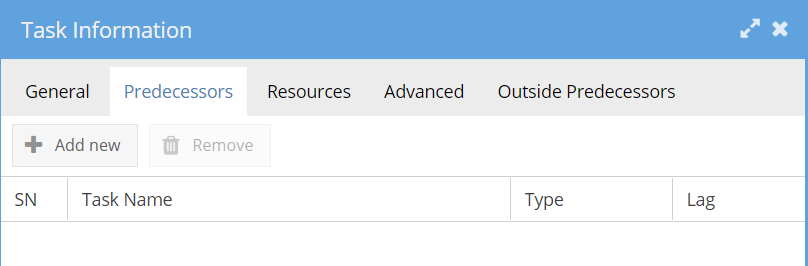
Project > Schedule > Gantt > Task Information > Outside Predecessors
From the Gantt view, right click on a Task and click Task Information
Select the Outside Predecessors tab and + New
This allows you to link to a Task from a different Project / Schedule. 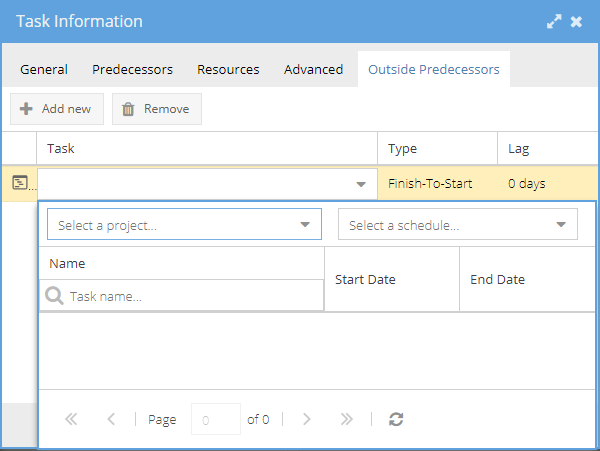
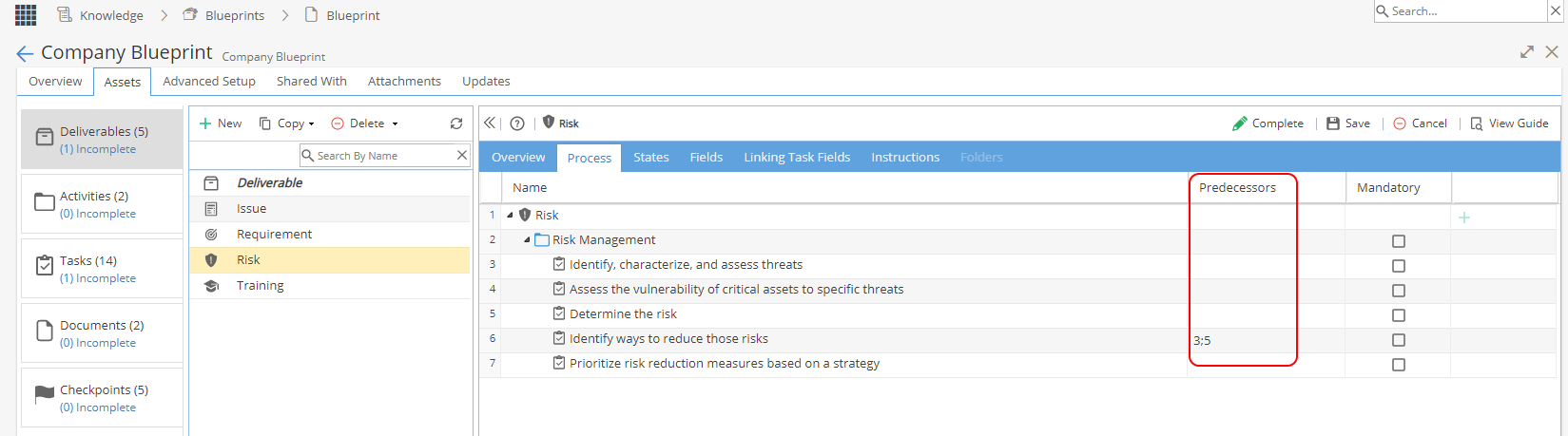
Knowledge > Blueprint > Assets > Activities
When an Activity folder is selected the Process tab will allow predecessors to be added using the row numbers from the left hand side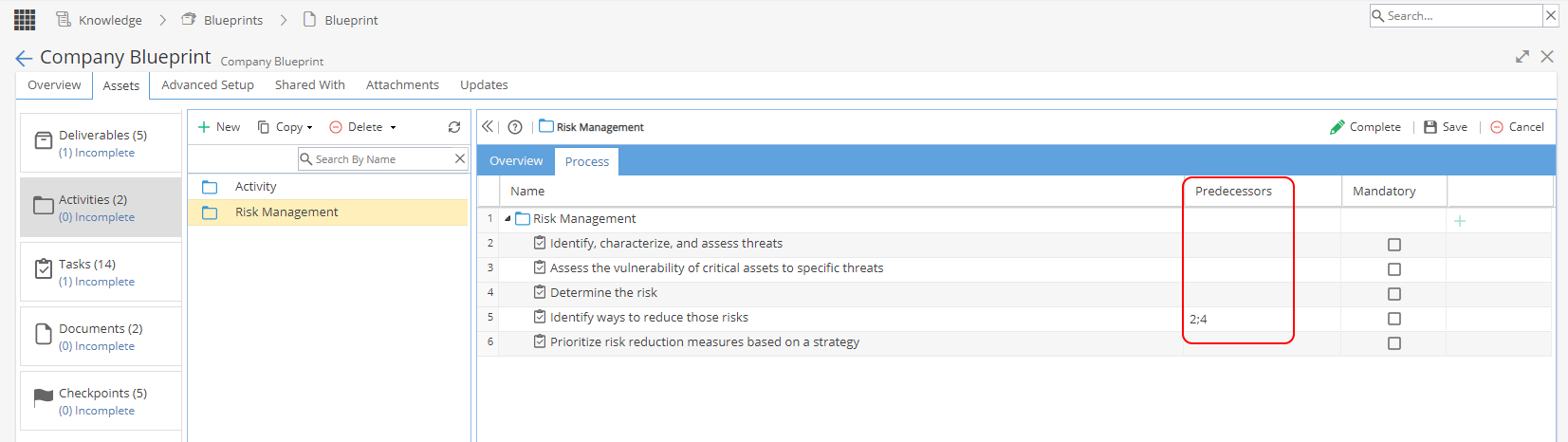
Knowledge > Blueprint > Assets > Deliverables
When an Deliverable is selected the Process tab will allow predecessors to be added using the row numbers from the left hand side