Any changes to the Tasks will be done from the Project > Schedule > Gantt view: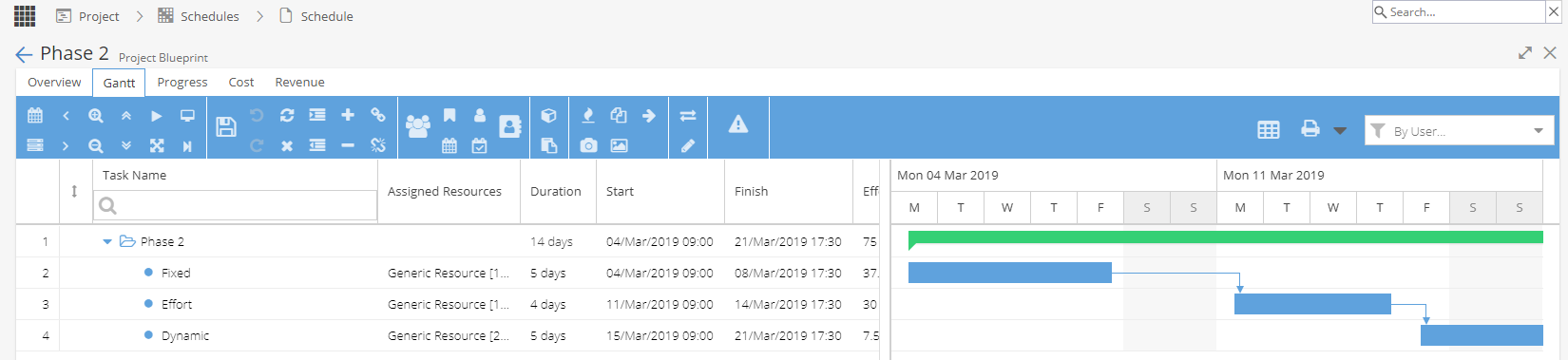
When a change is made to a Task affecting:
- Assigned Resource
- Start / Finish Date
- Duration
- Dependencies (Predecessors / Successors)
The system will review which Tasks have been affected and adjust the dates accordingly.
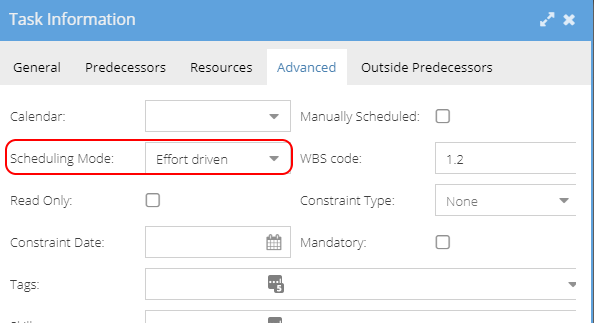
Note: How you edit the task can depend on the scheduling mode
Fixed Duration - Edit Start / Finish Dates and/or Duration
Effort Driven - Change the Start Date and/or # Hours Effort required
Dynamic Assignment - Any combination of Start / Finish / Duration or Effort
Double clicking on Start / Finish / Duration / Effort columns will show a calendar or arrow icon if this is an editable field.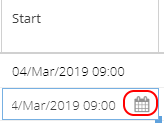
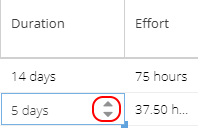
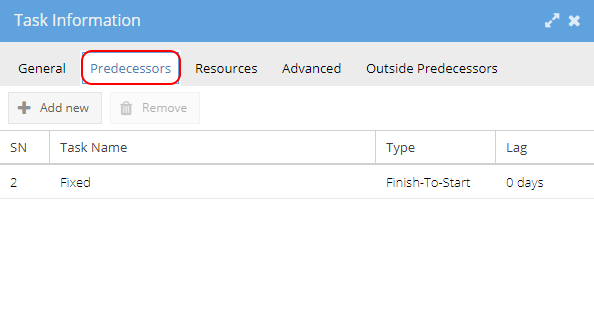
You can also right click on a Task and select Task Information to look at the General / Advanced or Predecessor tabs.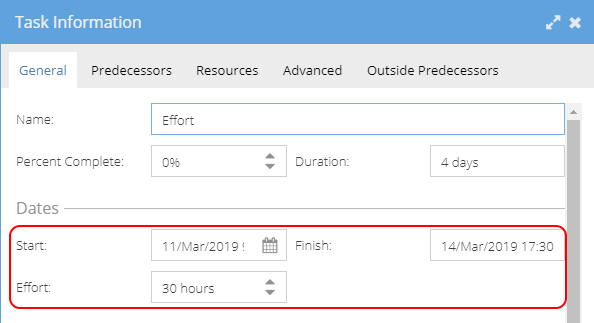
You can tell which fields have changed as a red triangle will show in the top left corner, showing unsaved changes. To keep the changes click the Save icon.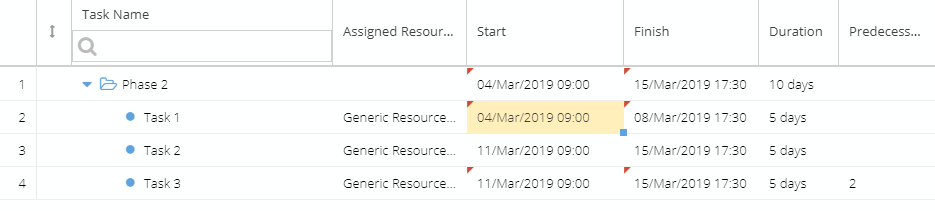
In the above example the start date for Task 1 was updated.
The system has updated the start / finish dates for Task 3 because of a predecessor and the overall Schedule (Phase 2) start / finish dates shown on the top row.
Task 2 was not affected as there is no dependency with Task 1, so this Task will go ahead as originally planned.