This article details how to assign a User to a Task assuming the user has been Loaned to the Project.
To understand the difference between Loaning and Delegation, click here.
There are several ways you can assign a (loaned) user to a task:
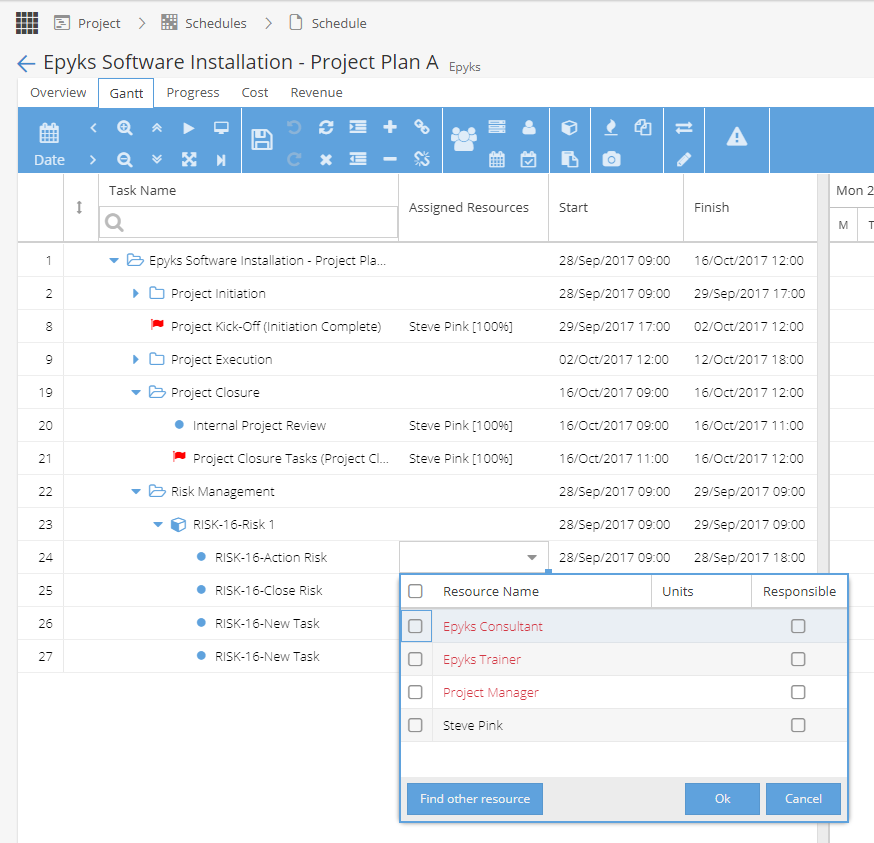
Assigned Resources Column:
- Make sure you have the Assigned Resources column visible
- Triple click the Cell (or double click to enter edit mode, followed by a single click) to open the Resource Drop down
- Select the User(s) using the Check-boxes then click OK
(Users in Red are Generic, Users in Grey are Real users)
Copy Down:
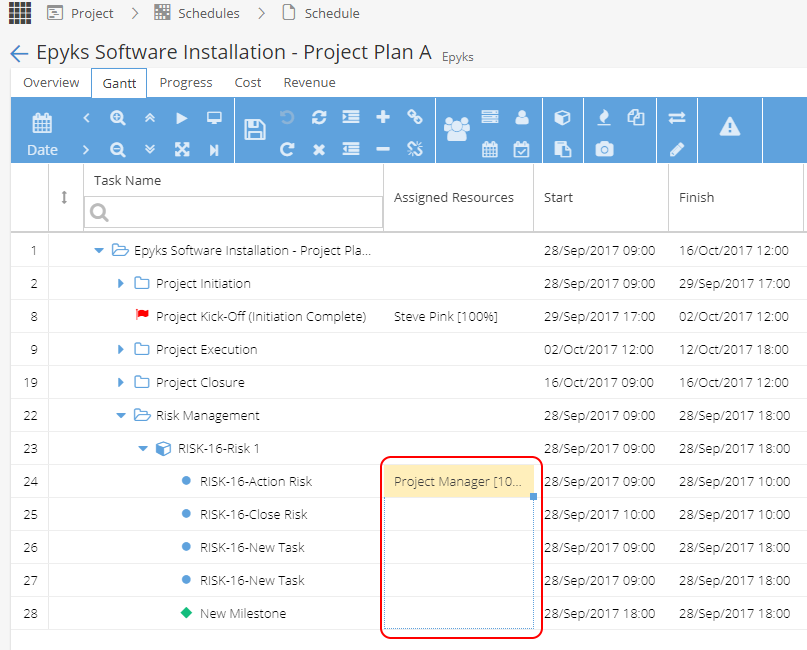
If a User is already assigned to a task, and you would like to copy them down to subsequent tasks you can do this just like you would copy down in Excel.
- Select the cell with the resource you want to copy down
- Click and Drag on the Small Blue square in the Bottom right of the Cell (the cursor will change to a +)
- Drag down as far as required and release to copy that user assignment.
- SAVE!
Replace Resources function:
Use the Replace Resources function to swap out an existing resource (real or generic) for another user.
Task Information:
Users can be added or removed from the Task Information (Resources tab)
Bulk Modify:
Use the Bulk Modify function to edit multiple tasks at once.