The Modify / Update tasks in bulk popup window allows you to modify aspects of multiple tasks at once.
To modify multiple tasks, first select the tasks within the Gantt that you wish to change (Click a row to highlight it yellow, to select multiple rows hold down the CTRL key and click) .
Select the Modify button (pencil icon) from the Gantt toolbar.
You will then be presented with a pop up window to Update tasks in bulk, which will show the General tab as a default:
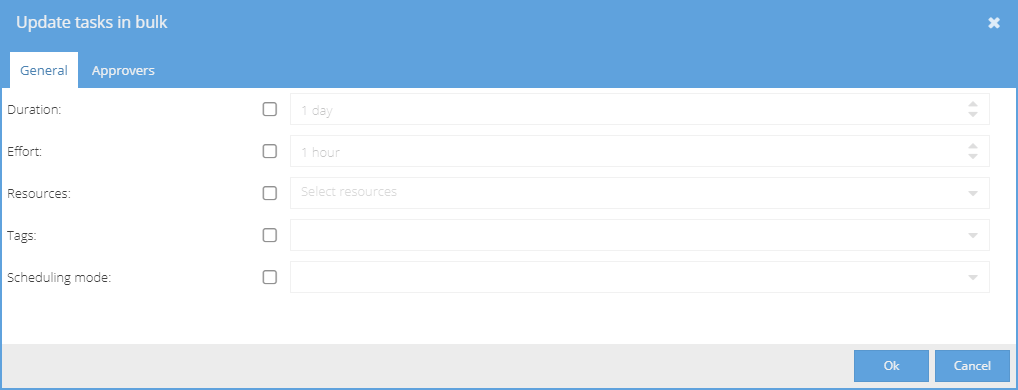
This tab allows you to change the following fields for the selected tasks:
Duration - How long the task(s) are expected to take in days.
Effort - How many hours must be registered to complete the task.
Resources - The resource allocated to the task.
Tags - The tags associated with the task.
Scheduling Mode - Whether the task is Effort driven, Fixed Duration, or Dynamic Assignment.
Once you click OK the system will try to apply the changes - The change in timings may lead to tasks which were not selected also being re-planned.
Any pending changes will be marked with small red triangles - If you are happy with the update remember to Save.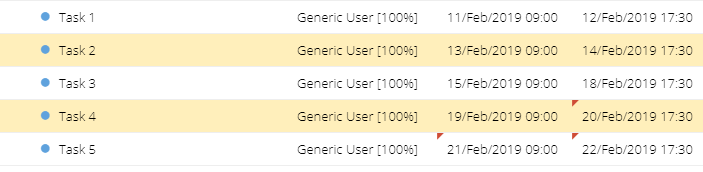
If the system is unable to update a Task with the selected changes you will get a warning. You can try again or update the task individually. If you continue to have difficulty contact the Support team.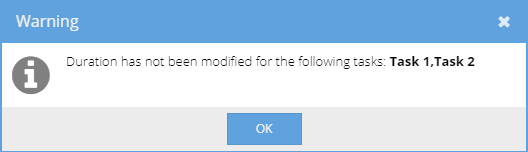
The Approvers tab: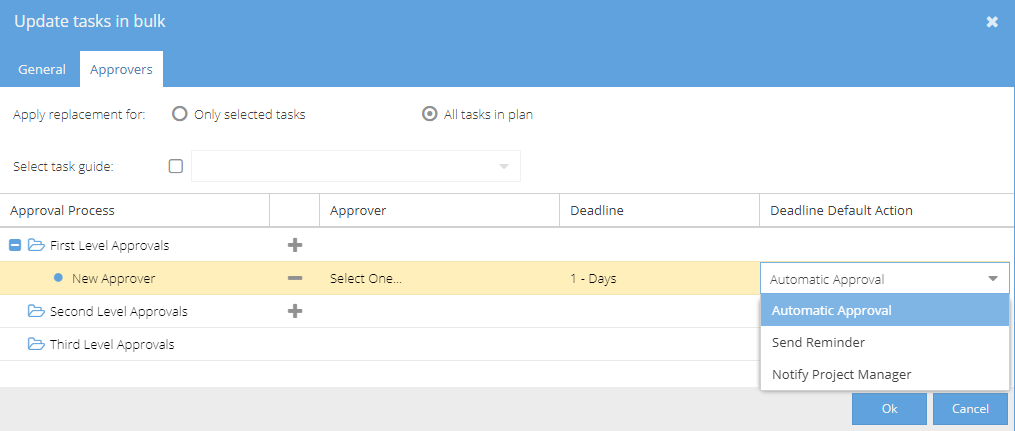
Select if you are updating the Approvers for the tasks selected OR all tasks in the plan.
If you select All tasks in plan, you will have the option to select a task guide from a list of tasks.
The Approval Process can be configured to select an Approver (from the drop down list of users on the Project), define the deadline (a number of Days or Weeks) and set an action for the Deadline.