Blueprints > Advanced Setup > Fields allows you to set up custom fields to hold additional information for your Deliverables, Schedules or Tasks.
This menu will be accessible for both Company and Project Blueprints:
Menu Options
Configuring Custom Fields
Linking Custom Fields
Where are Custom Fields visible?
Why are Custom Fields not showing?
Menu Options
On the top right hand side: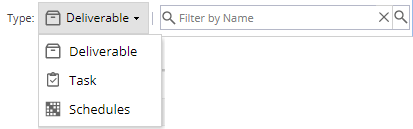
Type - Drop down option to select which type of custom field to display in the list, Deliverable will be the default.
Filter by Name - Searches for any partial match in the Name field (only for the current Type selected).
On the top left hand side:
+ Add - When you add a new Field, remember to check you have selected the correct Type first.
- Delete - This button will only be available when one or more fields have been selected (using the check boxes on the left hand side, the rows will highlight yellow when selected).
Save - To confirm changes when adding, deleting or updating fields.
Refresh - Update any field information currently displayed on the screen.
Cancel - To cancel changes when adding, deleting or updating fields which have not yet been saved.
Configuring New Custom Fields
Double click into the Type field to get a drop down list:
The settings will show a red warning triangle.
Even if the custom field is ticked as visible / mandatory the custom field will not show.
Click on the spanner icon to configure, save the changes and make sure the green tick shows:
e.g Traffic Light Icons
Default settings when first selected:
Options available from + Add:

 The system has Custom Fields created for Risks and Requirements so you will always start off with 5 Custom Fields for Deliverables.
(Risks & Requirements are both found as Deliverables on the Assets tab)
Linking Custom Fields
*This does not apply to Schedules as they will show automatically
Go to Blueprints > Assets > Deliverables or
Blueprints > Assets > Tasks
Select the Deliverable or Task from the middle panel
Go to the Fields tab and Add the Custom Fields required.
You can set from here if the field is Visible and/or Mandatory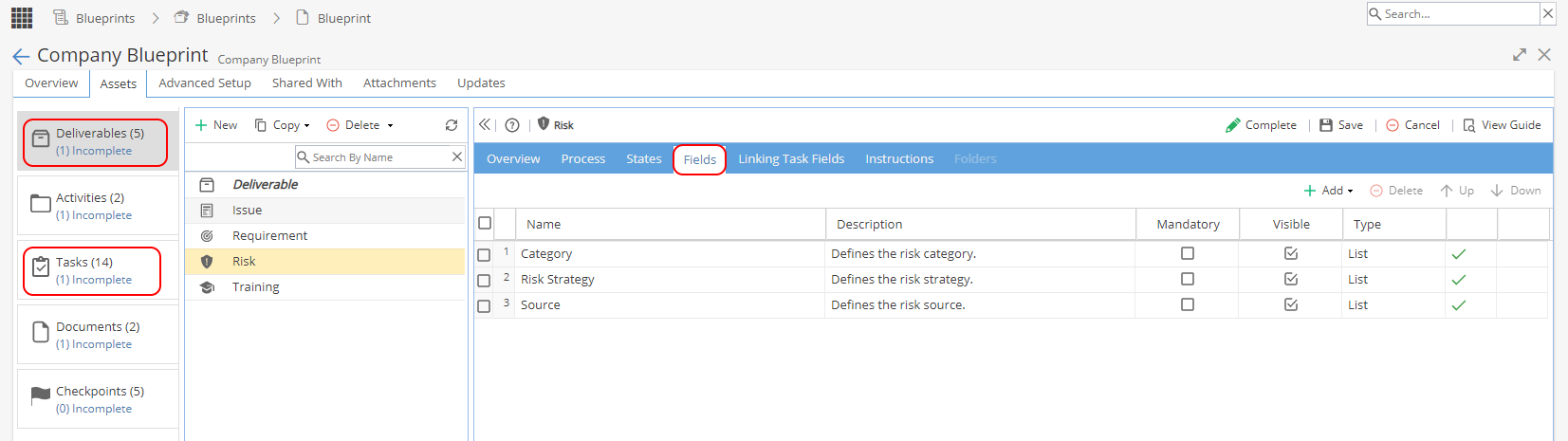
Where are Custom Fields visible?
Custom Fields can also be used for Bulk Uploads
Why are the Custom Fields not showing?
If a Blueprint has custom fields configured and they have been linked to a Task or Deliverable but they are not visible look at:
Project > Admin > Preferences > Deliverable Custom Fields or Task Custom Fields