A Non Project Task is not related to a Project but unlike Admin Times, it needs to be assigned to a User so they can work on a Task e.g. recording time or progress.
Non Project Tasks can be created from two views:
-
From Resources > Planning > Workload tab
Find the name of the Resource using the Search bar on the top right:
Select the Resource from the Name column (the user will highlight yellow)
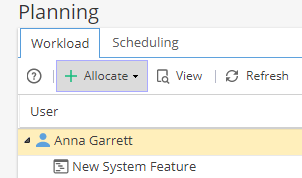
Click + Allocate
Select Non project task
Enter the Task Name, Start Date and Duration (Days)
Click Create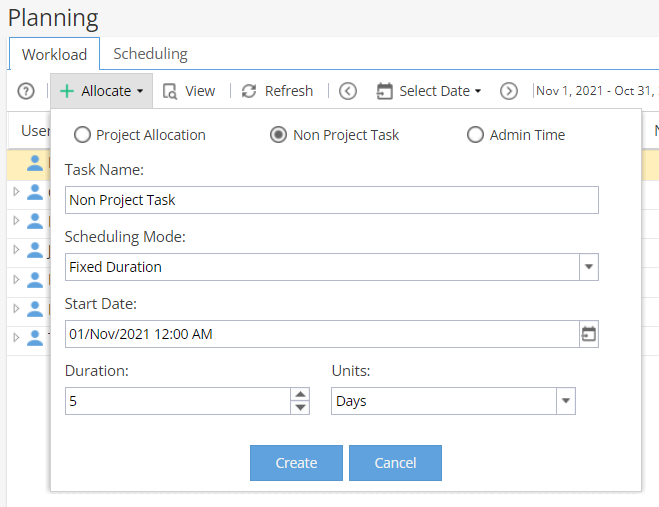
The scheduling mode can either be selected as fixed duration or dynamic assignment.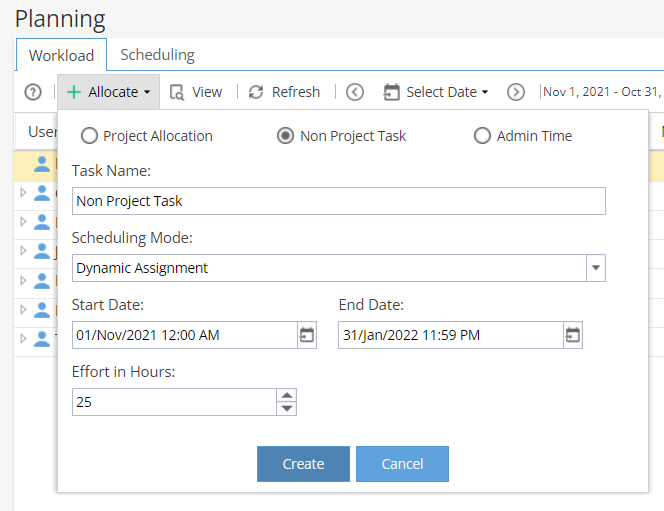
When you click on the arrow to the left of the User you will see the any Non Project Tasks included in the view shown with the Task icon: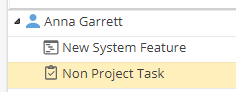
-
From Resources > Planning > Scheduling tab
Find the name of the Resource using the Search bar on the top right:
Select the Resource from the Name column (the row will highlight blue)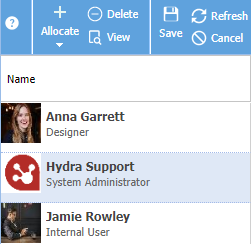
Click + Allocate
Select Non project task
Enter the Task Name, Start Date and Duration
Click Create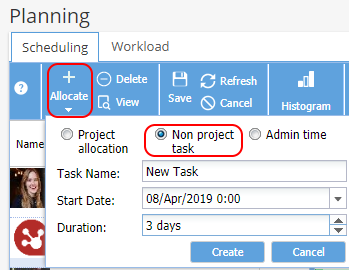
The Non Project Task will now appear in the Scheduling view as an orange box: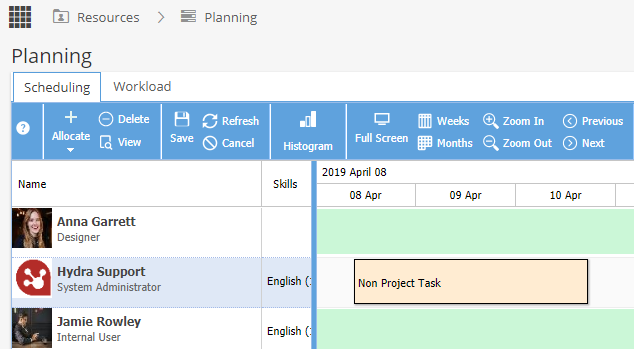
Double click on the Non Project Task to update the Name / Scheduling Mode / Start or End Date, Effort or Duration, add a Description or Delete the Non-Project Task entirely.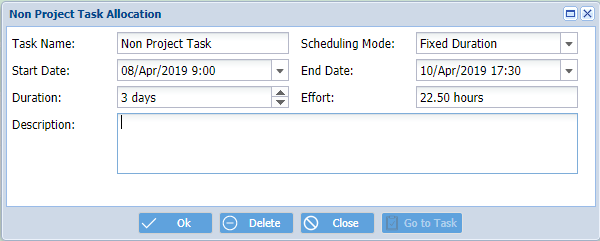
Once created, you can see Non-Project Tasks from Operations > Tasks > Tasks List
or Operations > Tasks > Task Details > Overview
The default Tracking Mode option (if the Resource needs to use Timesheets) for Non Project Tasks is set for the Company under Admin > Configuration > Company Preferences.
You can update the Preferences for a Non Project Task from the Overview screen.