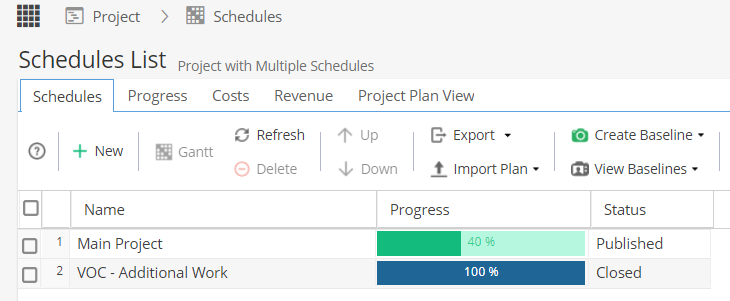
Schedules can be Unpublished (Draft), Published (Live) or Closed.
If you have a Published schedule where all the tasks are completed, the schedule progress will show as 100% but the status will continue to show as Published.
A schedule will normally update to show as Closed once the Project is Closed: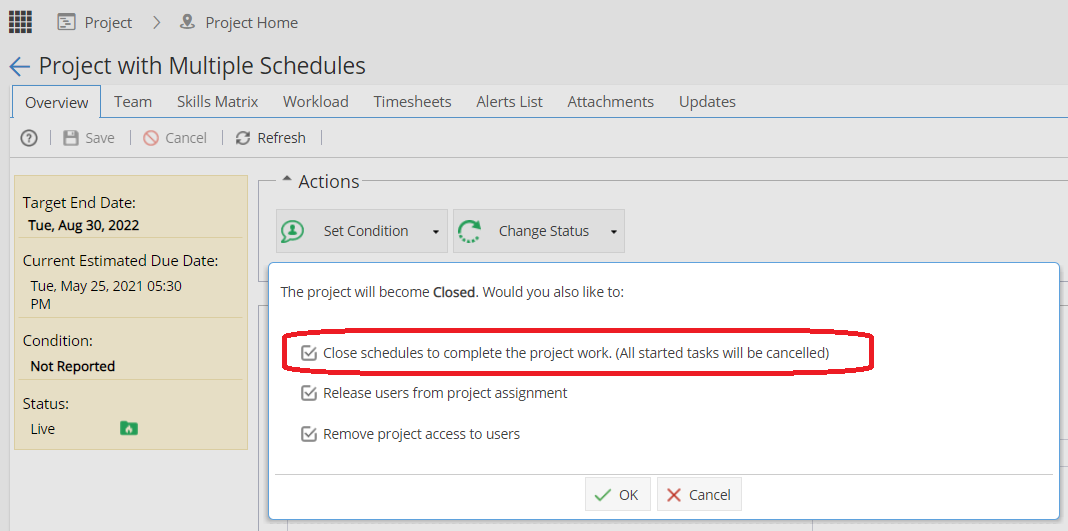
If your project has multiple schedules, you may want to close a schedule manually to make your project easier to manage.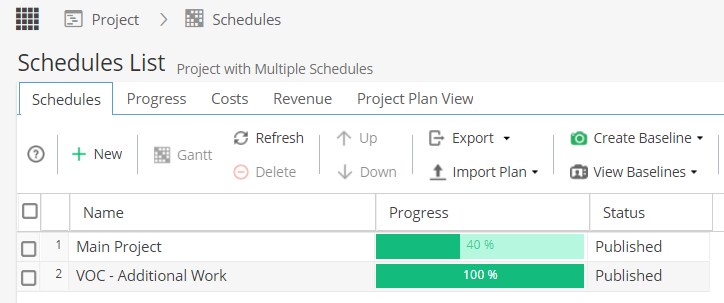
Double click on the Schedule Name and go to the Project > Schedules > Schedule Overview tab.
From here you will have the option to Close Schedule.
Note that you need to confirm you understand any Tasks not completed will be set to Cancelled: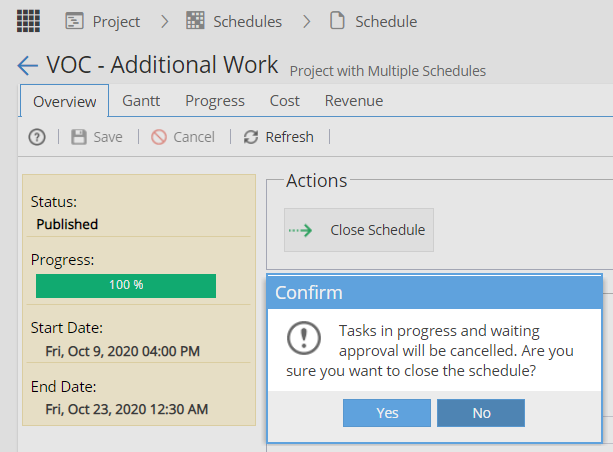
If Closed, the screen will now give you the option to reopen the schedule: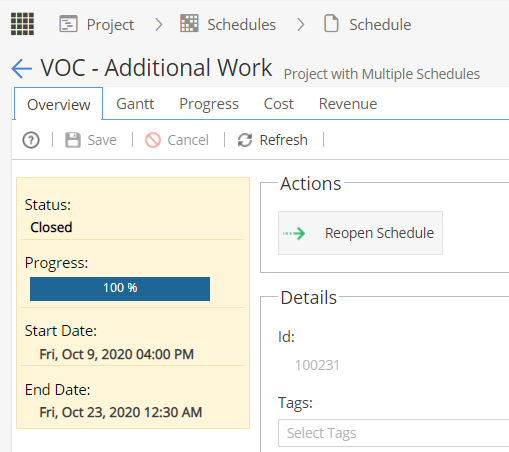
The Schedules List screen will also be updated to reflect this schedule has been Closed (you may need to Refresh to see the update).