When a Project is first created, the status will be Draft, allowing you to update and adjust the schedule, finances and resources before the Project is made Live.
From PMO > Projects > Project Details when you Change Status from Draft to Live you will have the option to Publish Schedule(s) (Note: you must select an option from the drop down):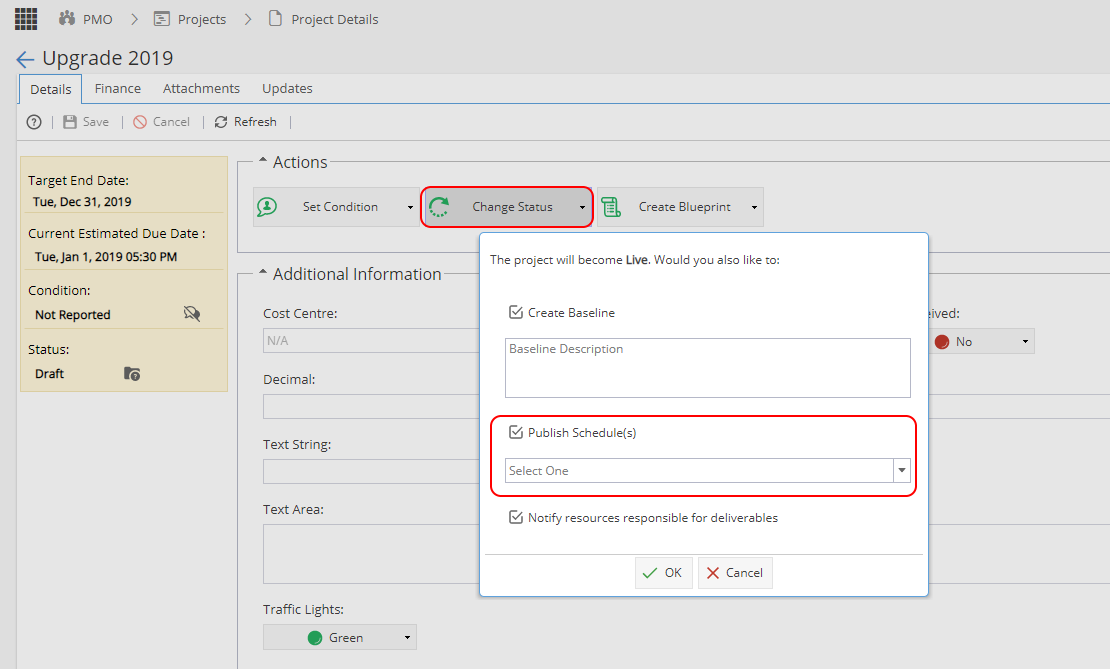
If the Project is already live, you can see if a Schedule is published from Project > Schedules > Schedules List, you can see if the Status is Published or Unpublished on the right hand side:
If the Schedule is unpublished, double click on the Schedule Name and go to the Overview tab.
There will be a button allowing you to Publish the Schedule 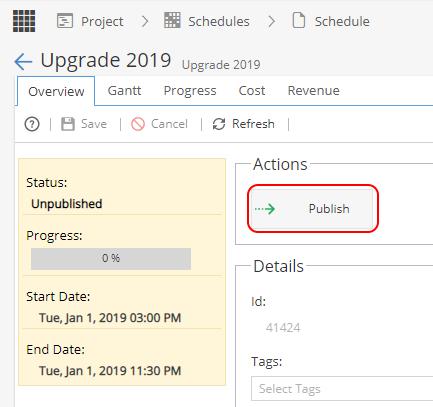
Note: This button will not be available when the Project Status is Draft
On the Project > Schedule > Gantt view you may also see an arrow icon on the toolbar 
Hover your mouse over the button to get the tool tip to show - This will confirm the status the Schedule will change to.
Note: This button will not be available when the Project Status is Draft
When a Schedule is published, Resources assigned to Tasks will receive a notification email which will look similar to this: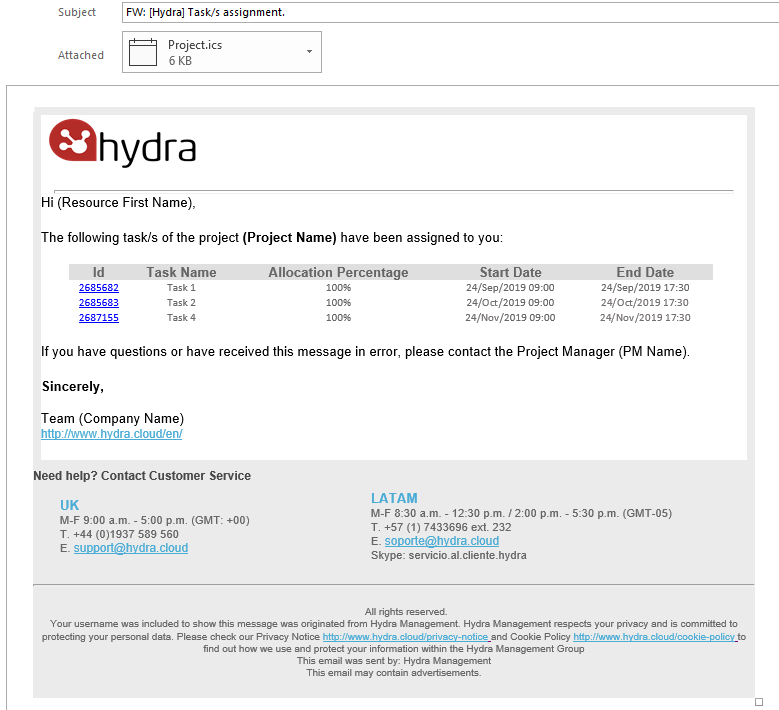
If a Resource is added to any additional tasks in the Schedule later on, they will not receive the scheduling notification email.
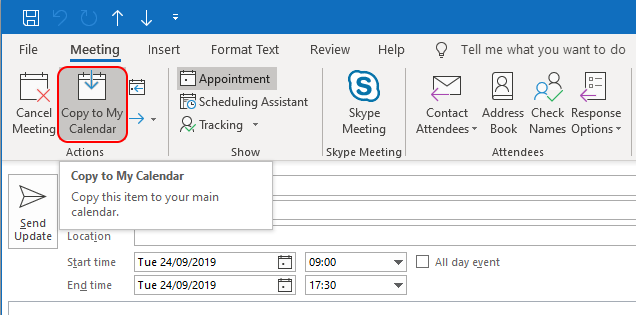
If you use the .ics attachment to add the task entries to your calendar, you may find a separate calendar is created but the entries can be copied over to you main calendar.