Check the Revenue Tracking option set for your Project: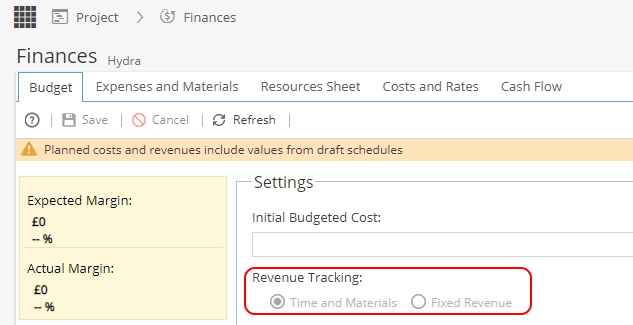
Click the option below to see more about the information displayed on the Budget tab:
-
Margin:
Expected Margin = Actual Expected Revenue - Actual Budgeted Cost
Expected Margin amount / Actual Expected Revenue = %
Actual Margin = Actual Revenue - Actual Cost
Actual Margin amount / Actual Revenue = %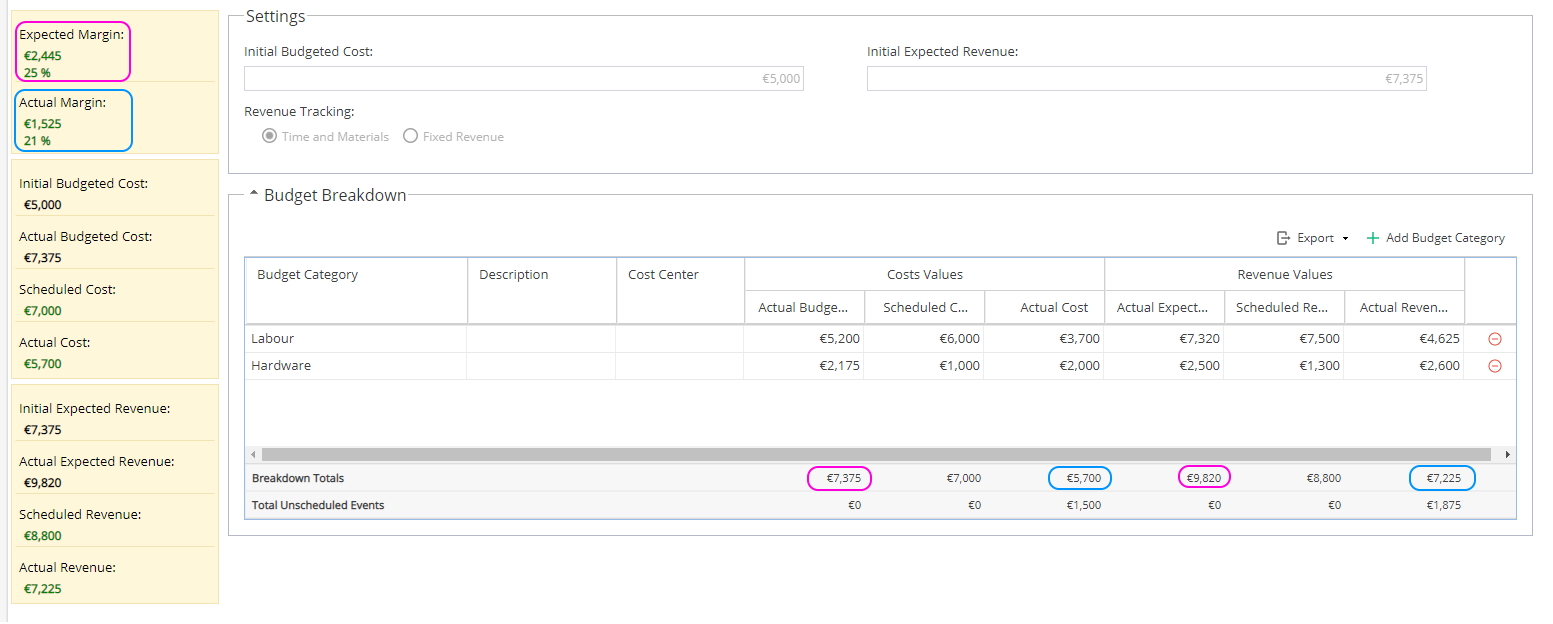
Cost:
Initial Budgeted Cost will come from the box shown, this is manually entered when the Project is first created but can be updated at any time.
Actual Budgeted Cost will come from the Actual Budgeted Cost Breakdown Total.
The Actual Budgeted Cost is manually entered against each Budget Category by double clicking in the cell.
Scheduled Cost is calculated by Hydra using the sum of any Tasks, Expenses or Materials with a planned date.
Actual Cost is calculated by Hydra using the sum of any Tasks, Expenses, Materials or Credit Notes (and Unscheduled Events depending on settings) with actual values. where the cost check box is ticked on the Expenses and Materials tab.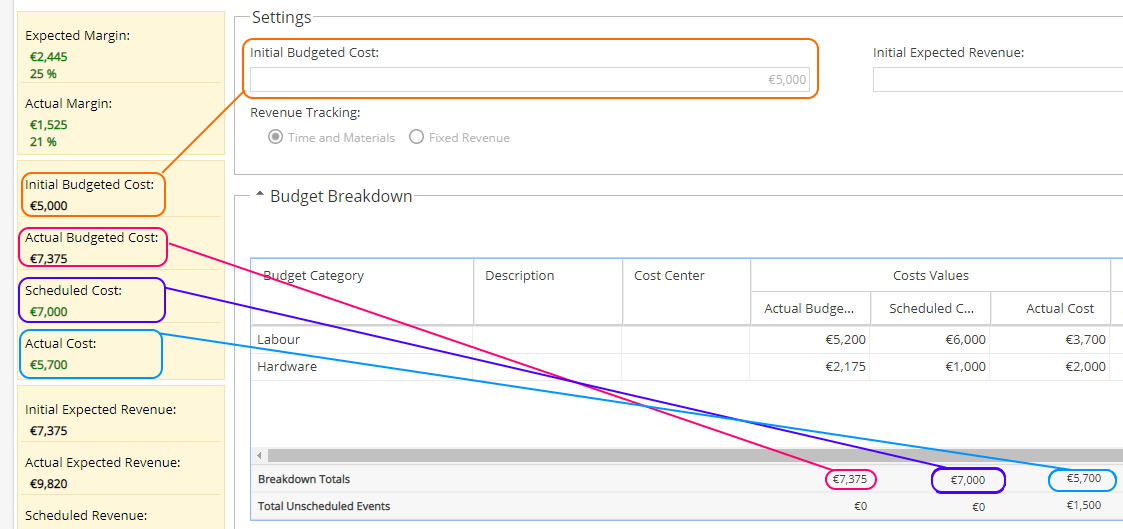
Revenue:
Initial Expected Revenue will come from the box shown, this is manually entered when the Project is first created but can be updated at any time.
Actual Expected Revenue will come from the Actual Expected Cost Breakdown Total.
The Actual Budgeted Cost is manually entered against each Budget Category by double clicking in the cell.
Scheduled Revenue is calculated by Hydra using the sum of any Tasks, Expenses or Materials with a planned date.
Actual Revenue is calculated by Hydra using the sum of any Tasks, Expenses or Materials (and Unscheduled Events depending on settings) with actual values. where the revenue check box is ticked on the Expenses and Materials tab.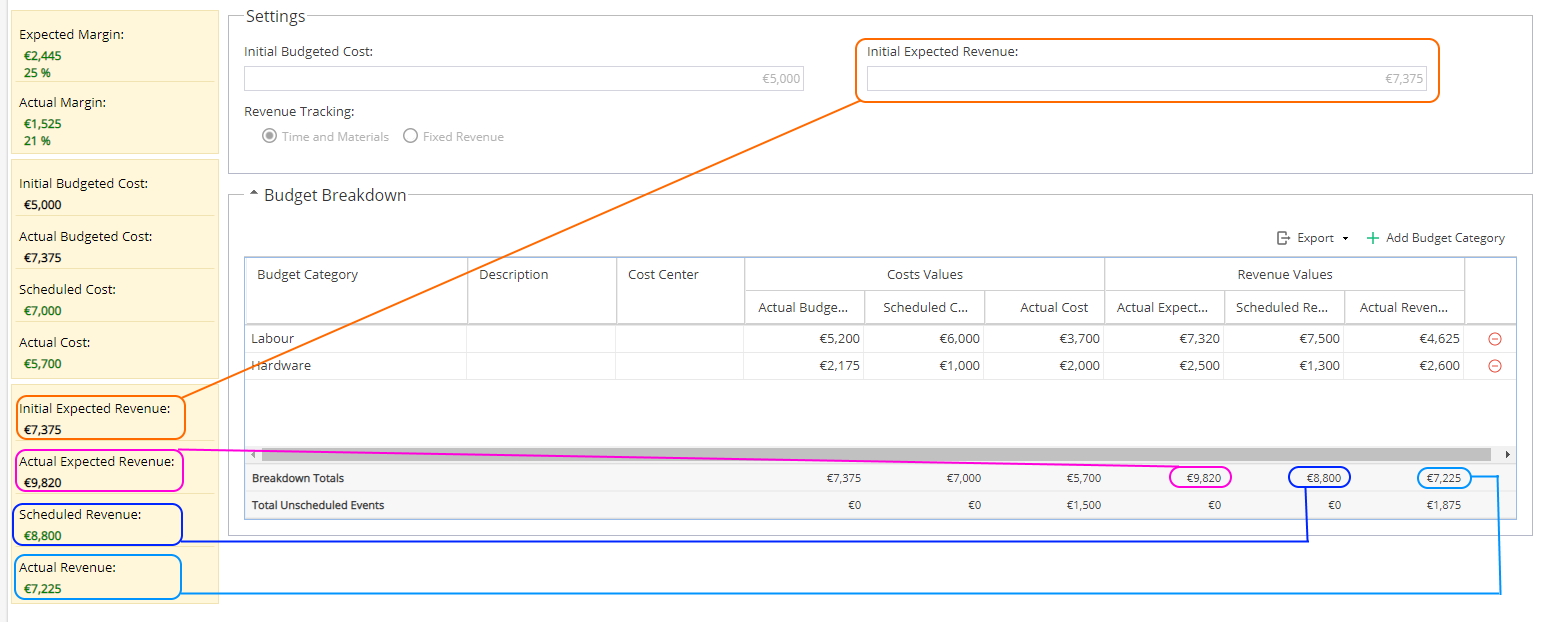
-
Margin:
Expected Margin = Revenue Amount - Actual Budgeted Cost
Expected Margin amount / Actual Expected Revenue = %
Actual Margin will show as -- if Split by Milestone is set to No.
Actual Margin if Split by Milestone is set to Yes
= Actual Revenue - Actual Cost
Actual Margin amount / Actual Revenue = %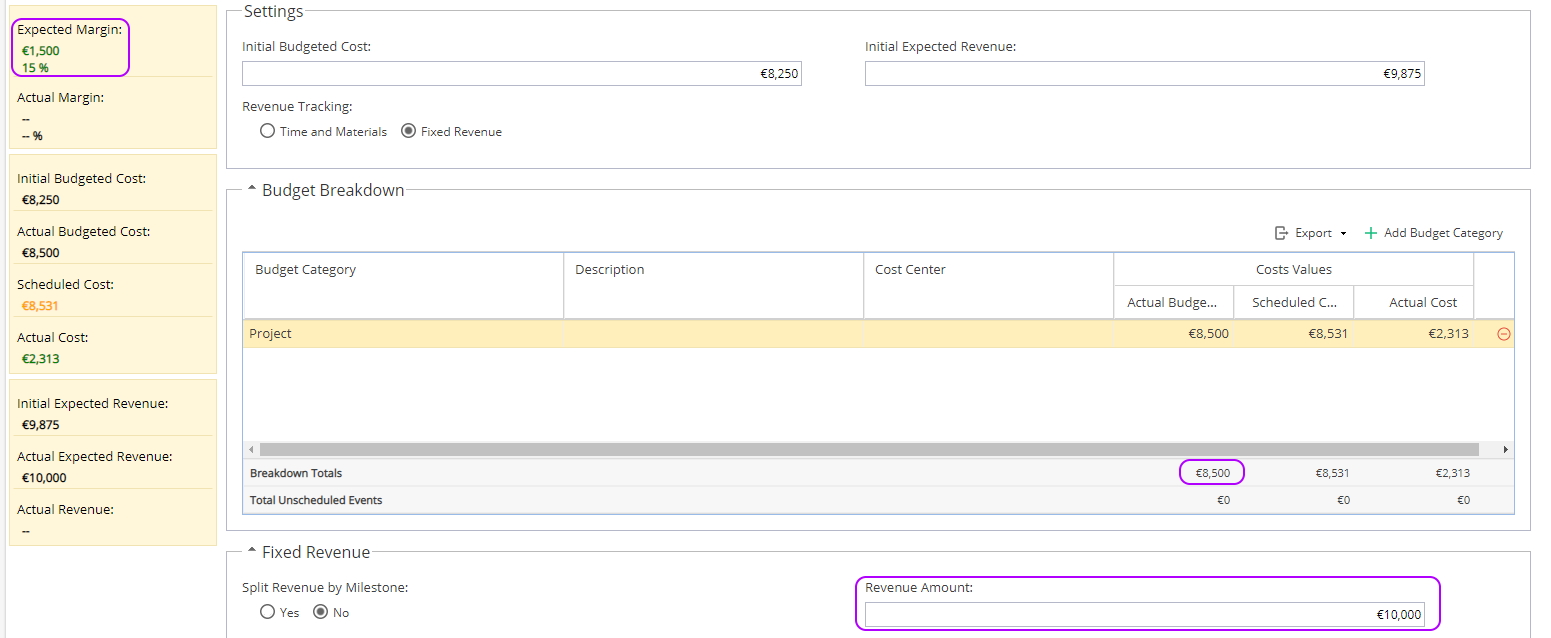
Cost
Initial Budgeted Cost will come from the box shown, this is manually entered when the Project is first created but can be updated at any time.
Actual Budgeted Cost will come from the Actual Budgeted Cost Breakdown Total.
The Actual Budgeted Cost is manually entered against each Budget Category by double clicking in the cell.
Scheduled Cost is calculated by Hydra using the sum of any Tasks, Expenses or Materials with a planned date.
Actual Cost is calculated by Hydra using the sum of any Tasks, Expenses, Materials or Credit Notes (and Unscheduled Events depending on settings) with actual values. where the cost check box is ticked on the Expenses and Materials tab.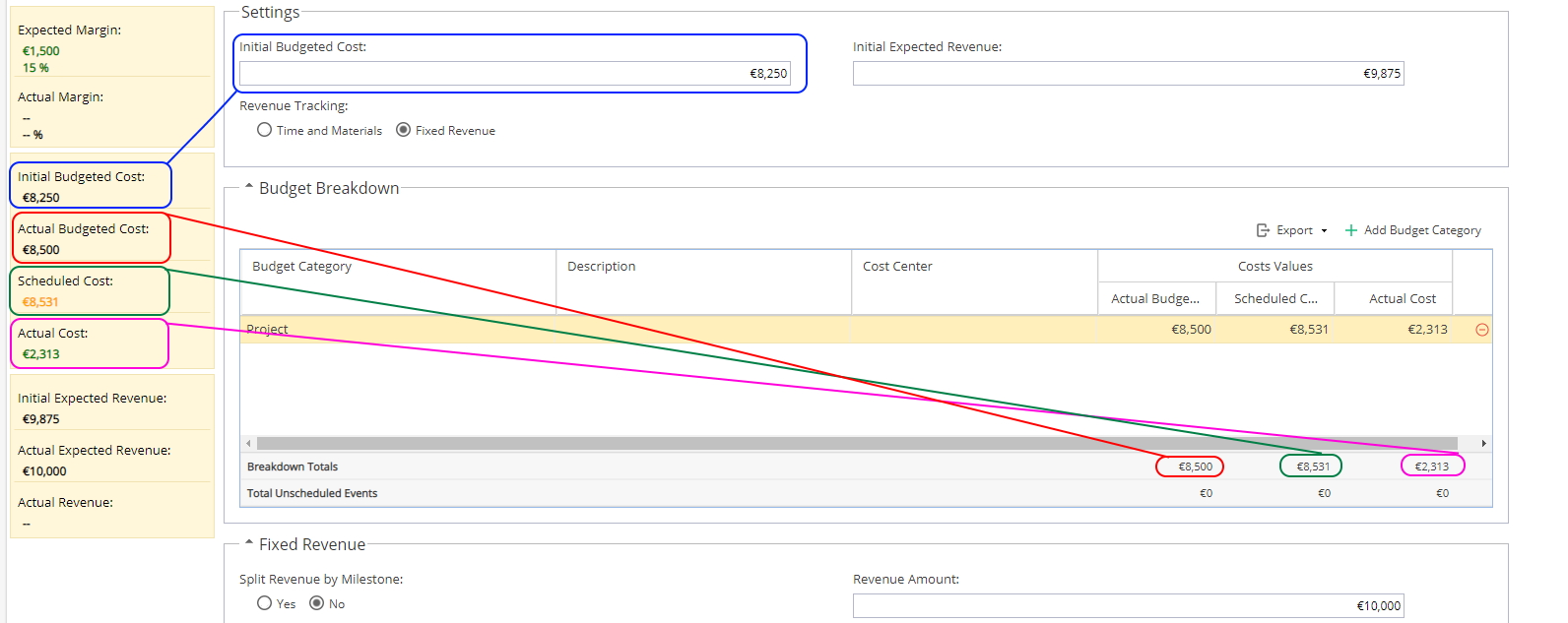
Revenue
Initial Expected Revenue will come from the box shown, this is manually entered when the Project is first created but can be updated at any time.
Split by Milestone set to No
Actual Expected Revenue will come from the Revenue Amount manually entered.
Actual Revenue will always show as --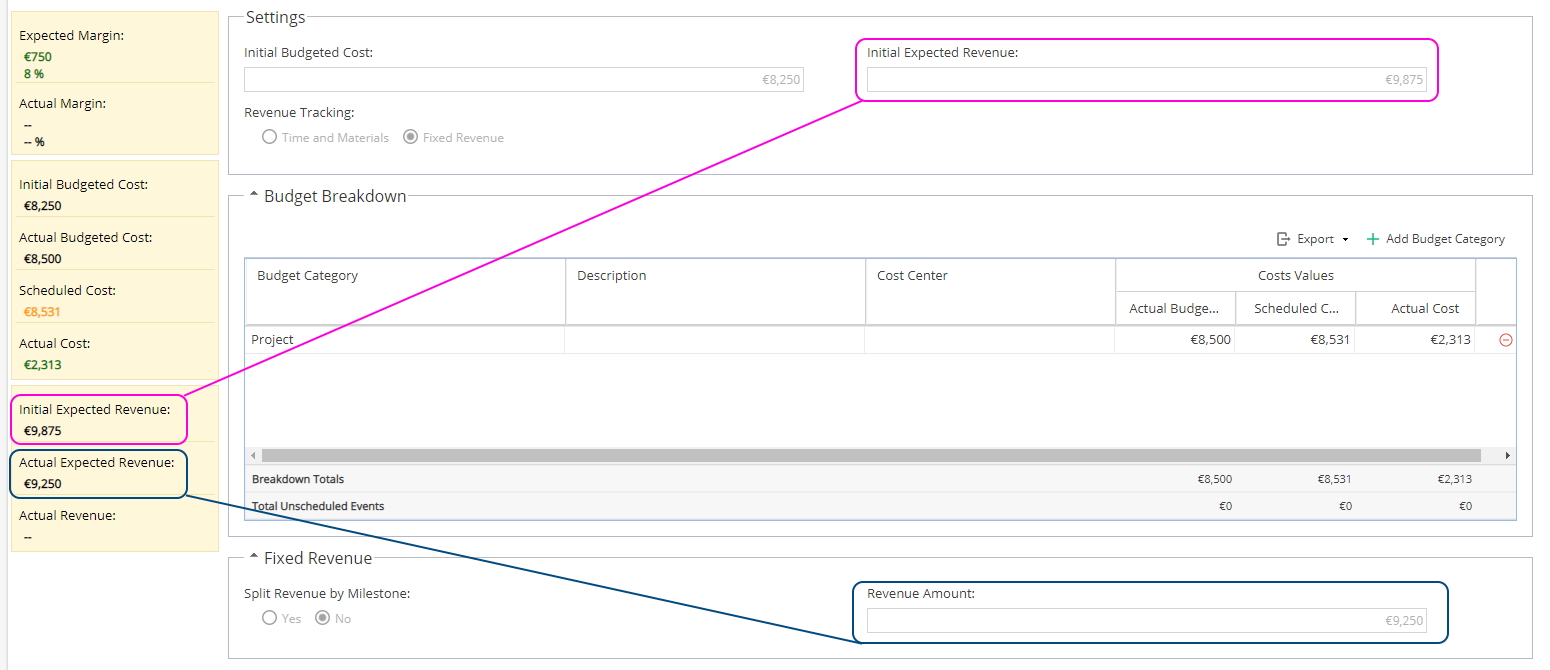
Revenue - Split by Milestone set to Yes
Actual Expected Revenue will come from the Revenue Amount but this box can not be edited manually as it is now based on the Revenue Milestone Total.
Click in the Amount column to edit a Milestone and the Total, Revenue Amount and Actual Expected Revenue boxes will update automatically on Saving.
Actual Revenue will depend if the Show Real Values is set to Yes or No.
If set to No, the system will add together the Milestone Amounts for any Milestones marked as Complete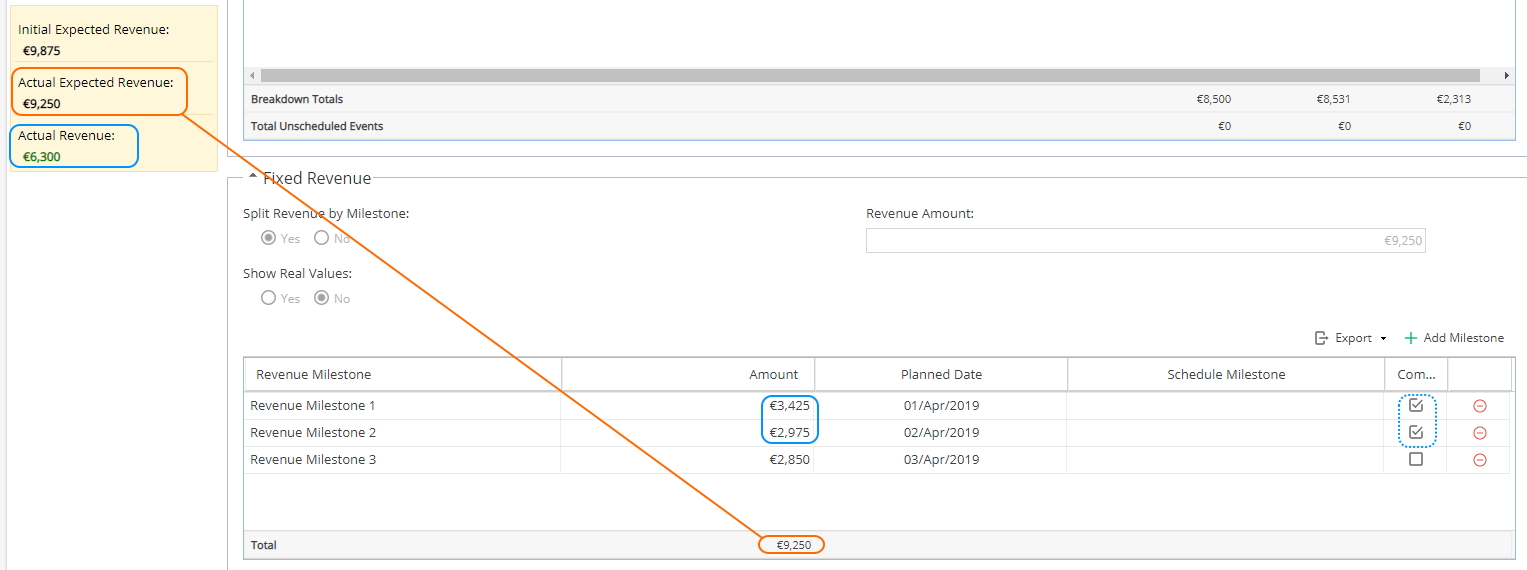
If your Gantt has Milestones (Shown by the green diamond ) you can double click into Schedule Milestones to link them to the Revenue Milestone, this stops the Complete checkbox being available to tick manually and now relies on the Schedule Milestone Task being completed for this to update.
If a credit note has been entered with the revenue option ticked, this will show as a milestone so the values add up correctly.
If Show Real Values is set to Yes, the Revenue Milestones will have additional columns.
Both estimated and Real Revenue values are added manually.
Real Values are only used if the Revenue might be different from the estimate.
The completion tick box is no longer available but you can still use Schedule Milestones.
When a Milestone is completed the Real Date will populate with the Task Completion Date but the Real Revenue amount must be entered manually.
When Show Real Values is set to Yes the Actual Revenue will now reflect the Real Revenue Total figure: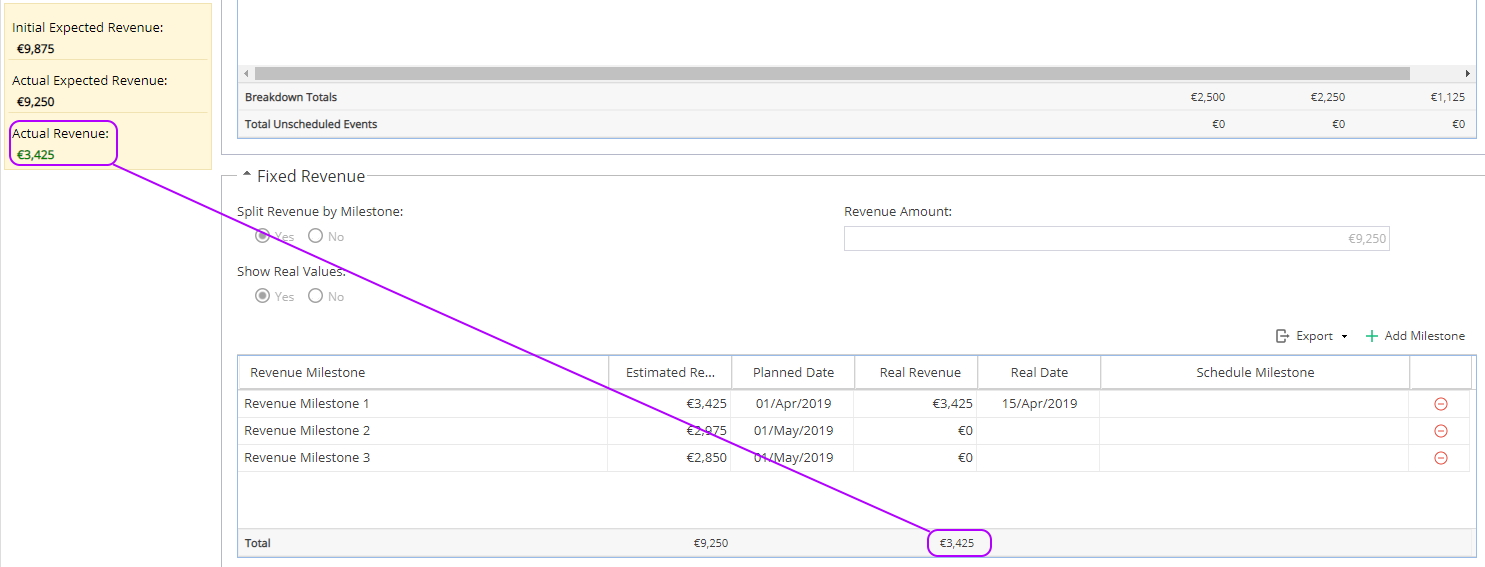
On the top right of the Budget Breakdown section you can Export the table view in your preferred format or Add a Budget Category
Between the Actual Revenue and the delete icon you will see the option to mark a Budget Category as the default option for the Project. This will be the option used on the Resources Sheet.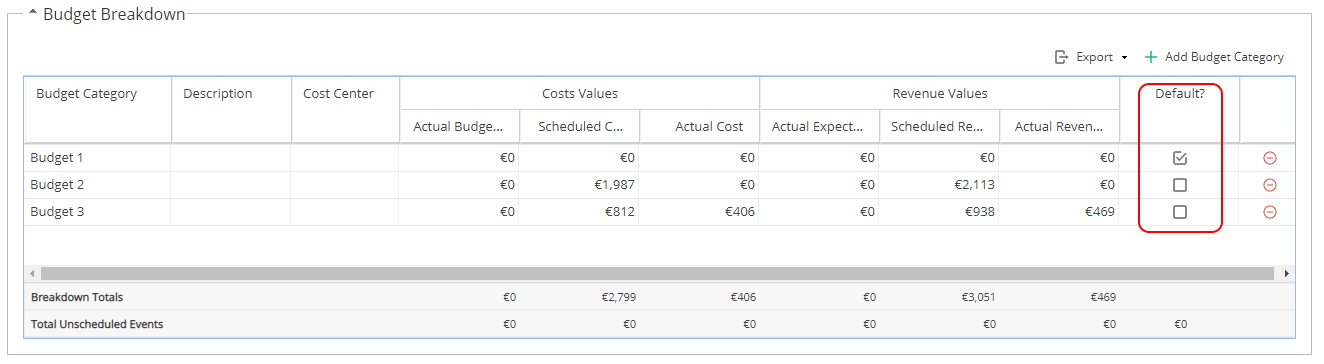
Other settings to consider which affect the calculations:
-
Make sure if using the Resource Sheet and you have different Time Types, your Resources have the Cost & Rates configured for each Time Type option.
For example, if this Resource logs any overtime it will show cost/rate at £0 when it should be higher than Standard!
-
If using the Resources Sheet, the actual/estimates for costs/rates are based on the Task Start Date against the Resources Sheet Valid From Date.
If using Timesheets - you still need to be aware of the Task Start Date. The system does not use the the date time was logged when checking for costs and rate values.
If a Date was incorrect, updating the Resources Sheet Valid From Date and then refreshing the Budget tab will update the values instantly. -
Within Project > Admin > Preferences there are two options you can check:
Unscheduled Events - Sets which options are Active and/or Billable.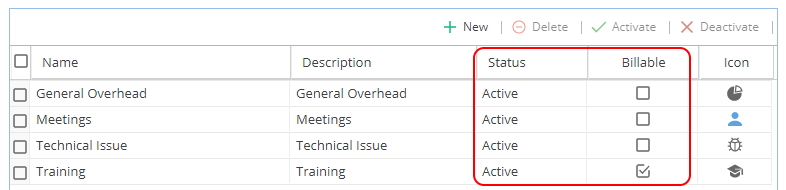
Indicators for Unscheduled Events - Decides if Unscheduled Events should be included (or excluded) for Finances/Costing.
Example of how Budget tab appears if indicator set to No: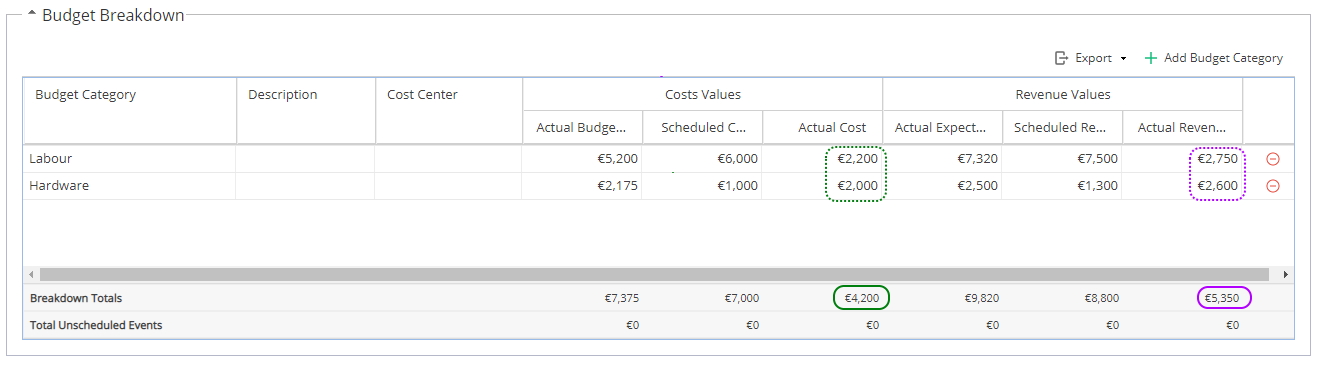
Example how Budget tab appears if indicator set to Yes: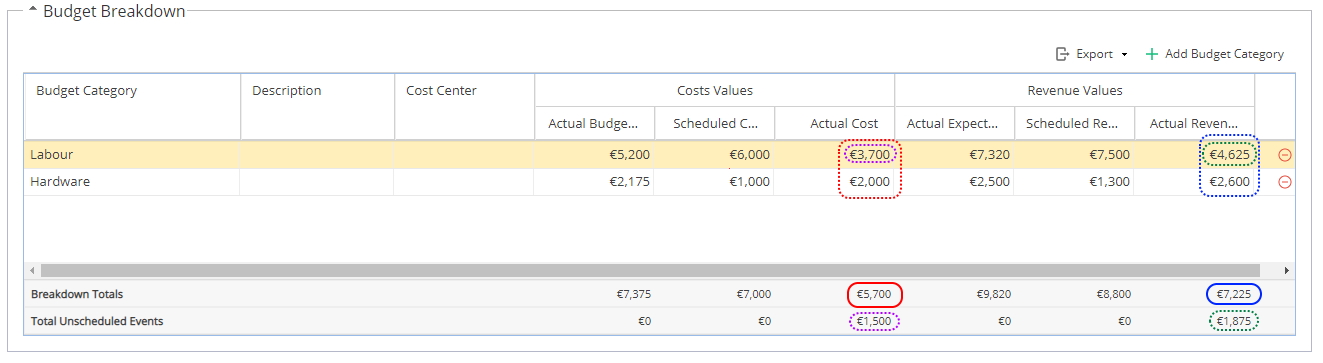
Note: The Actual Cost / Actual Revenue will already include the Total Unscheduled Events shown on the bottom row.
Any time logged against unscheduled events will count towards your Default Budget Category shown on the top row.
The Breakdown Totals already include the Unscheduled Event Actual figures so be sure not to add these two totals together.
Unscheduled Events can not be budgeted or scheduled in advance so these figures will always show as £0. -
If using expenses and materials you need to make sure they are configured with the costs, rates and dates for the values to pull through for the budget calculation.
Check the Resources Sheet
Make sure the Budget Category, Cost, Rate and effective date are as expected:
Check the Expenses and Materials tab
If the Task Name shows as blank as items are being added manually ad hoc (not planned via a Task) the details will need to be filled out as shown below:
Check the Task Overview
If logging Expenses or Materials on the Task make sure your estimated / actual amounts are correctly updated: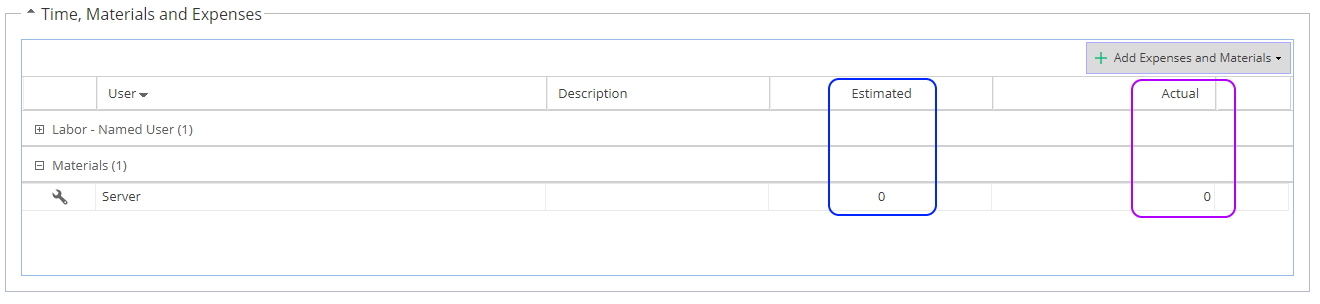
*If you are not sure which Tasks to check, go to the Expenses and Materials tab and look for the column Task Name. -
For each Schedule you have a choice of which costs and rates the system will use to do the calculations:
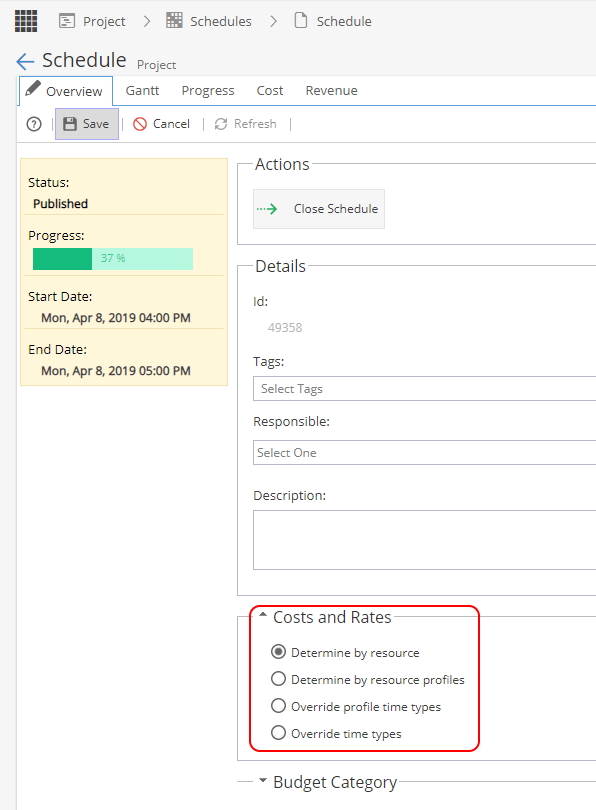
The most common option is "Determine by Resource" which uses the Resources Sheet -
Remember the value entered on the Expenses and Materials tab will be a positive number unless you enter the minus in front e.g -5000
Once entered and saved a negative value will show in brackets e.g. (5000)
The Budget Category is set on the Resources Sheet
Credit Notes will never have a scheduled value, only actuals.
If a credit note is not showing on your budget as expected, go back to the Expenses and Materials tab and scroll across to the right of the page. Check if the revenue box has been checked.