The Expenses & Materials tab within the project shows you details of any materials and expenses that have been added to the project.
This includes items that have been added to the Project, as well as items that have been added against Tasks.

Any Expenses, Material or Credit Notes you wish to add in this area need to be Created in the Resources Sheet prior to being added here.
To Add a new expense. material or credit note to the Project:
- Click Add
- Select the expense or material you wish to add
- Click OK
You can Edit the following details by double clicking in the relevant cell:
- Description
- Estimated Quantity (Materials only)
- Actual Quantity (Materials only)
- Estimated Cost
- Real Cost (If adding a credit note to reduce a value, enter the minus sign - before the value)
- Planned Date (if an expense / material item is not added against a Task)
- Actual Date (if the item is not added against a Task)
Scroll across to the right to update:
- Cost - Tick to select if the value counts against the cost
- Revenue - Tick to select if the value counts against the revenue (billable)
*Note: Budget Category is set on the Resources Sheet
You can also Modify multiple items at once with the Modify Button. Select 2 or more items and click the Button
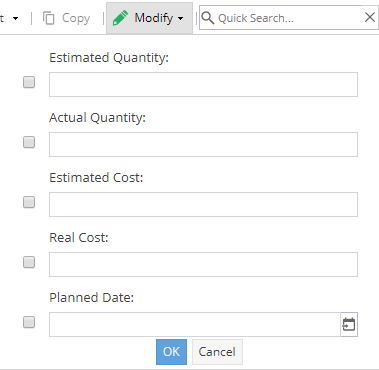
By selecting the Checkbox next to one of the fields and entering a value you will change the value for all items you have selected (if allowed). The Fields you can modify are:
- Estimated Quantity
- Actual Quantity
- Estimated Cost
- Real Cost
- Planned Date
- Actual Date
- Billable (Invoiced)
If you have a single expense, material or credit note selected you can use the Copy Button to make a copy of it.
You can Filter the list of expenses & materials by Name, and by Budget Category using the Filter Button.
You can Export the tabular view that is displayed in CSV, HTML or Excel formats using Export Button.
You can also Search the list by using the Quick Search box.